
If an Administrator has added you to the Proxy list, you can file submissions and complete Campaign assignments in the SpeakUp Hub on behalf of another User, called the Principal.
You work inside the Principal's own view, so you do everything exactly as they would. Refer to What is proxy reporting? to learn how it works.
You can only act on behalf of Users who are on the Principal list. If you are not sure whether you have been set up as a Proxy, ask your Administrator.
Opening the Employee Hub:
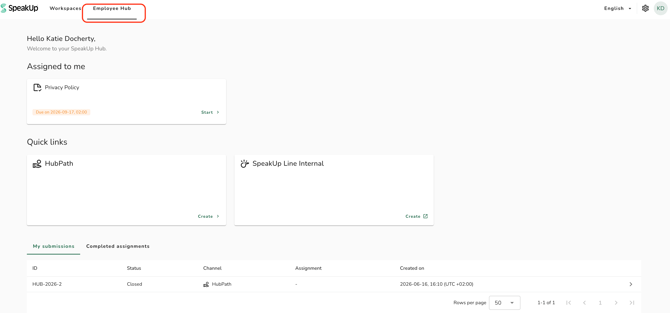
If you only use the SpeakUp Hub, you land in the right place after logging in. If you also work in Workspaces as a case handler, you see two tabs at the top of the screen.
- Click the "Employee Hub" tab to leave Workspaces and enter the hub:
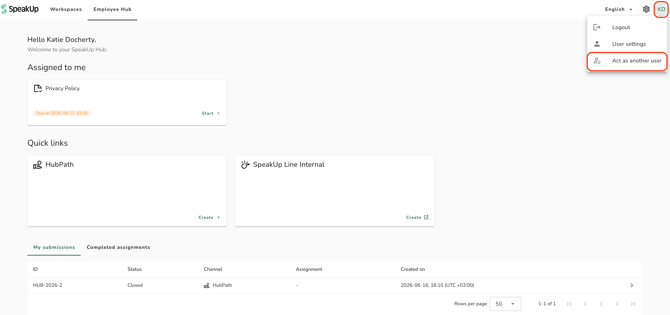
- Click your avatar in the top right corner and select "Act as another user":
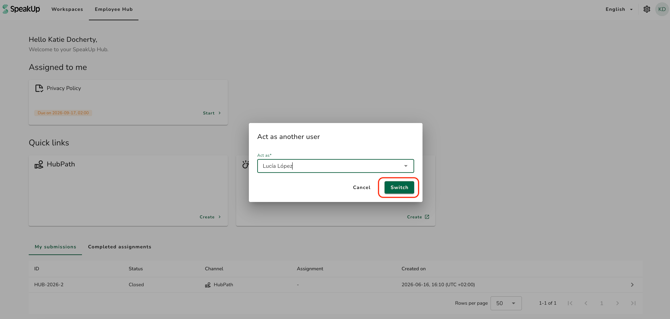
- Select the Principal from the dropdown you want to act for and click "Switch" to confirm. If you see "No users available to select.", there is no Principal set up for you yet. Ask your Administrator to add the person to the Principal list.
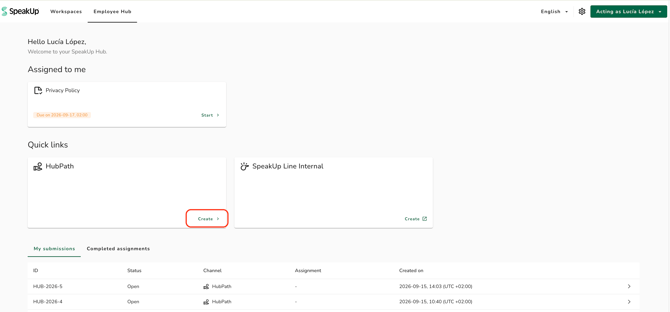
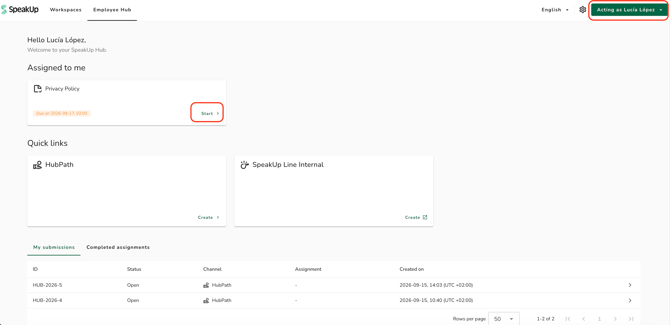
- The hub switches to the Principal's view. Your avatar is replaced by an "Acting as {name}" button, and you see the Channels, tiles, and assignments that Principal has access to:
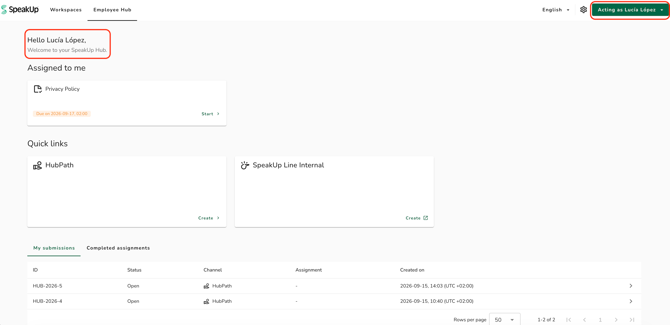
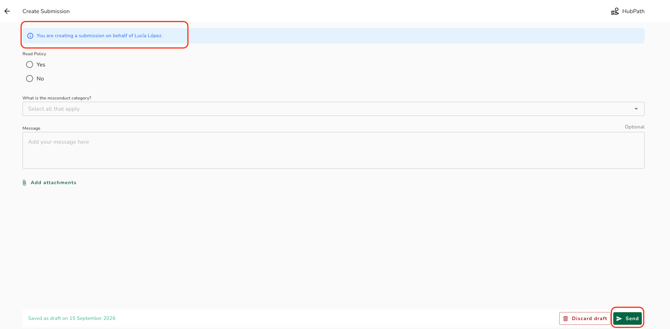
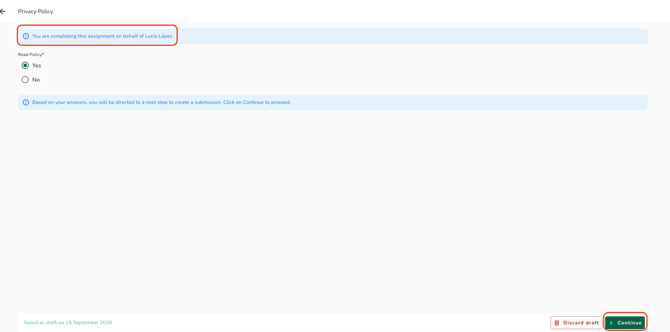
From this point you are acting as the Principal. Anything you file is recorded under their name, with you kept as the "Submitted by" for the audit trail. A banner at the top of each form confirms you are acting on the Principal's behalf.
Filing a submission:
Use this when you want to file an ad hoc report, such as a gift or a conflict of interest.
- On the Channel tile you want to report in, click "Create":
- Fill in the form as the Principal would, then click "send" to submit:
Completing a Campaign assignment:
Use this when the Principal has an assignment to complete, such as an annual disclosure. Their open assignments appear in the Principal's view, so you can pick them up without waiting to be asked.
- Open the Principal's assignment from the hub:
- Work through the assignment on behalf of the Principal:
If an assignment shows "Draft by {name}", someone else has already started it and you cannot open it.
Checking what you filed:
- Open the "My submissions" tab to see the reports you filed, or the "Completed assignments" tab to see the assignments you completed.
- A submission reads "Open" once it has been submitted, or "In draft" if you have not finished it yet:
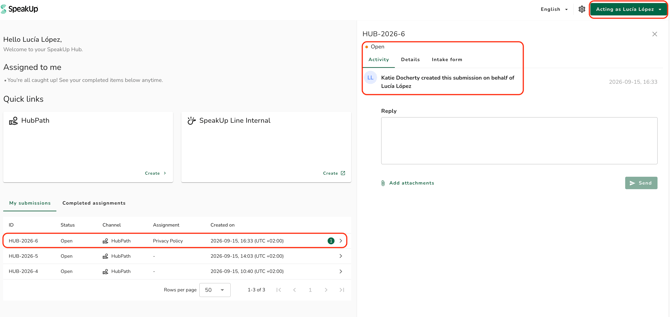
You see only the items you filed yourself for this Principal, not items the Principal or other Proxies filed.
Switching back to your own account:
- Click the "Acting as {name}" button and choose to switch back to your own account:
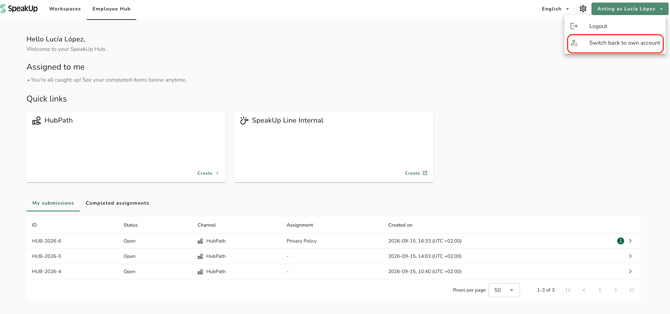
You always return to your own account when you log out or leave the hub, so you never file something as the Principal by accident.
Proxy reporting is part of our SpeakUp Paths offering. If you are interested in knowing more about this package, contact your Customer Success Manager by clicking 'Support' and 'Contact support'