
This feature allows you to apply visual identity across your SpeakUp platform to ensure brand consistency and enhance employee trust and familiarity.
To add custom branding
-
Click the "Settings" icon at the top right corner
-
Go to “System” on the menu and click on “Configuration”
-
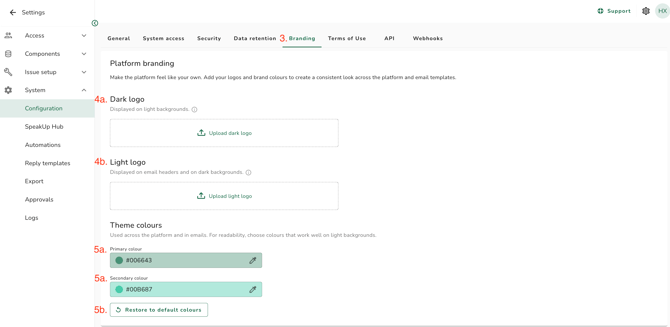
Click on “Branding”
-
Upload logo in PNG or JPEG format. Max file size: 5 MB
-
Dark logo: upload a horizontal logo with a transparent background. Use the black text version for best visibility. The dark logo will appear on light backgrounds where applicable.
-
Light logo: use a white text version with a transparent background. The light logo will appear on dark backgrounds where applicable.
-
To remove the logo, click the “X” icon. Removing it reverts to the default SpeakUp logo.
-
-
Choose theme colours.
-
-
Set primary and secondary colours via the colour picker or by entering HEX or RGB codes. For readability, choose colours that work well on light backgrounds.
-
You can revert to SpeakUp default colours by clicking “Restore to default colours”.
-
Custom branding excludes:
-
Screens confirming removal, deletion, or irreversible actions always use the Error colour, regardless of custom primary colour.
-
When clicking any field (e.g., search, name, email), the box uses the system’s default colour.
-
Pop-up messages (e.g., updating Issue access) appear in the system default colour.
-
Charts exclude custom colours to prevent similar colours from affecting data readability. Existing chart colours remain unchanged.
Custom logos and colours for email templates are under development and will be available soon.