
Report routing lets Reporters choose between leaving a report of misconduct in your SpeakUp system or going to another website to raise a complaint that is not about misconduct.
To setup report routing:
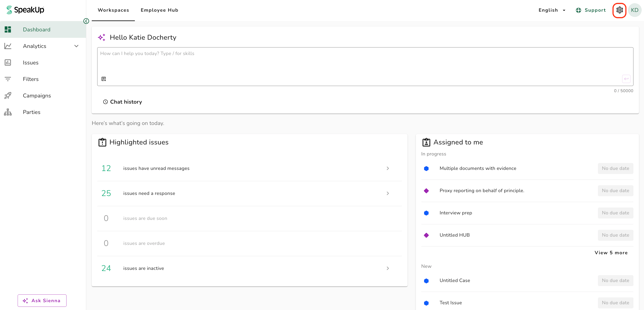
- Click on the "Settings" icon at the top right corner.
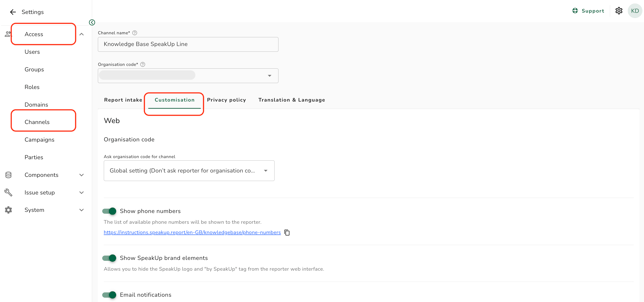
- Go to “Access” and click on “Channels”.
- Click on the relevant misconduct reporting Channel and go to the tab ''Customisation''.
-
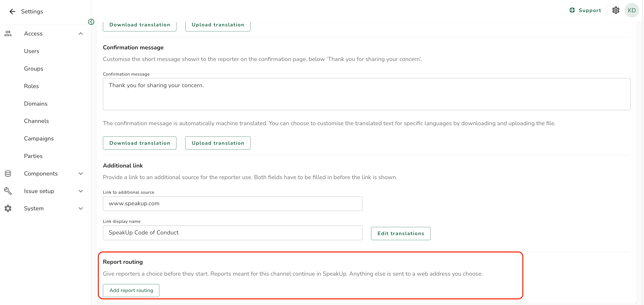
Scroll down to "Report routing" and click on "Add report routing"
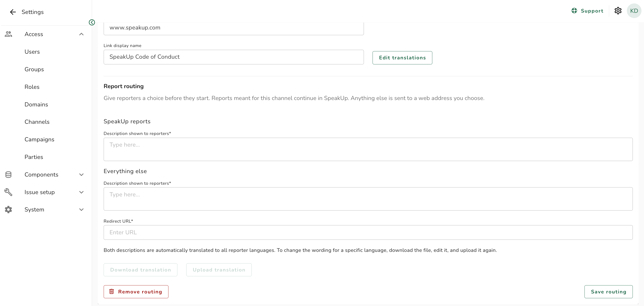
- You will see more fields that you can configure.
-
Fill in "Description shown to reporters".
- In the field labelled ‘URL to redirect reporter to', you can add a URL to an external site such as a products complaints page. Make sure that the URL you enter starts with http or https.
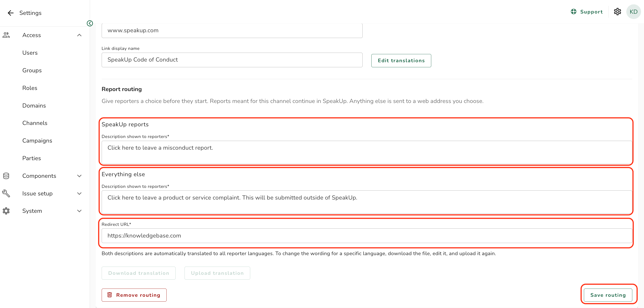
- Click on ‘'Save routing’'
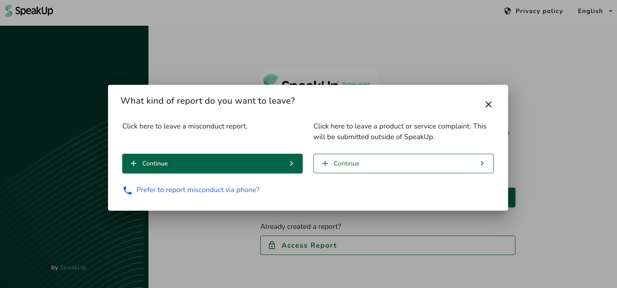
Result:
When you go to your channel URL and click ‘+ New report’, you will see this screen:
- Like the Reporter Intake Form, report routing is only possible for reports made via web or app (not phone)
- Report routing is a feature accessible to certain packages only, reach out to your Customer Success Manager for further information by clicking 'Support' and 'Contact support'.