
Bulk invite lets you send or re-send invitation emails to several Users at the same time. Use it to control the timing of onboarding (for example, for Users you imported but did not invite yet) or to nudge Users who were invited earlier but have not accepted.
Who can receive a bulk invitation:
The action only sends emails to Users who are eligible for an invitation. Users that already accepted, are disabled, or have logged in via SSO are skipped, even if they appear in your selection.
Eligible Users:
| User type | Status | Outcome |
| Password Users | Not invited | Receives first time invitation |
| Password Users | Invited | Receives a re-send of invitation |
| SSO Users | SSO not invited | Receives a first time SSO welcome email |
| SSO users | SSO invited | Receives a re-send of the SSO welcome email |
| Unresolved Users | Password login enabled | Receives a password invitation that resolves their access |
| Unresolved Users | SSO only environment | Resolved only by mapping their email domain to an Identity Provider |
See What is an unresolved user? to learn more.
Not eligible:
| User | Status/Method | Not eligible because |
| Password user | Enabled or Disabled | Has already accepted or been deactivated |
| SSO user | SSO active | Has already logged in via SSO at least once |
To bulk invite users:
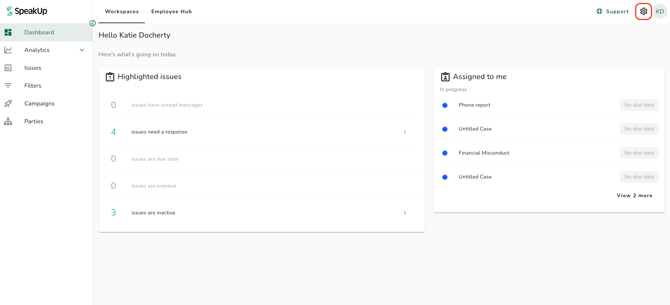
- Click on the "Settings" icon in the top right corner.
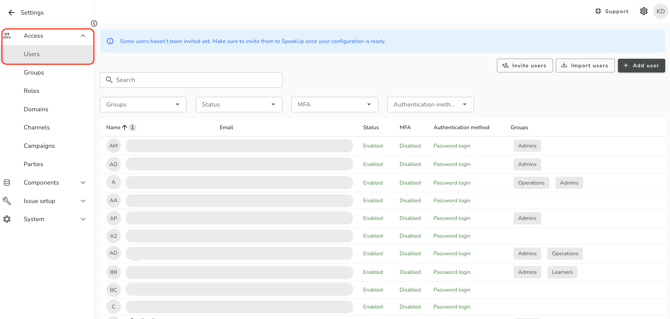
- Go to "Access" on the menu and click on "Users".
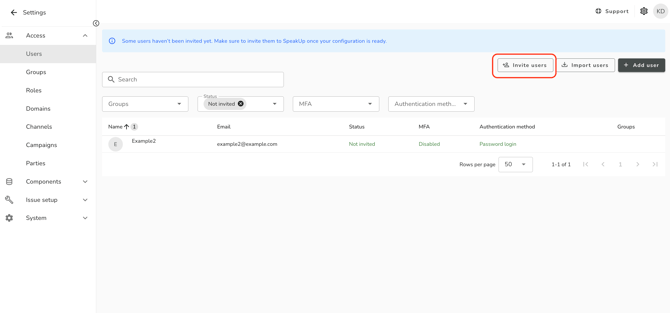
- Optionally, filter the User overview to narrow down the Users you want to invite. For example, filter by Status "Not invited" or by Authentication method "SSO not invited". See What is the user overview? for the filters available in each configuration
- Click on "Invite users":
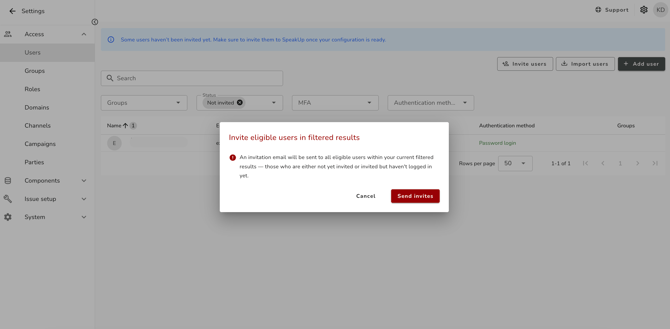
- Review the confirmation dialog. The dialog shows a breakdown of how many Users will be invited per status, based on whether filters are applied:
- No filters applied: invitations are sent to all eligible Users in your organisation.
- Filters applied: invitations are sent only to eligible Users within the current filtered results.
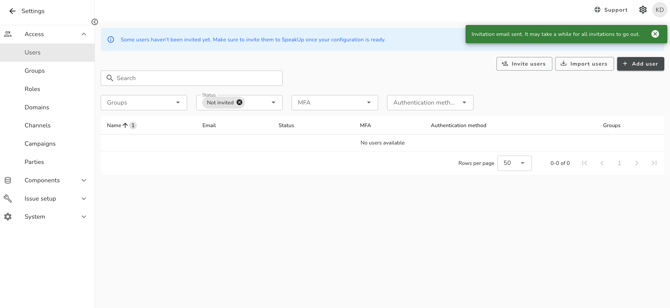
- Click on "Send invites" to confirm. A success notification appears at the top of the user overview confirming the number of emails sent.
Bulk invite from the import flow:
When you import Users, the final step of the import asks whether you want to invite them now or invite them later.
- Invite now: invitations are sent immediately. SSO Users receive the SSO welcome email; password Users receive the password invitation email.
- Invite later: no email is sent during import. Use the bulk invite action in the user overview when you are ready.
- Created in the user overview (one by one): an invitation email is sent immediately.
- Created via the SCIM API: no invitation email is sent automatically. Use bulk invite to send one.
- Created via import: invitation timing is your choice at the end of the import flow.
- Password Users (in password-only or combined environments): the password invitation template.
- SSO Users (in SSO-only or combined environments): the SSO welcome email template.
All bulk invite actions are recorded in the system log.