
A cascading option list allows users to make selections based on previous choices.
The list consists of a primary list of choices (for example ‘City name’), where selecting one option triggers the display of a dependent list ( for example ‘Store location’).
To create a cascading option list:
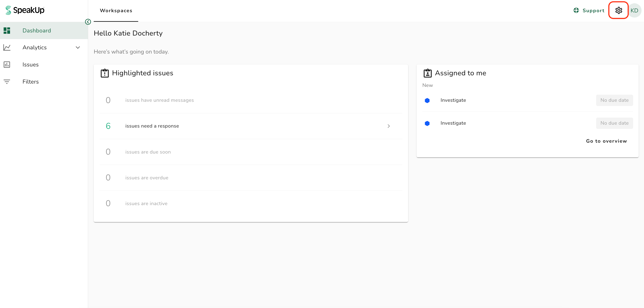
- Click on the Settings icon located in the top-right corner of the page
-
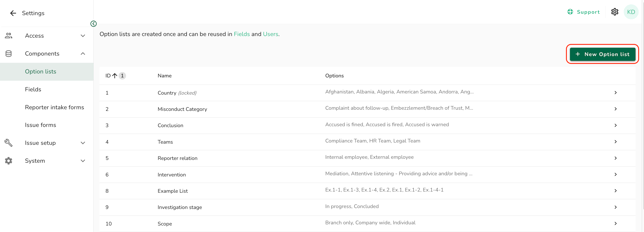
In the left-hand menu, navigate to “Components” and select “Option lists”
-
Click on “New Option list” on the top right corner of the page
-
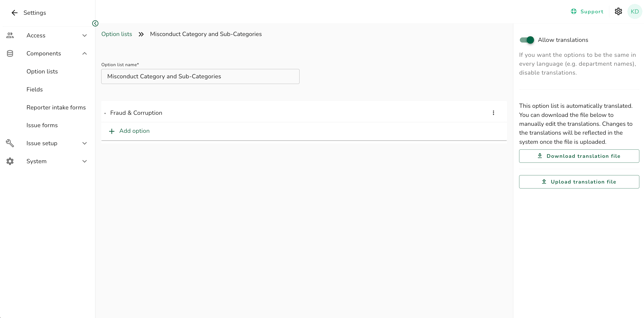
Enter the name for your option list
-
Click into your list and click on “Add option”
- First add a primary option, in this case ‘Fraud & Corruption'
- Then add an option that depends on the previously added primary option. Click on the “Move right” button to make this option dependent on the option above.
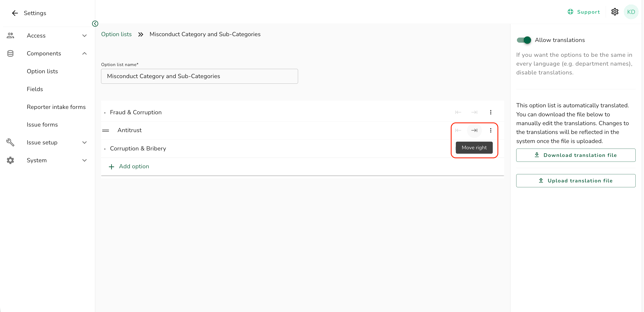
- The dependency can have a third level. Click on the “Move right” button again in order to make this a tertiary option.
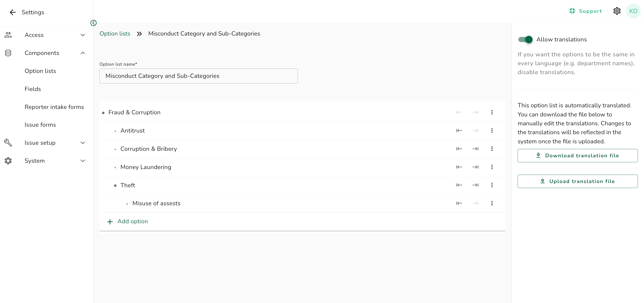
Let’s take the example above
Primary: Main category is Fraud & corruption.
Dependent 1st level : The sub-categories are Antitrust, Corruption & Bribery, Money Laundering and Theft.
Dependent 2nd level: The sub-sub category of Theft is Misuse of Assets