This feature is available if you have SpeakUp Paths. Interested to learn more? Contact your Customer Success Manager by clicking 'Support' and 'Contact support' from within SpeakUp.
You can define the outcomes available when a SpeakUp Paths Report is closed. This lets you replace or extend the three default outcomes (Approved, Approved with conditions, Declined) with names that fit your own compliance use cases, for example "Solved".
To create a Report outcome:
-
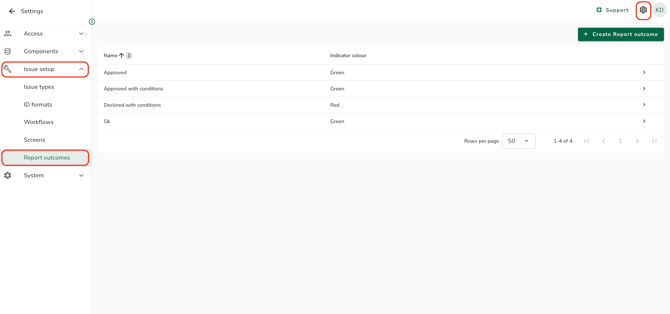
Go to "Settings" in the top right corner, then click on "Issue setup" on the menu, then click on "Report outcomes"
-
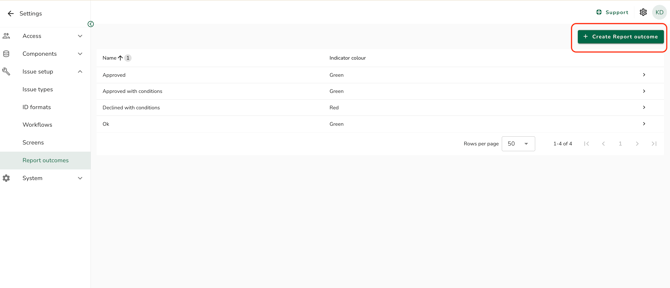
Click on "+ Create Report outcome"
-
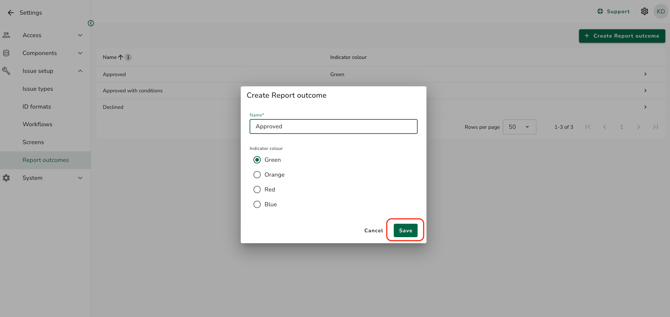
Fill in the fields:
-
Name: Give the outcome a short, unique name of up to 50 characters. Choose a description that will be clear to anyone reviewing a closed Report later.
- Indicator colour: Choose Green, Orange, Red, or Blue to help outcomes stand out at a glance.
-
- Click "Save"
To edit a Report outcome:
- Go to "Report outcomes" and click on a Report outcome in the table to open its details panel
- Update the "Name" or "Indicator colour" fields as needed. Your changes are saved instantly
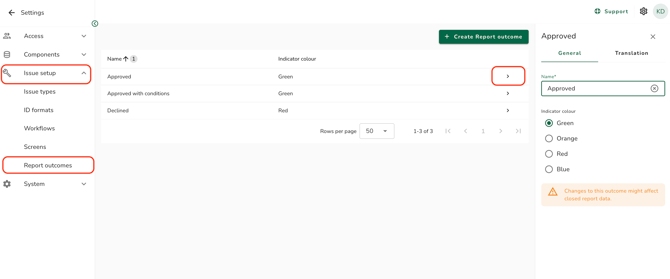
You can edit any outcome, including the three default outcomes provided by SpeakUp.
Any changes you make also apply to Reports that were previously closed with that outcome, so renaming or changing its indicator colour will update how those historical outcomes are displayed.
To remove a Report outcome:
- Go to "Report outcomes" and click on a Report outcome in the table to open its details panel
- Open the Report outcome's details panel and click "Remove outcome"
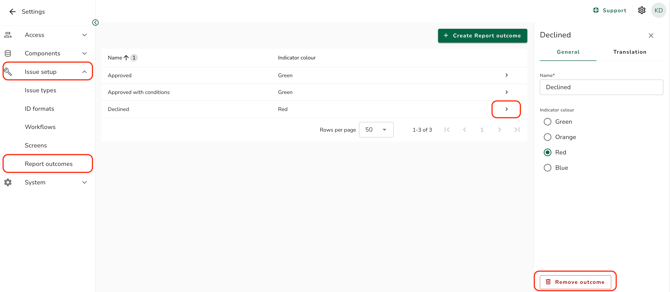
You can only remove an outcome once it's no longer assigned to any Report, and you always need to keep at least one outcome available. If you want to delete your final remaining outcome, create a new outcome first.
To translate a Report outcome:
You don't need to do anything for outcome names to be translated, this happens automatically for your organisation's other languages. You can review or adjust the translations:
Review or adjust a translation:
- Go to "Report outcomes", open the details panel and click on the "Translation" tab
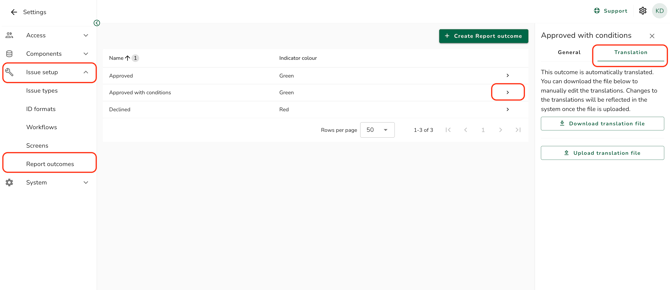
- Click "Download translation file" to get a spreadsheet with the outcome's name and its current translations.
- Edit the translations in the downloaded file as needed.
- Click "Upload translation file" to apply your changes.
Processing your upload can take a while, and you won't be able to upload another file until it's done.
The upload only works if your file matches the expected format, so avoid changing the file's structure, only edit the translation text itself.
When processing is complete, your new translations are applied automatically for the Reporter.
Where Report outcomes appear:
When a Path Report is closed, the user selects one of the outcomes from an alphabetically ordered dropdown: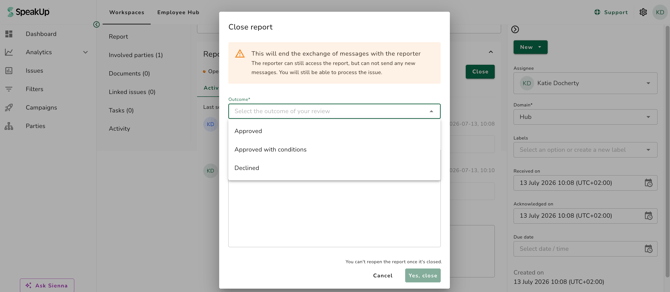
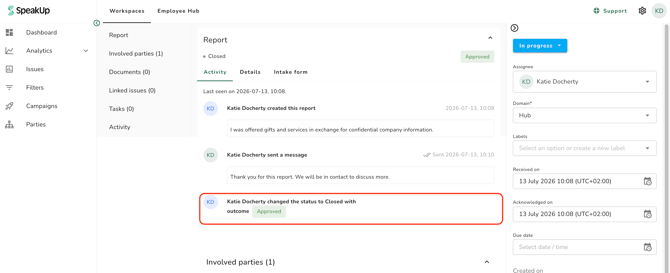
From that moment, the chosen outcome appears in its indicator colour on the Issue detail’s Report tab:
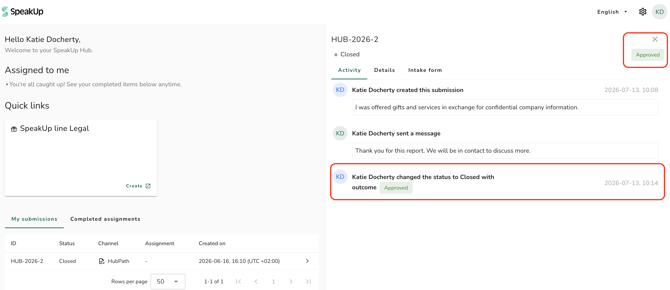
And in the Hub’s submission detail for the Reporter: