
"Fill fields with AI" is an automation action. The AI reads the Issue and fills in the empty fields you choose, based on guidance you write. For example, it can give every new report a Summary, a Priority and a category.
This feature is available on certain packages only. To find out more, contact your Customer Success Manager by clicking “Support” and “Contact support”.
How to switch on AI field automations:
- Click on the "Settings" icon at the top right corner
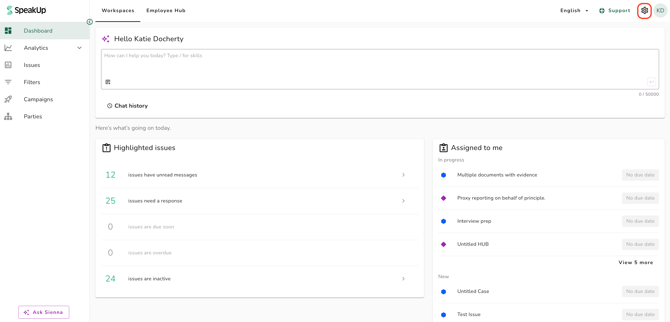
- Go to "System" on the menu and click on "Configuration"
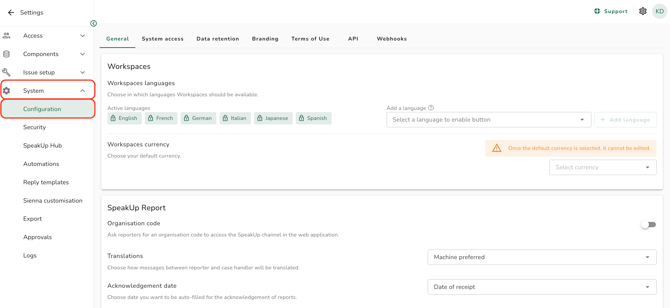
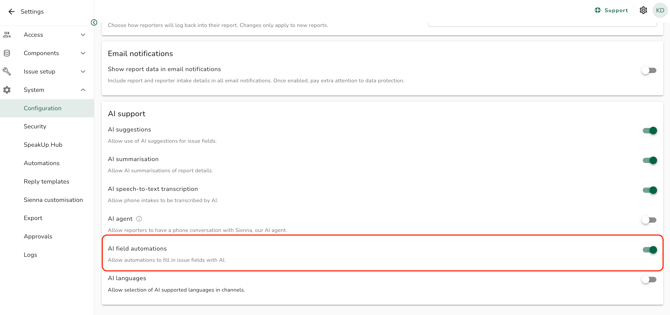
- On the "General" tab, find "AI field automations" under AI support. If the toggle is grey, click it; it will turn green as confirmation:
- Click on the "Settings" icon at the top right corner
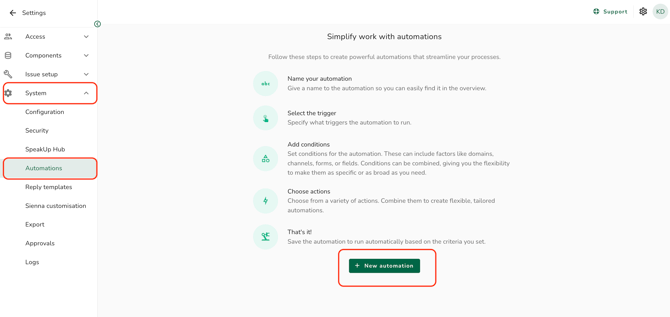
- Go to "System" on the menu and click on "Automations"
- Click on "New automation", or open an existing automation
- Give the automation a name and select a "Trigger" under "When"
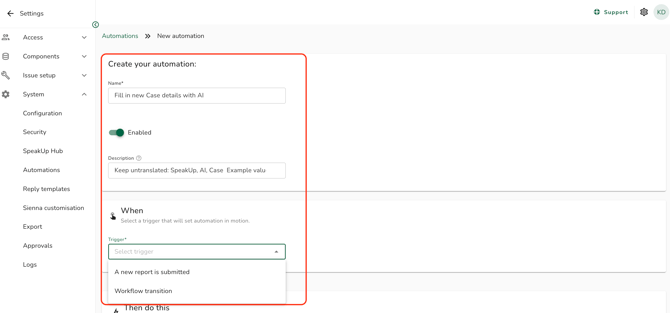
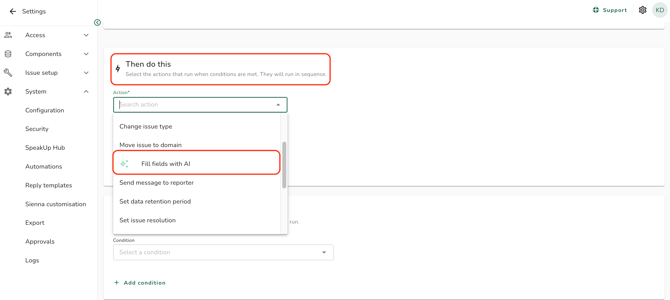
- Under "Then do this", select "Fill fields with AI" as the "Action". If the automation already has an action, click on "Add action" first:
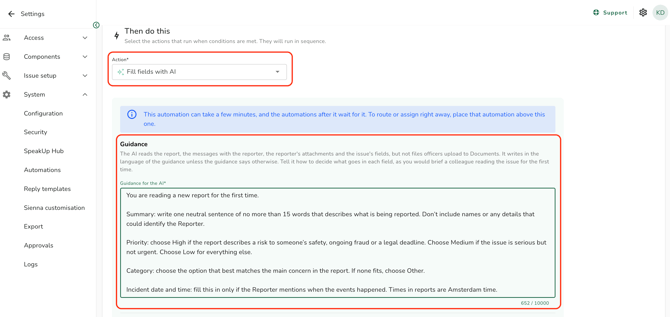
- In "Guidance for the AI", explain how the AI should fill in each field, as you would brief a colleague who reads the Issue for the first time
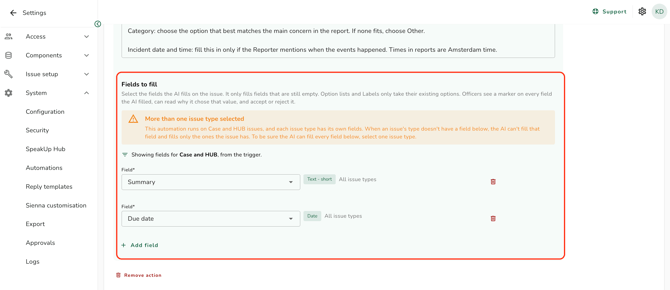
- Under "Fields to fill", select a field. Click on "Add field" to add more, up to 10:
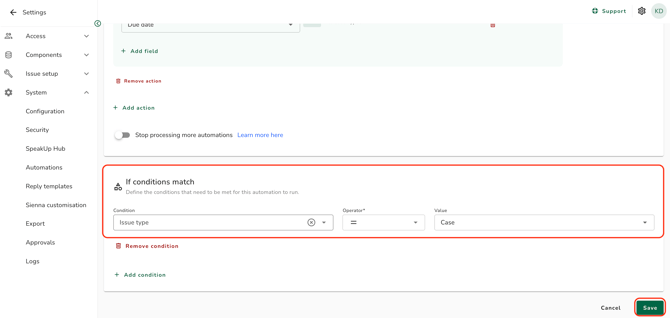
- Under "If conditions match", click on "Add condition", select "Issue type" and choose the Issue type:
- Click on "Save" to save your changes
The AI only fills in fields that are empty. It never changes a value a User entered.
Each Issue type has its own fields, so step 8 tells the AI which fields it can fill in. If a field you chose is missing on some of the Issue types, you will see an orange warning and the AI fills it in on the other types only. If it is missing on all of them, you will see a red error and you can't save until you remove the field or change the condition.
Which fields can the AI fill in?:
- Issue properties: Summary, Description, Due date, Labels, and Priority if triage is switched on.
- Issue fields and Issue form fields: text, number, date, date and time, Yes/No, Option list and currency fields. A form field is only filled in if the form is already on the Issue.
Writing guidance:
The AI reads the report, the messages with the Reporter, the Reporter's attachments and the Issue's fields. It doesn't read files in Documents. It writes in the language of your guidance, and for Option lists and Labels it only picks existing options. For a date and time field, name the time zone in your guidance, for example "Times in reports are Amsterdam time." Otherwise, the AI reads times as UTC.
How long it takes:
The action can take a few minutes, and the automations after it wait until it is done. If an Issue needs to be routed or assigned straight away, place that automation above this one.
When triage is switched on, your Automations list includes a ready-made automation, "AI title and priority for new reports". It stays disabled until you switch it on.
Every value the AI fills in has an AI icon, so Users can check it and accept or reject it.
Refer to How do I review AI values on an Issue? to learn more.