
To give a User access:
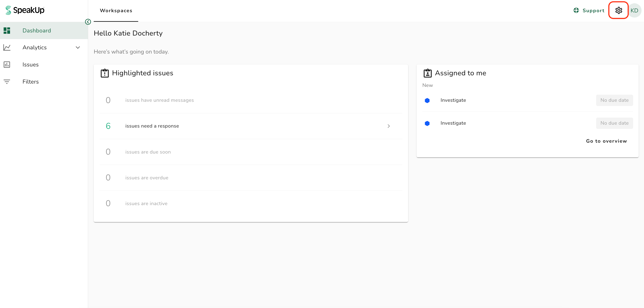
- Click on the "Settings" icon at the top right corner
-
Go to “Access” on the menu and click on “Domains”
-
Click on the relevant Domain
-
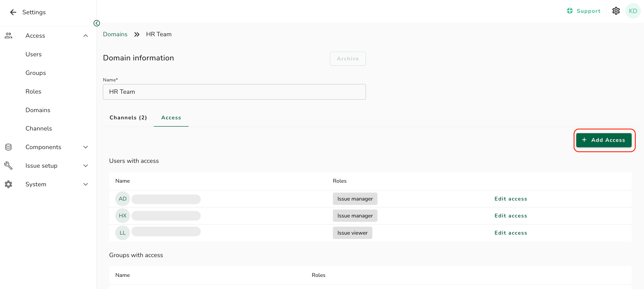
Click on the “Access” tab and click on “Add Access”
-
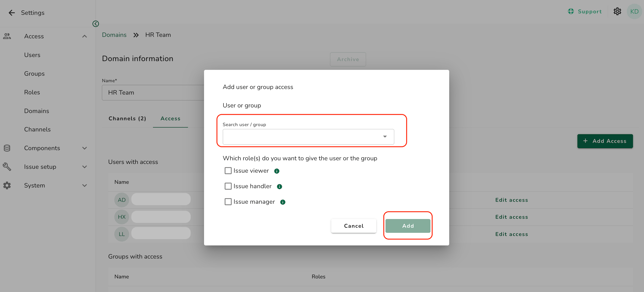
Search for a user or a group and give them the appropriate role; to learn about the different access capabilities of each role, go to What are the permissions of each pre-defined role?
-
Click on “Add” to complete the process
- When you add a Group to a Domain and give it the relevant role, all users in that Group will receive the same role.
-
Inviting a user on the Domain level will allow the User to have access to all Issues within the Domain; whereas, inviting a user to an Issue will only allow the user to have access to the specific Issue.
- If your system has SpeakUp Paths, you can differentiate the users who should only have access to the Employee Hub, from the users who should be managing the Issues, by adding the latter to the "Invite Issue list". More information can be found here