
Access for Parties is managed in two places: Party Roles (who can work with Parties) and Issue Roles (who can link Parties to Issues). Both are found under "Access" in your settings.
Party Roles
Party Roles control what Users and Groups can do within the Parties feature. Three default Roles are available and cannot be edited. To see more about the Roles:
- Go to "Settings" and click on "Access", then click on "Roles".
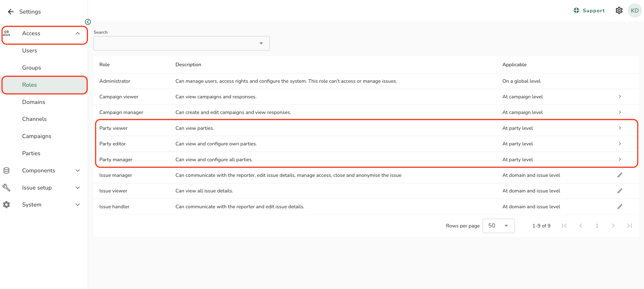
The default Party Roles are:
- Party viewer: Can view Parties.
- Party editor: Can view, create, edit, and delete their own Parties.
- Party manager: Can view, create, edit, and delete all Parties.
Assigning Party access to a User or Group
- Go to "Settings" and click on "Access" in the menu, then click on "Parties".
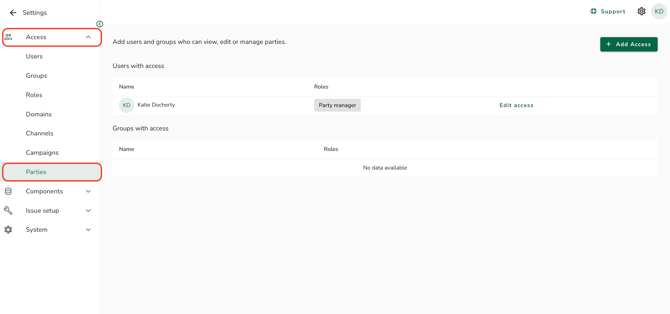
- Click on "Add access".
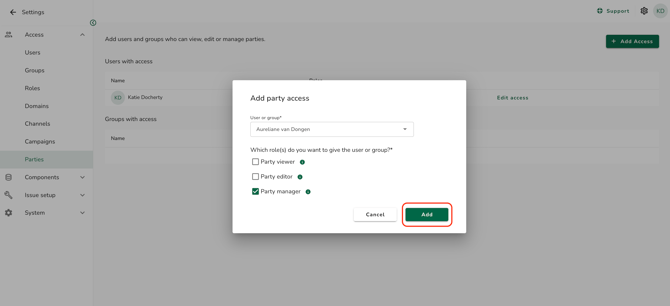
- Select a User or Group from the dropdown.
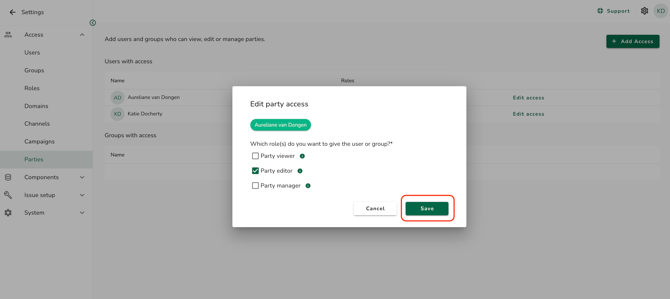
- Select the appropriate Role for the selected User or Group using the checkboxes.
- Click "Add" to confirm.
Editing Party access for a User or Group
- Go to "Settings" and click on "Access" in the menu, then click on "Parties".
- Find the User or Group whose access you want to change and click on "Edit access".
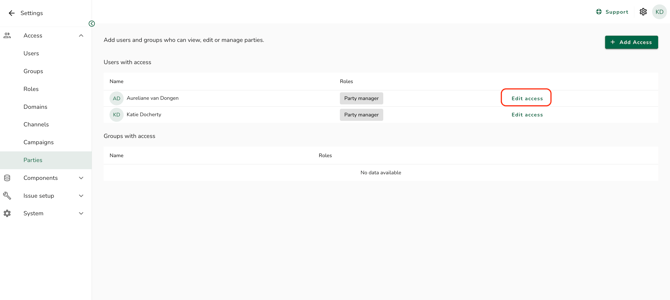
- Update the Role selection using the checkboxes.
- Click "Save" to confirm.
Issue Role permissions for Parties
Issue Roles control what Users can do within an Issue. There are four permissions that control what the User can do regarding Parties.
-
Go to "Settings" and click on "Access" in the menu, then click on "Roles" and select an Issue role, for example, "Issue Manager". Scroll down to view the party-link options:
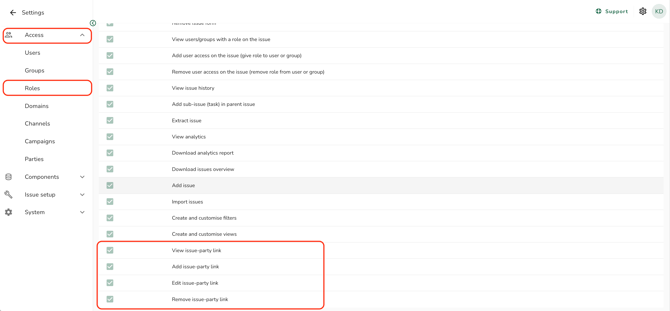
The party-link permissions are:
- View issue-party link: User can see the link between an Issue and a Party.
- Add issue-party link: User can link a Party to an Issue and add relationship details. Requires "View issue-party link".
- Edit issue-party link: User can edit the details of an existing Party link on an Issue. Requires "View issue-party link".
- Remove issue-party link: User can remove a Party link from an Issue. Requires "View issue-party link".
| Permission | Issue manager | Issue handler | Issue viewer |
| View issue-party link | Yes | Yes | Yes |
| Add issue-party link | Yes | Yes | No |
| Edit issue-party link | Yes | Yes | No |
| Remove issue-party link | Yes | Yes | No |
You can customise these permissions on any Issue Role. See How do I create a custom role and assign permissions? to learn more.
The Parties feature must be enabled for your organisation before these settings appear.
Click "Support" and "Contact support" to request this with SpeakUp.
Party Roles decide who can access the Parties feature. Issue Roles decide what actions people can take on Party links inside an Issue.
Party Roles cannot be edited or deleted.