
A Task always inherits access from its parent Issue.
You can assign a specific Task to a user without giving them access to the parent Issue and manage their access directly from the Task detail page.
Anyone with access to the Task, whether they were given it directly or received it automatically, can invite additional users and groups.
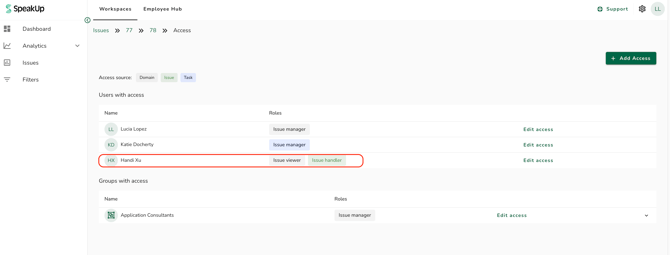
View who has access to a Task:
- Go to "Issues" and select the relevant Issue. Scroll down to the "Task" section, or click "Task" from the left hand side
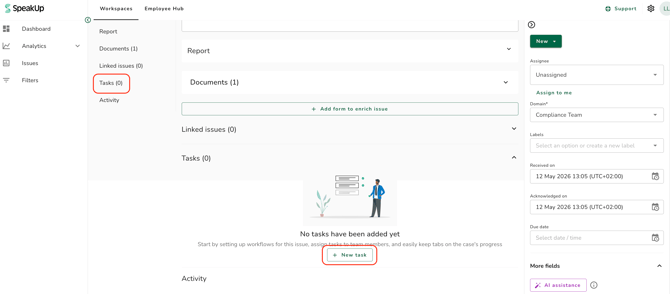
- Open the Task and click on "User access"
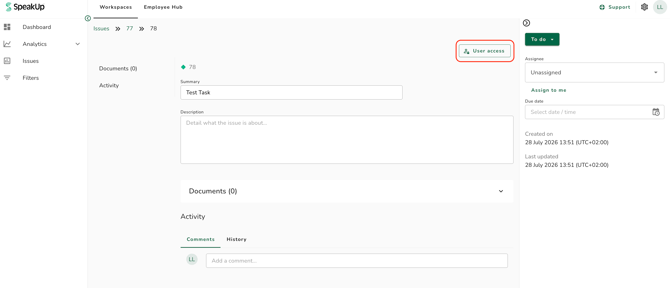
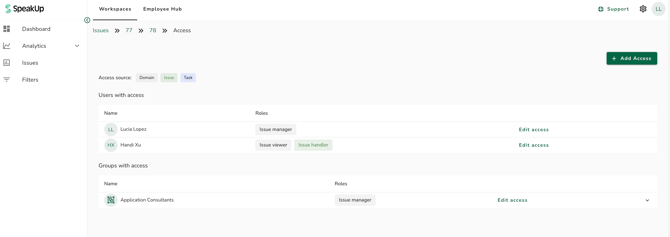
- Check the coloured label next to each user or group to see where their access comes from: grey for Domain, green for Issue, and blue for Task. More than one label appears when access comes from multiple sources.
- If no group has access to the Task, the Groups table shows "No data available". The Users table always includes at least the Task creator.
Add access to a Task:
- On the User Access page, click "Add access''
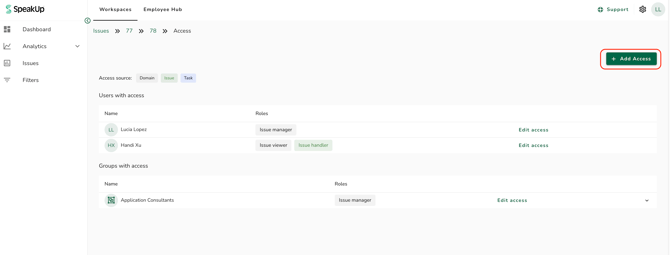
- Select a user or group from the list.
- Leave "Issue Manager" ticked. It's selected automatically and can't be turned off, since everyone added to a Task gets Issue Manager access. (For the Task only)
- If you selected a user, optionally tick "Set as task assignee" to make them the Task assignee at the same time
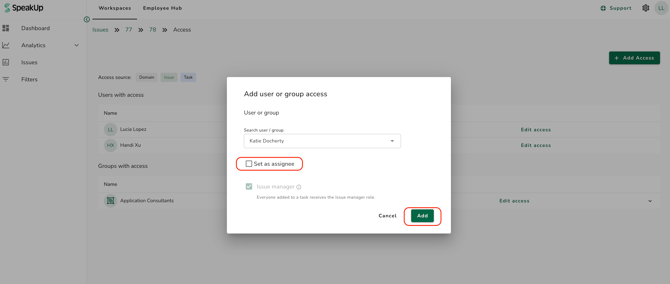
- Click "Add" to save. A confirmation message lets you know they now have access.
The list only shows users and groups who don't already have access to the Task, whether inherited or explicit. To give an explicit Task-level role to someone who already has access another way, use "Edit access" on their row instead. Only one user can be the Task assignee at a time.
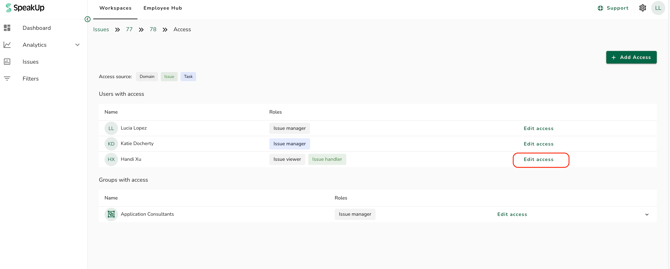
If you have the Employee Hub and you want to give someone Task-only access who has no other role on the parent Issue, for example, an external investigator, but can't add them to the task, it is very likely that the users has not been added to the Issue Invite List.
This can be done by Administrators: How do I control which Users should be given access to Issues?
Edit or remove access:
- Go to your task and click ''User access''
- Click "Edit access" next to the user or group
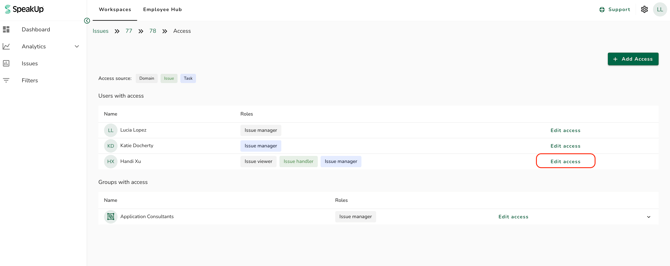
- Uncheck Issue Manager to remove their Task-level access. Any access they still have from the Domain or Issue level is not affected.
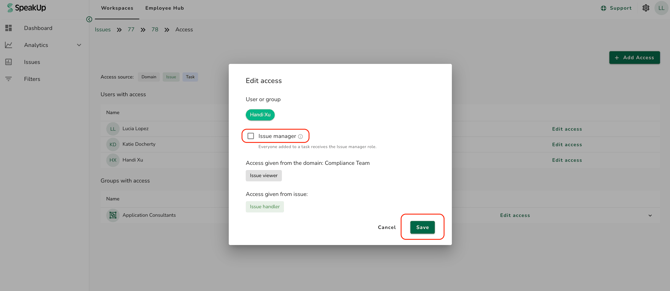
- Save your changes. A confirmation message lets you know the update went through.
Adding a new member to a Group that already has explicit Task access, automatically gives that member access to the same Tasks the group was invited to How do I add a user to a Group?
What task-only users see:
A user or group invited only at the Task level, with no role on the parent Issue, sees a simplified view: only the Task rows they have access to appear in the issues overview, the parent Issue column shows "–", and the navigation path at the top of the page shows the Task only, without the Issue.
The Task 'User Access' page lists everyone with access to the Task, including people with only inherited Issue or Domain roles. An external invitee can see these names even though they cannot open the parent Issue.
Access is also not automatically removed when a Task is completed. Remove external invitees manually once their work is done.
Get notified when a Task is finalised
- Go to your User Settings and open "Notifications"
- In the Issue section, find "Issue finalised as assignee" and "Issue finalised as issue creator"
- Check "Issue finalised as assignee" to get an email when a Task assigned to you is finalised.
- Check "Issue finalised as issue creator" to get an email when a Task you created is finalised.
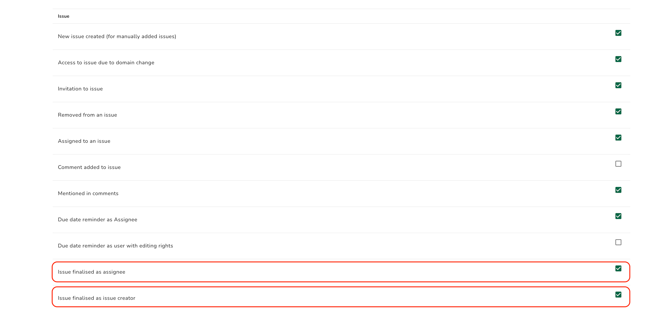
Both notification settings are unchecked by default. A Task is finalised when it reaches its last status, which is set up as part of your organisation's Task workflow. If you are both the assignee and the creator of the Task, you receive only one email. If you are the one who moves the Task to its final status yourself, you do not receive a notification for that action.