
If Workspace (case management) languages are enabled for your organisation within your case management pages, you can read reports and reply to them in your Workspace language. The translation options you see depend on the translation settings of the Channel the report was submitted through.
Reading a report:
Reports open in your chosen Workspace language. Reporter messages are translated into your language. The language dropdown within the report section has two options: your Workspace language and the Reporter's original language.
In this example, the Issue manager has chosen their Workspace in French. The reporter has selected to leave their message in Dutch: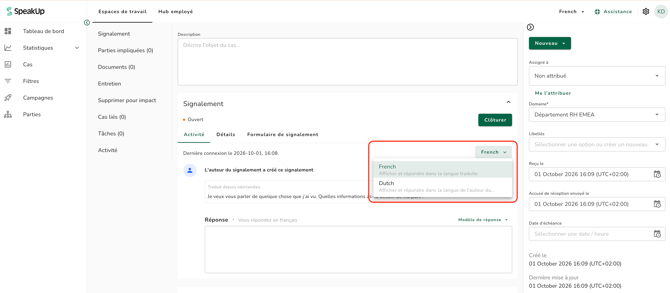
Switching to the Reporter's language only changes the message within the report section; the rest of the report section stays in your language: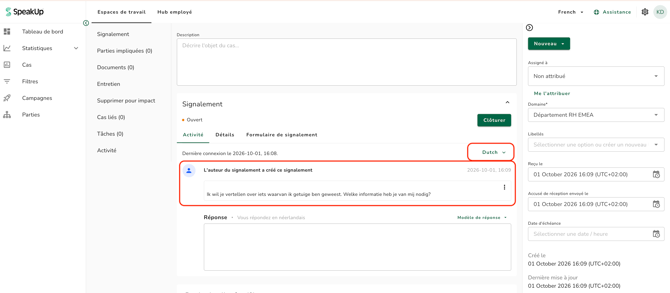
You can also view messages side by side to compare the translation with the original by clicking the three dots next to the reporters message: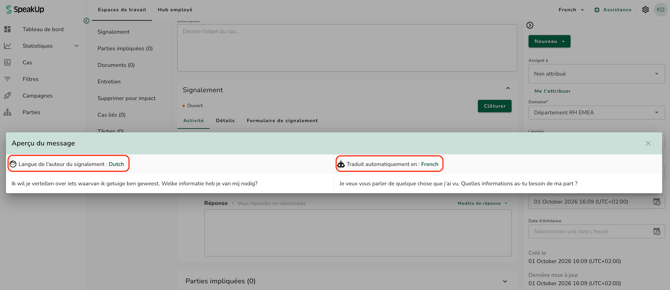
On a Channel set to "No translation", messages are only shown in the Reporter's original language.
How to reply to a Reporter:
- Open the Issue and go to the Report
- Write your reply in your own language, or select a Reply template
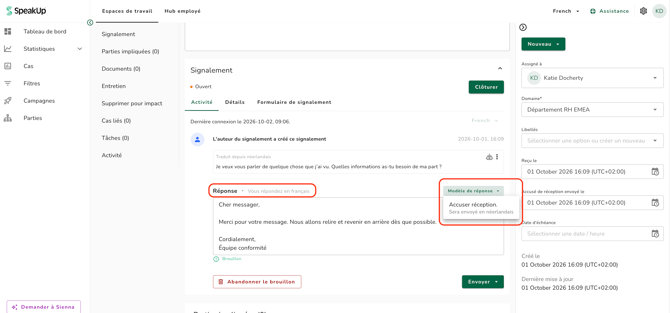
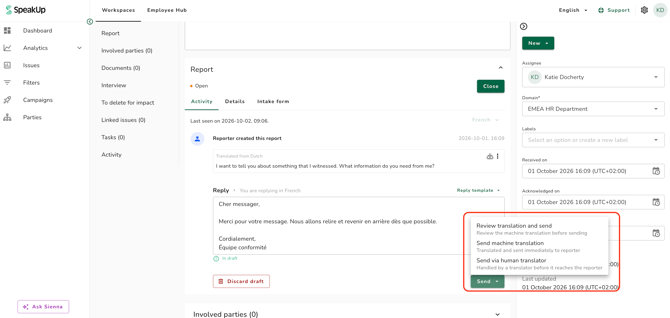
- Click Send and choose how to send your reply. The options you see depend on the Channel settings (as seen in the screenshot below):
- Review translation and send: Check the machine translation before it's sent to the Reporter.
- Send machine translation: Your reply is translated and sent to the Reporter straight away.
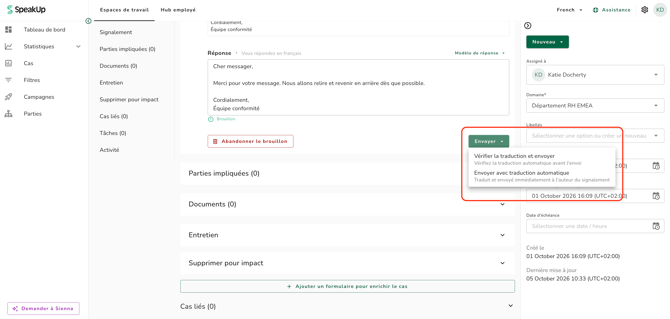
If you select "Review translation and send":
- If you chose to review, you can edit the translation
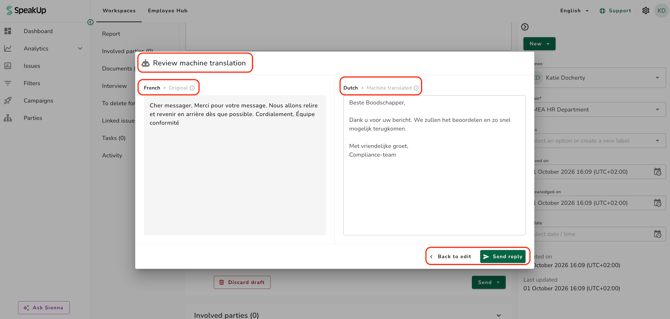
- Click "Send" to send the reply
-
If you select "Send machine translation", your reply will be translated by machine into the Reporter's language and send straight away.
-
If you reply in the Reporter's language, your reply is sent as written, without translation.
Edits you make in the review step only change the version the Reporter receives. Other Users see a translation of your original text.
Human translations:
- Requesting a human translation: on a Channel set to "Machine preferred", you can request a human translation of a Reporter message or of your reply. This is only available when your Workspace language is English.
- Reading a human translation: human translations are delivered in English. If your Workspace language is not English and a human translation exists for a message, a note on the message tells you and lets you switch to English to read it. This applies to Channels set to "Machine preferred" or "Human only".
When you export an Issue, the Reporter's messages are shown in your Workspace language, with their original text alongside. Text written by Users, such as comments, stays in the language it was written in.
See to How do I change my case management language to learn more.
Workspace languages must be enabled for your organisation before you can use it. Contact your Customer Success Manager by clicking "Support" and "Contact support".