
By default, system emails are sent from SpeakUp's default sender. The Email Identity settings let you configure a custom "From" name and email address so that notification emails appear to come from your organisation instead.
Before you start
- You must have an Administrator role in your organisations SpeakUp.
- You will need to add DNS records to verify your sending domain. Have your IT team available — you will share the records with them during setup.
Add a custom sending domain
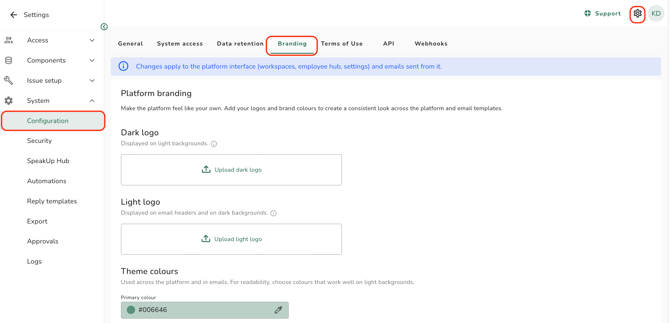
- Click the "Settings" icon, then click on "System", then "Configuration" and select the "Branding" tab.
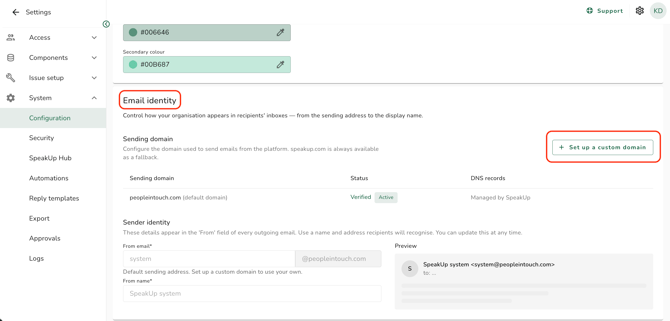
- Scroll down to the "Email identity" section and click "+ Set up a custom domain".
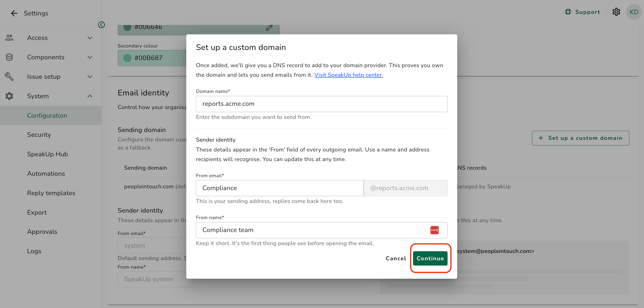
- In the setup dialog, complete the three fields:
- Domain: Enter the subdomain you want to send from (e.g.
reports.acme.com). Use a subdomain dedicated to SpeakUp emails — this keeps your main email infrastructure isolated. - From email: Enter the local part of the address (e.g.
compliance). The@yourdomainsuffix is filled in automatically from the domain you entered above. - From name: Enter the name recipients will see as the sender (e.g.
Compliance team).
- Domain: Enter the subdomain you want to send from (e.g.
- Click "Continue".
The setup dialog closes and a new dialog opens showing the DNS records your IT team needs to add.
- Copy the DNS records and share them with your IT team. Ask them to add the records to your domain's DNS configuration.
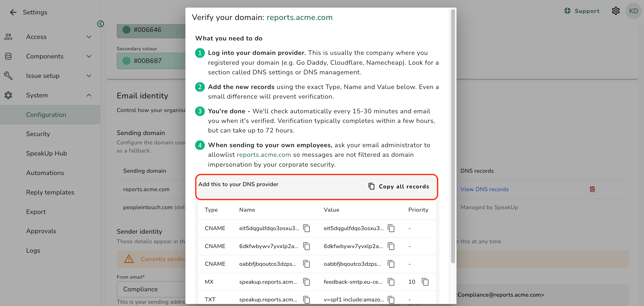
You can close the dialog now. Your domain will appear in the Sending domain table with a status of "Pending" while verification runs in the background.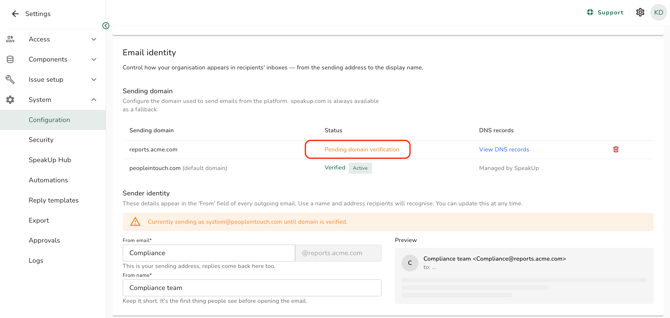
Checking your domain verification status:
Return to the "Branding" tab under "Configuration" at any time to check the current status. The status updates automatically when you load or refresh the page. There is no manual check trigger.
Your domain can be in one of the following states:
- Pending: DNS records have not yet been detected. Verification checks run automatically in the background.
- Verified: Your domain is confirmed. Emails are now sent from your custom sender address.
- Failed: Verification was not completed in time. Remove the domain and add it again to restart the process.
You will receive an email notification when your domain is successfully verified. If verification is taking longer than expected, you will also receive a reminder email prompting you to check that the DNS records were added correctly.
What happens if verification fails?:
If the required DNS records are not detected within 72 hours of setup, your domain moves to a Failed state. When this happens:
- You will receive an email notifying you that verification has expired.
- Your organisation's emails automatically switch back to SpeakUp's default sender.
- The domain row in the Sending domain table will show a "Failed" status.
There is no re-verify action. To try again, remove the failed domain and go through the setup process again. Before doing so, confirm with your IT team that the DNS records have been added correctly. You can click "View DNS records" on the failed row to retrieve the values again.
Updating your sender name and address:
The "Sender identity" section below the Sending domain table lets you update your "From email" and "From name" at any time without re-verifying your domain. A live preview shows how your sender will appear in a recipient's inbox.
While your domain is Pending, a banner in this subsection will indicate that emails are currently going out from SpeakUp's default sender until verification is complete.
Removing a custom sending domain:
- In the Sending domain table, click the delete icon on your custom domain row.
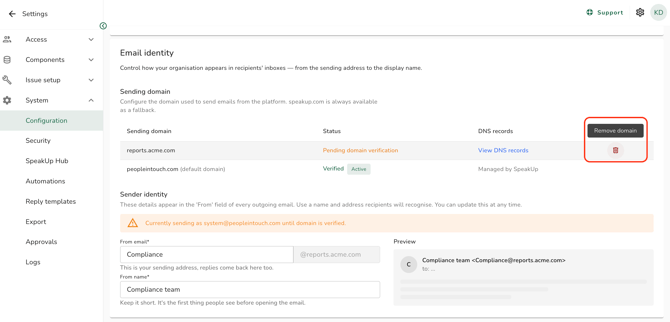
- Review the confirmation message and confirm the removal.
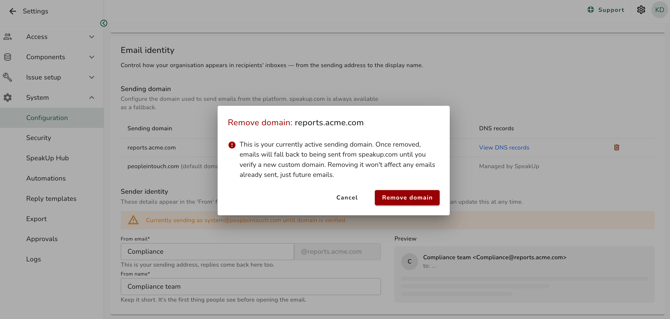
Your organisation's emails will immediately revert to SpeakUp's default sender. The Email Identity section returns to its initial state and you can add a new domain at any time.
Emails sent to Reporters are always sent from SpeakUp's default sender, regardless of your Email identity configuration. This preserves the independence of the reporting channel.
- Only one custom sending domain can be configured per organisation. To use a different domain, remove the existing one first.
- Your domain must be a subdomain (e.g.
reports.acme.com), not your root domain (e.g.acme.com). Public provider domains such as gmail.com or outlook.com are not accepted. - If your custom domain is in Pending state when you publish a campaign (What are Campaigns?), campaign notification emails will be sent from SpeakUp's default sender until verification is complete. See the notice on the Notifications step of the campaign wizard for a reminder.
- Removing a domain from the settings does not send an email notification, the change is applied immediately and without further prompts.