
Automatic Issue approval is a pre-built Automation Template that closes out routine Issues without manual review.
It is designed for Employee Hub reports. Refer to What are Automations? and How do I set up automations? for the general mechanics of Triggers, Actions, and Conditions.
Only an Administrator can create, edit, reorder, or stop an Automation.
Set up automatic approval:
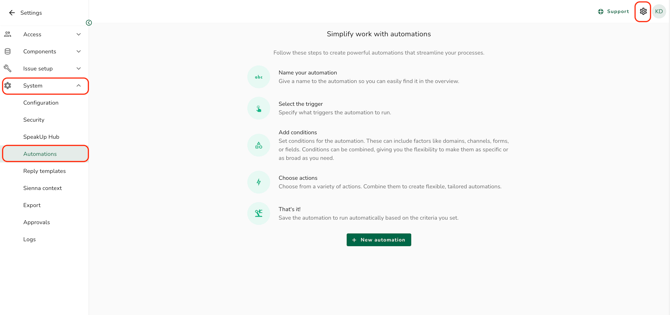
- Go to the "Settings" menu, click "System" and click on "Automations"
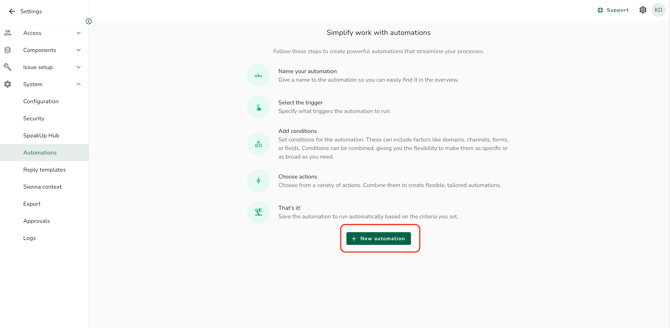
- Click on "New automation"
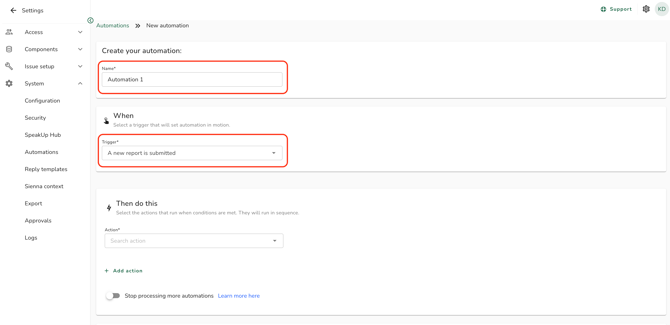
- Enter a Name for the Automation.
- Under Trigger, select "A new report is submitted" to approve as soon as a Report comes in, or select one or more Workflow transitions to approve later in the process (you can add multiple Workflow transitions as a single Trigger, even across different Workflows).
- Under Action, click on "Templates" and select "Automatic issue approval"
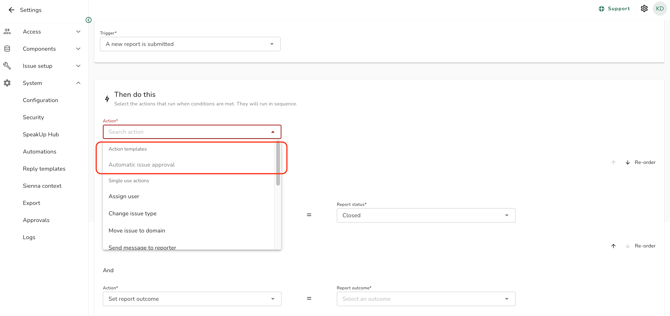 This adds six Actions in this order: "Send message to reporter", "Set report status", "Set report outcome", "Set issue status", "Set issue resolution", and "Set data retention".
Important to note: Automations have a limit of 10 actions. If, after applying the template, you add more actions that exceed this limit, the 11th action will not be added, and you will receive a notification. You can remove or reorder these Actions, but changing the order can break the Automation. For example, if "Set issue status" runs before "Set report status," the Issue could close while its Report is still open, leaving a closed Issue linked to an open Report. None of the Actions in the Template are required, but some are recommended for the approval flow to run smoothly:- Necessary: "Set report status", "Set issue status", and "Set report outcome". "Set report outcome" is required for Employee Hub reports and is ignored for SpeakUp reports, so keeping it in makes the Automation work correctly across both report types.
- Highly recommended: "Send message to reporter", so the reporter gets a final message once their report is closed, and "Set issue resolution".
- Set data retention removes this as a separate manual step.
- Set "Set report outcome" to "Approved", "Approved with conditions", or "Declined". These outcome values can be customised, so the options available to you may differ from the defaults listed here. Important to note: This Action can only be added after "Set report status". As mentioned above (5.a.), it only applies to Path reports and is ignored for SpeakUp reports, so you can leave it in even if your Automation covers both report types.
- Optional: add Conditions to scope which Issues the Automation applies to, for example a specific Domain, Channel, or field value. Conditions are not mandatory, but once you add a Condition, you must also set its value. You can add up to 10 Conditions.
- Optional: turn on "Stop processing more automations" to prevent other Automations that share the same Trigger from also running once this one finishes.
- Click on "Save" to save your automation.
Mandatory vs optional when configuring:
- Name: Mandatory.
- Trigger: Mandatory. Choose "New report submitted" or one or more Workflow transitions.
- Action: mandatory. At least one Action is required, up to 10 per Automation. Important to note: If you already have Actions in your automation and applying the Template would take you over the 10-Action limit, it won't be added and you'll get a notification.
- Conditions: optional. Leave them out to apply the Automation to every Issue that matches the Trigger.
- Stop processing more automations: optional.
If the Automation stops running:
An Automation fails silently for new Issues if data it depends on no longer exists, for example an archived Domain, a disabled Channel, a removed Field, or a User whose role is no longer global.
Administrators get a single email listing all broken Automations once a day, and the failure is logged. Check the affected Domain, Channel, Field, or User first if an expected approval stops happening.
Creating, editing, or removing an Automation only affects future Issues. Issues that already went through the workflow are not changed retroactively.
Best practice: When setting up automatic approval for Paths, we recommend including these four Actions:
- Send message to reporter
- Set report status
- Set report outcome
- Set data retention period