
Refer to What are Campaigns? for an overview of how Campaigns work. You must have the appropriate permissions to create or view a Campaign.
To track the progress of your Campaign:
- Go to "Campaigns" in the Workspaces tab in your Dashboard and click on the arrow on a Campaign to open its detail page.
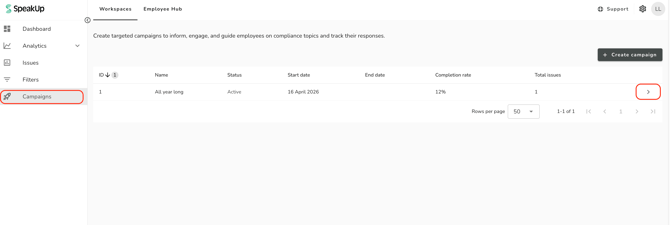
- On the Campaign details page you will be able to see track the following data:
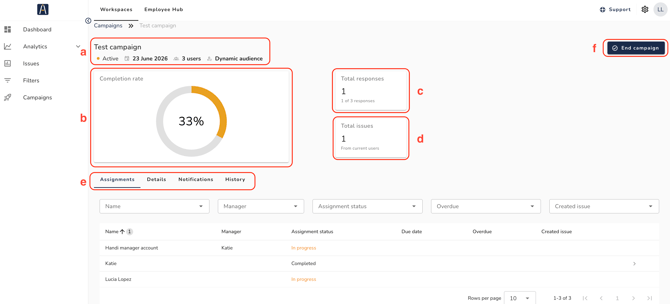
a. Shows the campaign name, status, the start date, target user count and audience type. When the campaign is Completed, the end date is also shown. For dynamic audience campaigns where the distribution end date has passed, "Distribution ended" is shown next to the audience type.
b. Completion rate: the percentage of assignments that have been completed, displayed as a doughnut chart. Assignments where the employee was subsequently removed from the system are excluded from this calculation.
c. Total responses: the total number of submitted responses, including how many of the total assignments have been completed (e.g. "1 of 10 completed").
d. Total issues: the total number of issues created from the campaign's report intake trigger conditions.
e. Tabs: Assignments, Details, Notifications, and History.
f. End campaign: Click to end the campaign. This action cannot be undone.
Planned campaigns:
When a campaign is published with a scheduled start date, it appears in the campaign overview with a "Planned" status and the configured start date. The campaign goes Active automatically at the scheduled time - no manual action is required.
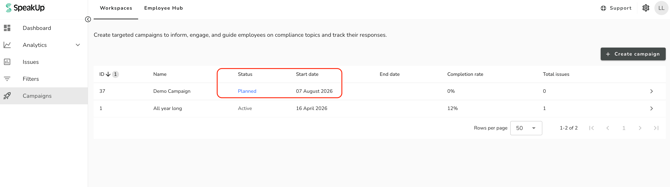
While the campaign is Planned, metrics, assignments, and responses are empty. You can:
- Edit the campaign with the same scope as a Draft. In the edit view, click "Cancel" to undo your changes and keep the Planned status, "Save as draft" to revert the campaign to Draft, or "Publish" to re-publish.
- Cancel the campaign by clicking "Cancel campaign".
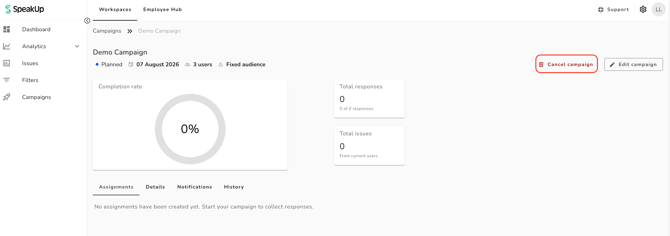
Cancelling a Planned campaign permanently deletes it and cannot be undone.
Assignments tab:
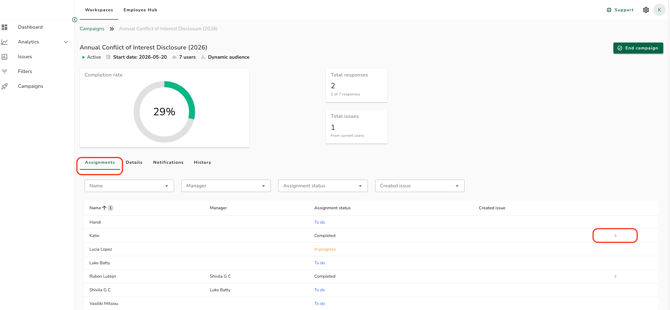
The Assignments tab shows a table of all assignments for the campaign. Each row displays the recipient's name, their manager's name, their assignment status (To Do, In Progress, or Completed), the due date, whether the assignment is overdue, and if an issue was created from their submission, a link to that issue.
Filtering the assignments table:
Use the filters above the table to narrow down the list. You can filter by:
- Recipient name
- Manager name
- Assignment status
- Overdue (Yes / No)
- Created issue (Yes / No)
Viewing a submitted response:
Click on a completed assignment to navigate to the employee's submitted form response. If the response was submitted after the assignment's due date, a "Submitted after due date" indicator is shown on the response.
The Details tab:
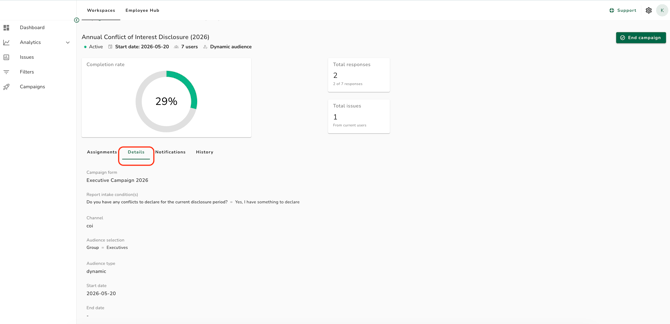
Shows the campaign's configured settings in read-only form: the campaign form, report intake conditions and channel (if configured), audience rules, audience type, time to complete, and distribution end date (for dynamic audience campaigns).
Notifications tab:
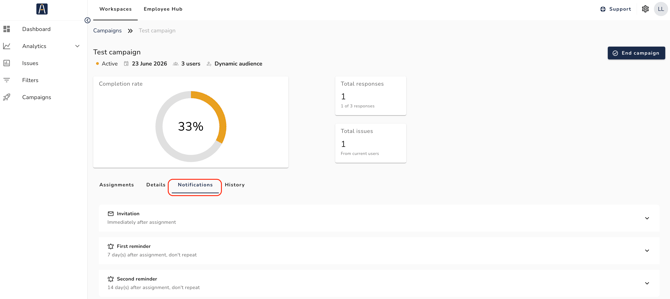
The Notifications tab shows all configured notifications in a list. Each row displays the notification name, the configured schedule (e.g. "7 day(s) before due date, does not repeat"), and the subject and body of the email.
The History tab:
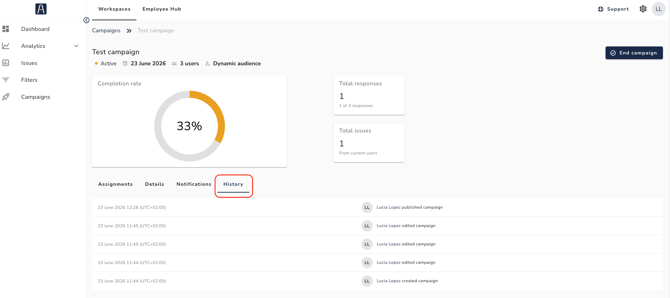
Shows an audit log of changes to the campaign. Each entry displays the timestamp, the name of the user who made the change, and a description of the action.
Completing a campaign:
When you are ready to close an Active campaign, click "End campaign" in the top right of the campaign detail page. The campaign status changes to Completed and no further reminder emails are sent.
- Ending a campaign is permanent and cannot be undone.
- Assignments that are not yet completed when a campaign is closed remain visible in the Assignments tab but no further reminders will be sent.
- Campaign managers can view submitted responses for completed assignments regardless of campaign status.
- Active campaign settings (content, audience, notifications) cannot be edited. Use the Details and Notifications tabs to review the original configuration.
Campaigns is part of the SpeakUp Paths offering. If you are interested in knowing more about this package, contact your Customer Success Manager by clicking 'Support' and 'Contact support'.