
To change the password requirements for a Reporter:
- Open the "Settings" menu from the top right corner
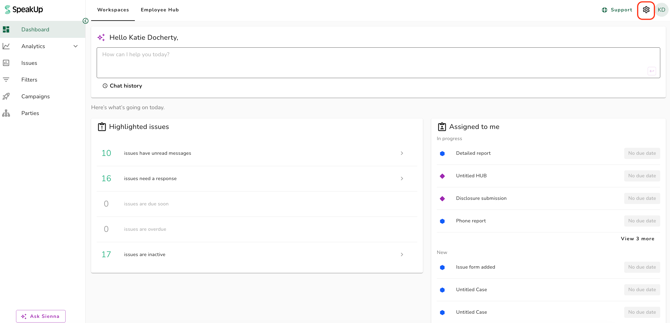
- Click on "System" then "Configuration" then open the "General" tab
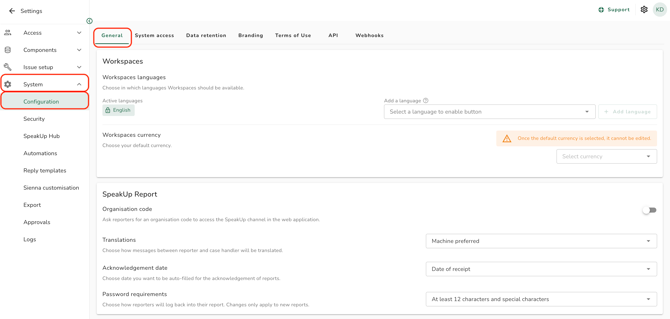
- Under "SpeakUp Report", open the "Password requirements" dropdown
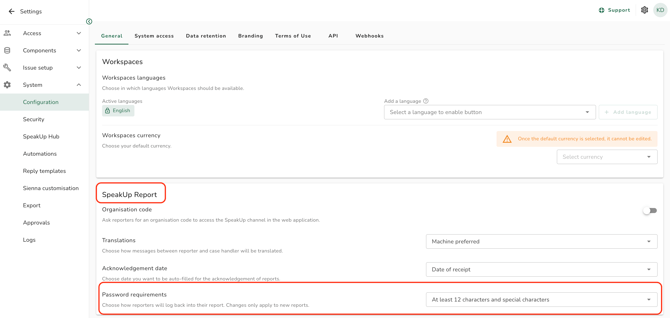
- Select one of the three options. Each option states its own requirements and how many login attempts a Reporter gets.
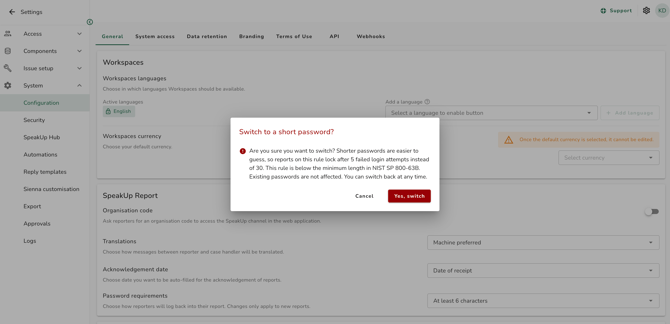
- If you select "At least 6 characters", a pop-up window will appear asking you to confirm; click "Yes, switch" if you agree
| Option | Password | Login attempts before the report is blocked |
| At least 15 characters | 15 to 64 characters, nothing else required | 30 |
| At least 12 characters and special characters | 12 to 64 characters with a digit, an uppercase letter, a lowercase letter and a symbol | 30 |
| At least 6 characters | 6 to 64 characters, nothing else required | 5 |
- Changes to password requirements apply only to passwords created after the change. Reporters with existing passwords keep their passwords and the login attempt limit that applied when they created them.
- A password of at least 6 characters is shorter than recognised security guidelines recommend (NIST SP 800-63B), which makes it easier to guess. To help protect these reports, SpeakUp blocks access after 5 incorrect attempts instead of 30. You can change this setting back at any time.
A report blocked after too many failed attempts cannot be unblocked, by you or by SpeakUp.