
This feature might not be included in your package. Reach out to your Customer Success Manager to learn more.
Custom workflows allow you to customise your case management system to align with your organisation's structure and procedures.
Before building your workflow consider your current investigation process and ask yourself some questions; for example:
-
What are the steps the investigators take in all investigations?
-
What milestones need to be recorded on each step?
-
Is there access/permission restrictions that should be considered to handle an investigation?
A custom workflow consists of:
-
Issue Status
-
Issue Transitions
-
Issue Screens
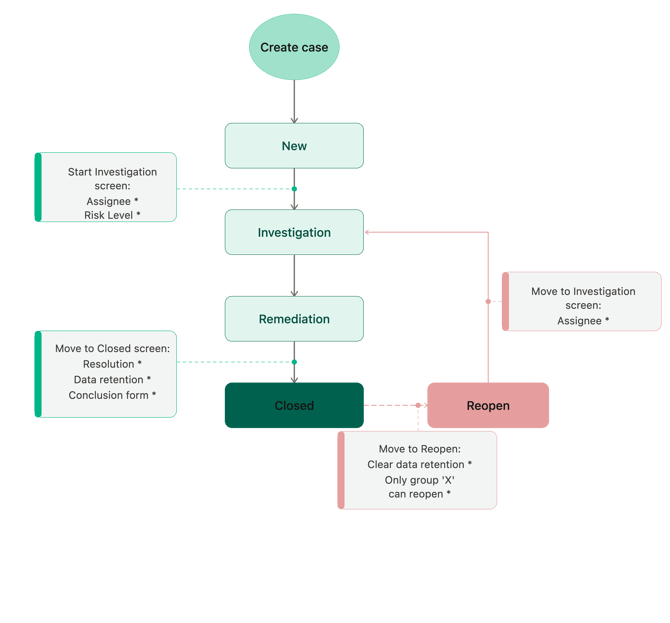
We recommend that before building your workflow you create a drawing of what you'd like to build to understand the flow of the workflow.
Below, you can see a drawing of a workflow that we will use as example:
Issue statuses are:
-
New
-
Investigation
-
Remediation
-
Closed
-
Reopen
Issue transitions are the arrows and direction they move between statuses.
The screens are the information windows that will appear when transitioning an Issue to a different Status. By adding forms/fields to a screen you can make them mandatory.
To create a screen:
The addition of Screens to your Workflow will enrich your processes to help manage Issues more effectively. This way you bring to the attention of the Issue manager which fields you expect them to fill in when changing the status of an Issue. You can also choose to make (some) fields mandatory in order to allow the status change.
You can add Issue forms, Issue fields or Issue properties to a transition screen.
1. Create an Issue form or fields: How do I create a form? & How do I create a field?
2. Add the Issue form or fields to your Issue type: How do I add fields to appear in all Issues?
3. Go to 'Issue setup' -> 'Screens' -> 'Create a screen' -> Name the screen and click 'Save'.
4. Click '+Add screen elements' and select your choice: Issue properties, Issue fields or Issue forms:
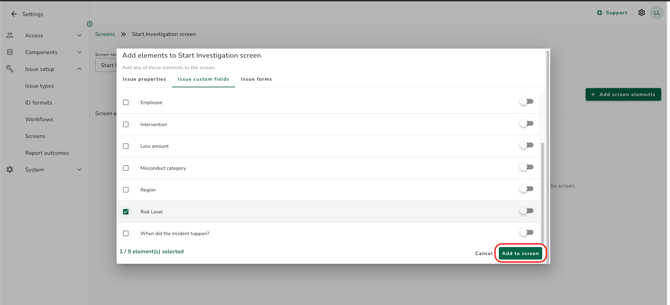
5. You can choose to make your selection mandatory by clicking on the toggle on the right. Click 'Add to screen' to save.
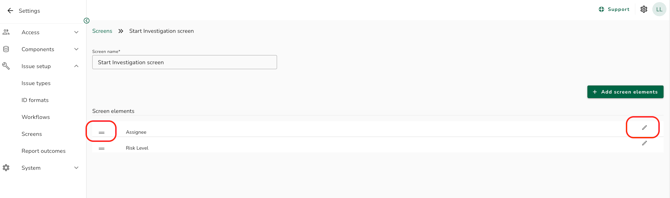
6. As shown in the image below; you can click on the two lines next to the name of the field to rearrange the order in which the fields will be shown on the screen. On the right side, you can click the pencil to edit: Make a field mandatory or remove from screen.
7. After creating all your screens you can start building your workflow.
To create a custom workflow:
1. Go to 'Settings' -> 'Issue setup' -> 'Workflows'
2. Click on 'Add workflow': enter your workflow's name and click 'Save'.
3. Click on your new workflow to edit
4. As default, a new workflow appears with statuses 'New' and 'Closed'. By clicking on the boxes (for example 'Closed') you can see the transitions attached to those statuses.
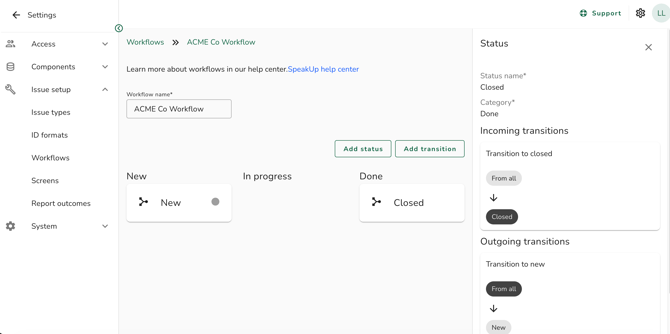
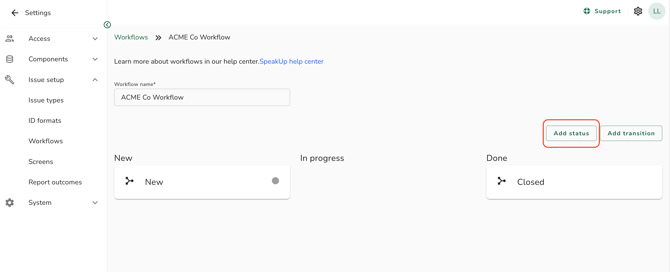
5. Click on 'Add status' to add the statuses you want to include:
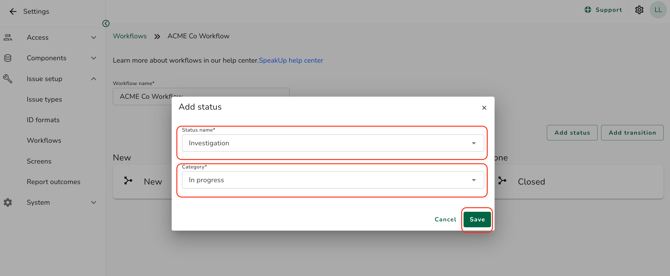
6. Enter your Status name and Category and click 'Save':
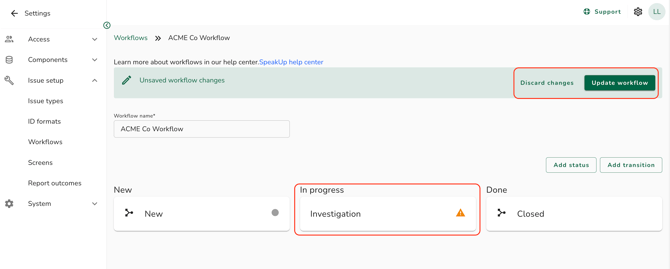
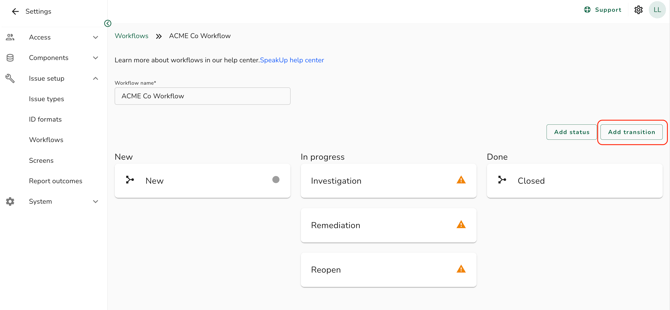
7. As shown below, your new status will appear but an error notice will appear (the warning symbol) until you add a transition; at this time the status appears but it's not connected to another status.
Every time you make a change to your workflow an 'Unsaved workflow changes' will appear on top of the workflow. Click 'Update workflow' to save your changes.
Tip: Do this after every action to ensure your changes are saved.
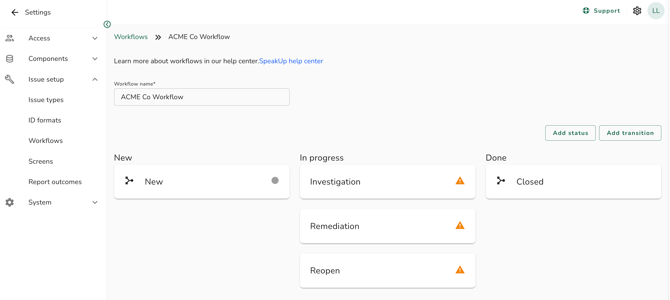
8. Add all the statuses you want to include based on your workflow drawing:
9. Now you can add your transitions and screens
To add Transitions:
1. Click on 'Add transition'
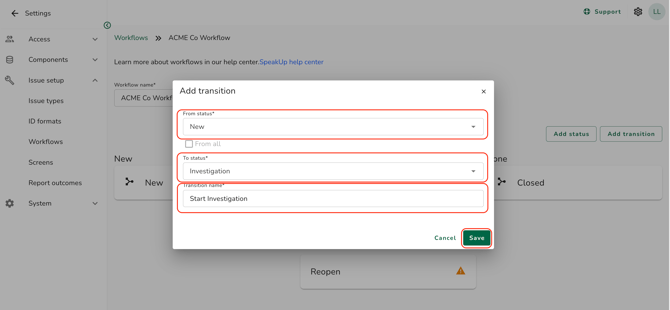
2. Enter From which status To which status the transition should go and the name of your transition. Click 'Save' to add.
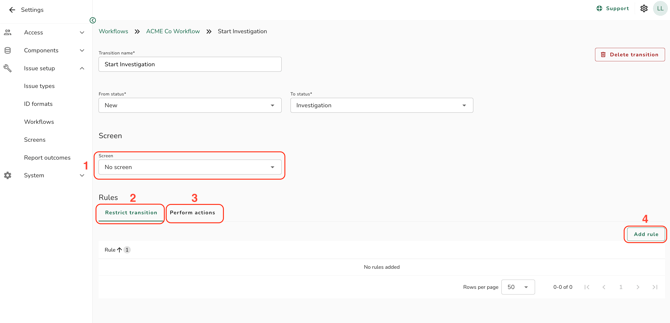
3. You will be prompted to the Transition you just created.
4. In the transition page you can adjust:
- Screen: You can select the screens you created by clicking on the dropdown
- Restrict transition: Based on groups and/or roles. Click on this tab and click (4) 'Add rule'
- Perform actions: You can select actions to happen on the transition (for example, clear data retention when reopening a case). Click on this tab and click (4) 'Add rule'.
5. Once all your transitions and statuses are ready you can save the workflow and go back to your Workflow page to associate the workflow to your system.
To associate your workflow to your system:
1. Go to 'Settings' -> 'Issue setup' -> 'Workflows'
2. Click on 'Associate workflow' on the top right corner
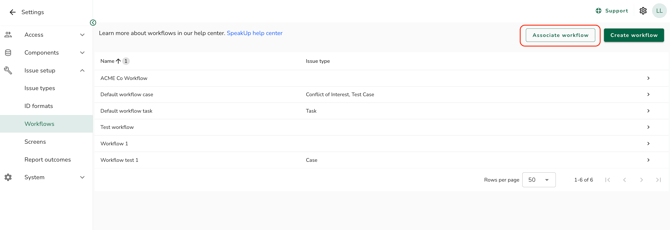
3. In the new window, choose:
-
The Issue type you want the workflow to apply to
-
The workflow you want to associate
-
Click 'Associate workflow'
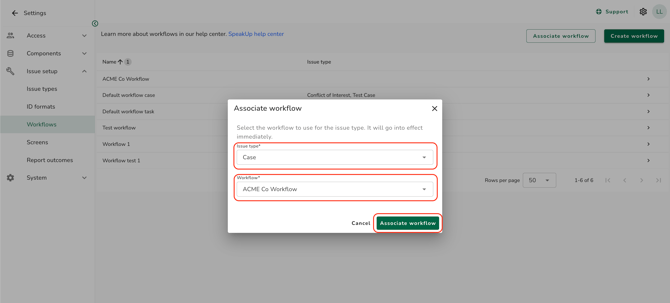
4. Select the new statuses that should replace the previous ones, as shown in the image below. Click 'Associate workflow' to save.
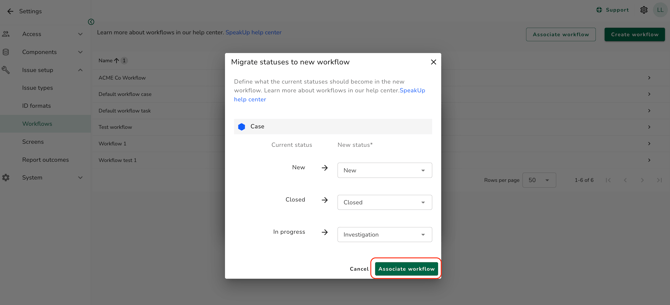
5. You will see a pop up confirmation on the top right corner that your workflow was associated.
Best practices:
-
When creating your custom workflow, remove the transition 'From all' from the default 'New' and 'Closed' statuses.
- When transitioning to closed, by default, there's a rule that the conversation with the reporter needs to be closed
- If you create a 'Reopen' status, add a rule to 'clear data retention'. This will allow you to reset the period and not lose data.
Once a Custom Workflow is created it's possible to edit it but you cannot delete it.