
Administrators can contact the SpeakUp support team directly. Heres how:
Click “Support” on the top right of your screen: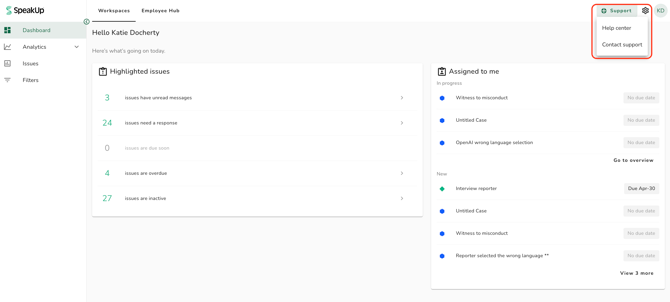
Click on "Help Center" to check out our documentation for guidance on using the SpeakUp platform. If you need more help, our AI assistant, is available in the Help Centre. Click the chat bubble at the bottom-right of the screen to ask your question in any language.
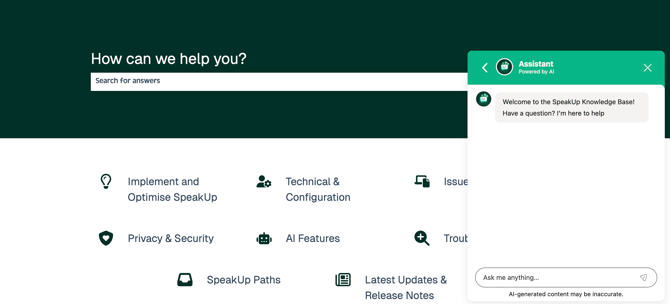
Should your question remain unresolved, select “Contact support” from within the SpeakUp platform to submit a support request.
-
Only Administrators can contact Support directly via SpeakUp.
-
Non-administrators users can follow the steps above to contact their internal Administrator, who can then reach out to Support, if needed.
To submit a ticket to the SpeakUp support team;
-
Click "Contact Support" and select the relevant option from the drop down list. Click "Next"
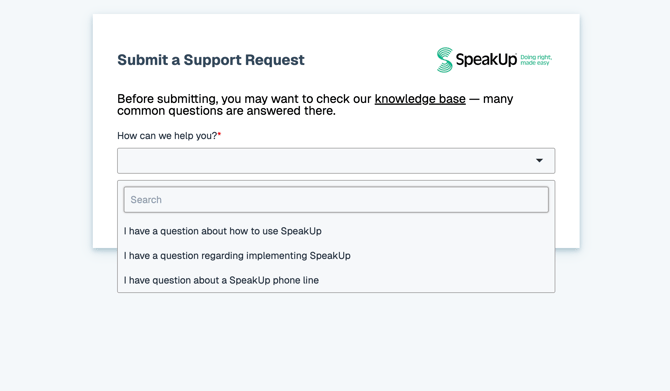
- Complete the fields in the next screen. Provide as much detail as possible and include any necessary screenshots. Select "Submit" to send your support request.
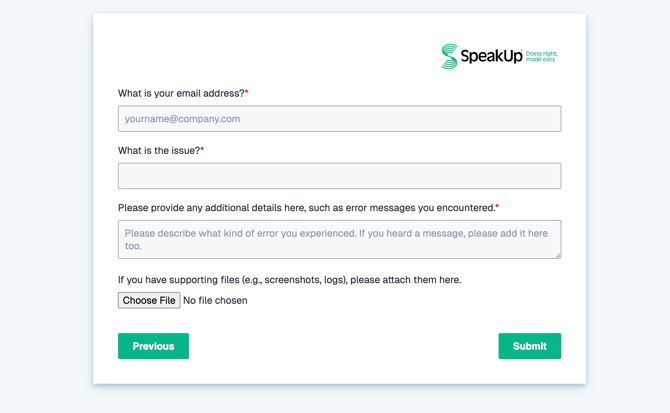
Once you have submitted your ticket, you will receive a confirmation email with your request. You can continue the conversation with us from your email.
You can also follow the link to the Customer Portal from the email confirmation.
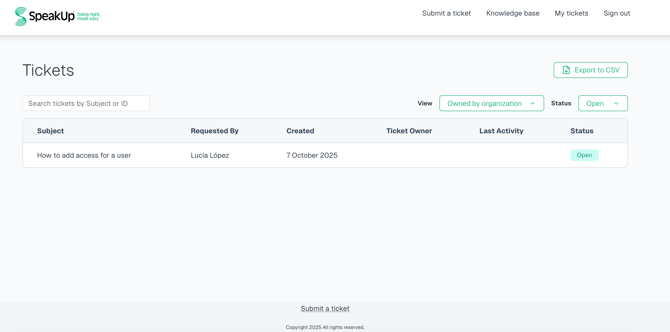
Here, you will see an overview of your open tickets:
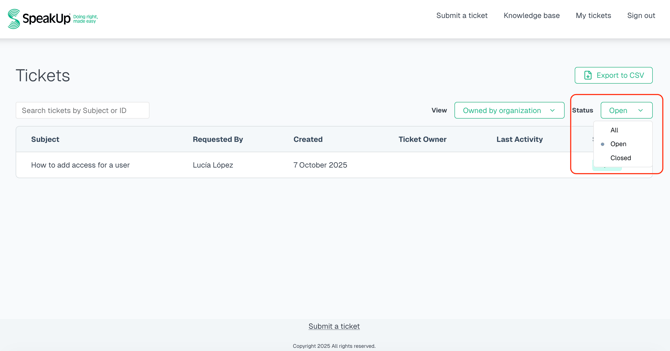
You can see previously raised or open tickets by clicking "Status" and selecting "All", "Open", or "Closed".
You can choose the "passwordless" option to receive a secure login link via email to the 'Customer Portal' ticket overview.
Follow the link in your confirmation email once you have raised your ticket.