
In order to add Currency fields to your SpeakUp system you need to add a system currency in your System's general configurations.
- Go to 'Settings', on the top right corner of your system
- Click on 'System' on the left hand menu
- Click on 'Configuration' and select the 'General' tab
- Select your default system's currency under 'Global currency setting'
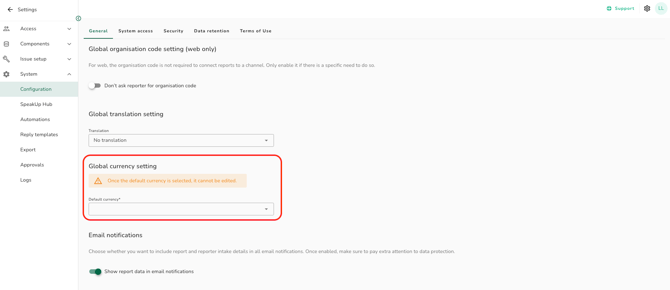
- This choice cannot be changed.
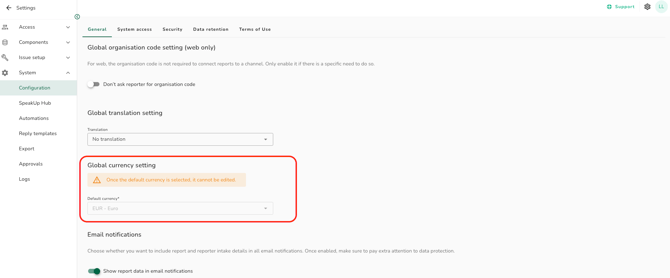
You can now add currency fields to your system. You can read the following article on how to add fields: How do I create a field?
Understanding currency fields in place for your system
Once your system has currency fields you can add them to your Issue setup, forms and reporter intake forms.
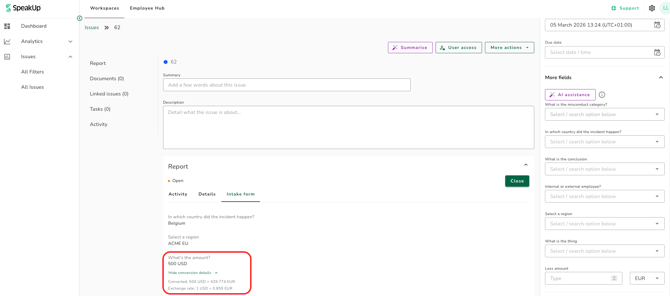
In the example below, a currency field in the Reporter's Intake Form, you can see the amount and currency chosen by the reporter. If you click on 'View conversion details' you will see the latest currency exchange rate of the chosen currency compared to your system's default currency.
As a user, you can use the currency fields in your default currency or in the local currency.
- When you enter your system's currency it will inform you
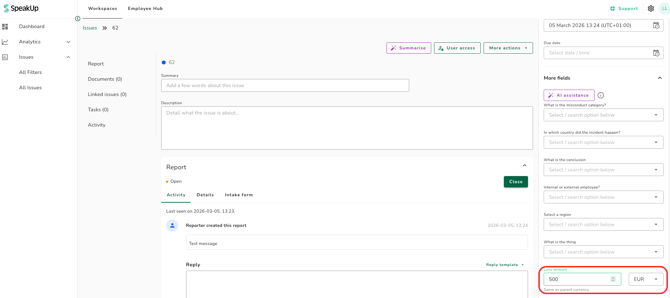
- When you enter a different currency than your system's default you can expand in the currency conversion to see the rate compared to your system's default currency
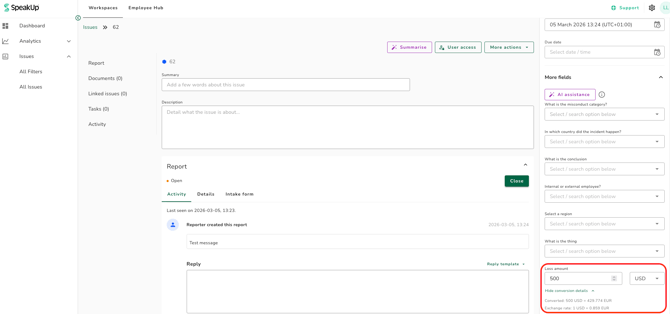
The currency conversion rate updates once a week.
Your Issues Overview will always show the currency fields in your system's default currency
