
The user overview is where you manage everyone with access to SpeakUp in your organisation. You find it under the "Settings" menu, then "Access" → "Users"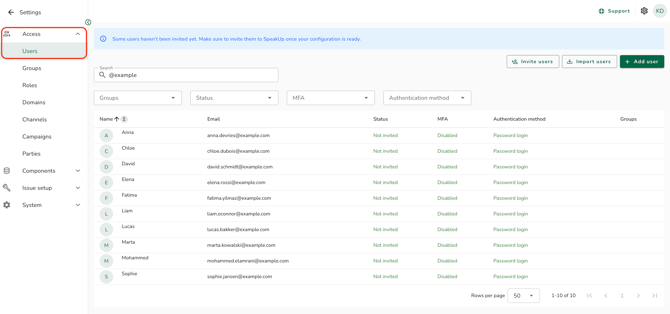
The columns, filters, and status values you see depend on how your organisation has set up authentication. SpeakUp detects this automatically. There are three possible setups:
- Password login only
- SSO only
- SSO combined with password login
Find your setup below for the exact filters, columns, and values that apply to you. The actions available at the top of the page are the same for everyone:
Available on every setup:
The action bar at the top of the page always shows the same two actions:
- Add user: add a single User. See "How do I add a user?"
- Import users: add many Users at once from a file. See "How do I import users?"
A third action appears whenever there are eligible Users to invite, "Invite users": send or re-send invitation emails to multiple Users at once. Eligible Users are:
-
password Users with status "Not invited" or "Invited"
-
SSO Users with status "SSO not invited" or "SSO invited"
-
Unresolved Users, only when password login is enabled organisation-wide
-
Enabled, Disabled, and SSO active Users are never eligible.
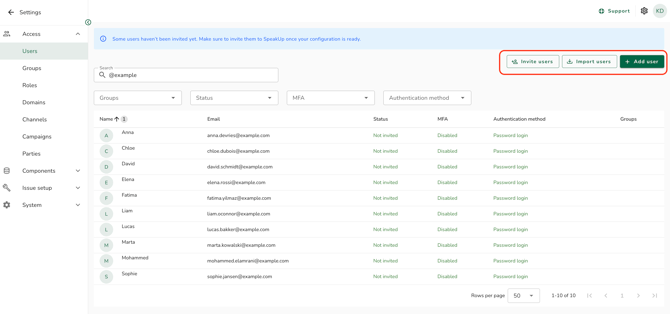
If you apply a filter before clicking "Invite users," only eligible Users within the filtered results receive an invitation. This is the fastest way to invite a specific group, such as all Unresolved Users. After you confirm, a success notification shows the number of emails sent, and the action is recorded in the system log.
Password login only:
Filters: Group, Status, MFA
Columns: Name, Email, Status, MFA, Groups
Status values:
The Status column shows where a User is in the invitation and access lifecycle.
- Not invited: the User account exists but no invitation email has been sent yet.
- Invited: an invitation email has been sent but the User has not yet accepted it (has not set a password).
- Enabled: the User has accepted the invitation and can log in.
- Disabled: the User has been disabled and cannot log in.
SSO only:
Filters: Group, Authentication method, Email domain (this filter only appears when email domains are configured on at least one Identity Provider)
Columns: Name, Email, Authentication method, Groups
Authentication method values:
The Authentication method column shows where a User is in the SSO invitation lifecycle.
- SSO not invited: the User is linked to an Identity Provider but has not yet received an SSO welcome email.
- SSO invited: the User has received an SSO welcome email but has not yet logged in.
- SSO active: the User has logged in at least once via SSO.
- Unresolved: the User has no valid authentication method. See "What is an unresolved user?" for the three resolution paths.
SSO combined with password login:
Filters: Group, Authentication method, Status, MFA, Email domain (the Email domain filter only appears when email domains are configured on at least one Identity Provider)
Columns: Name, Email, Authentication method, Status, MFA, Groups
This setup shows both sets of values described above. The Status column applies to password Users, and the Authentication method column applies to SSO Users. It also includes one extra value, "Password login," for Users who authenticate with a local password rather than through an Identity Provider.
The unresolved user warning banner:
When one or more Users have the Unresolved authentication method, a warning banner appears at the top of the user overview. It reflects every Unresolved User in your organisation, not just the ones visible on the current page.
To see only the affected Users, filter by Authentication method and select "Unresolved." See "What is an unresolved user?" for the three resolution paths.
- Filters are not persistent. They reset when you leave the user overview.
- The user overview is paginated for performance, so not all Users load at once.
- For SSO Users, SpeakUp identifies the account by the Identity Provider's stable user ID. An email change in the Identity Provider will not break the link to the User's SpeakUp account.