
To create a field
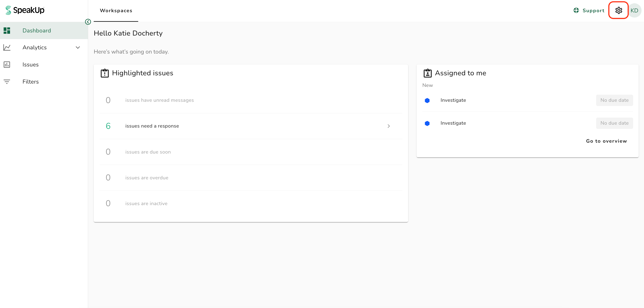
- Click on the Settings icon located in the top-right corner of the page
-
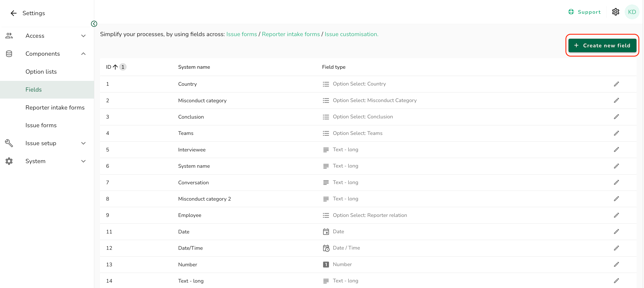
In the left-hand menu, navigate to “Components” and select “Fields”
-
Click on “Create a new field” on the top right corner of the page
-
Select the field type and enter the details:
- Field type: select a field type; go to What is a field on a form? for more information
-
System name: type in the name of your field; for example, if you would like to ask “What is the misconduct category?”, you may enter “Misconduct category” as the system name; this is not shown on the forms
-
Label used in form: type in the question you would like to ask; for example, you may write “What is the misconduct category?”; this is how the users will see the field when filling it in
- Data Retention: select if you want to keep or clear the data when the Issue is closed. The default is to keep data if no option is selected
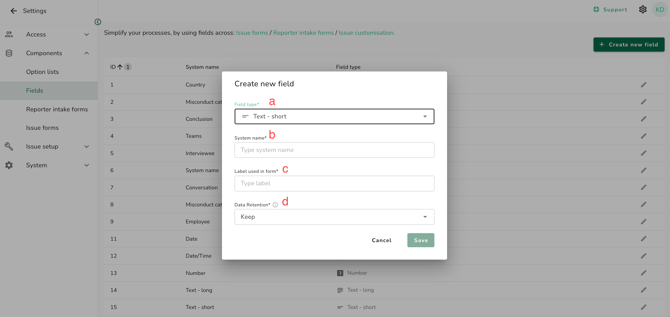
4. Click “Save” to finalise.
- After creating your field, you can use it in your Issues (How to add fields to Issues? ), or apply it all available forms.
-
It is not possible to add fields with Text-long to Issue setup
-
Field names have a limit of maximum 128 characters
- Once a field is created it's not possible to edit 'Field type'. You can still adjust the system name, the label and the data retention.
-
Enter the names in English. If case management languages are enabled for your organisation, it is translated automatically for Users (How do I manage translations of my own content?).