
To enable MFA, you will need to download an authenticator app first.
To enable/disable MFA for yourself:
-
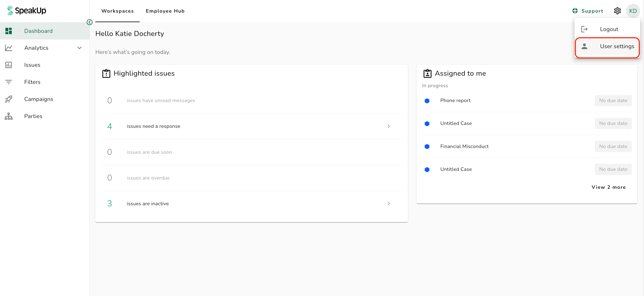
Click on your account icon on the top right corner of the page
-
Click on “User settings” from the dropdown menu
-
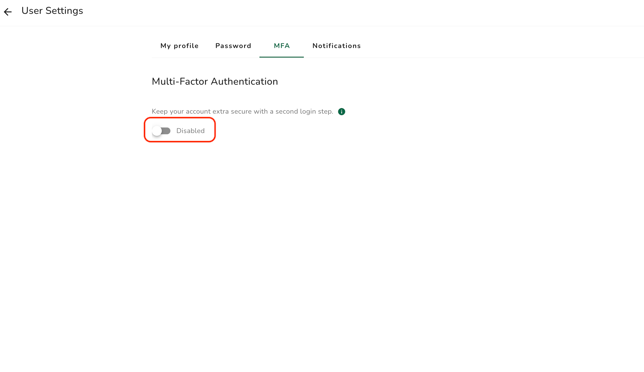
Click on the MFA tab to enable, or disable, multi-factor authentication settings
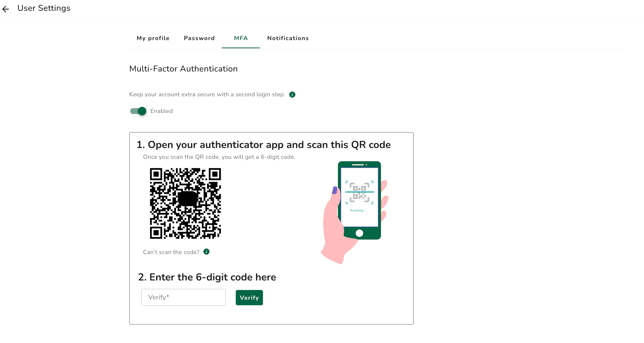
4. In case of enabling, a new window will pop up, requesting you to scan the QR on your authenticator app; enter the 6-digit coder from your authenticator and click on “Verify”
In some situations, a user may need their Administrator to disable MFA on their behalf, for example if they need to reinstall their authenticator app.
To disable MFA as an Administrator on behalf of a user:
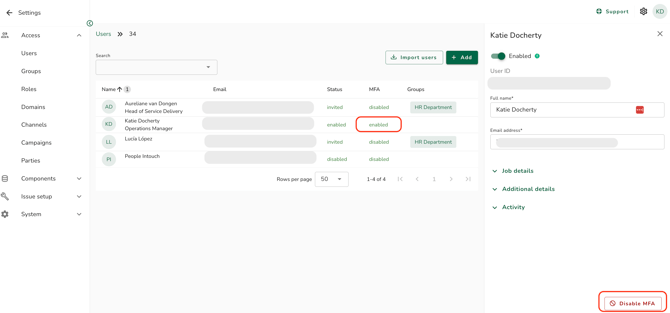
- Click "Settings" then "Access" then select the user
- If they have MFA enabled, you will see the option to Disable MFA. Click "Disable MFA":
- The user can now log back into SpeakUp and re-install their MFA.
A user can disable MFA for themselves. An Administrator can disable MFA for other users.
Administrators can enforce MFA for all users, you can see how here: How do I enforce MFA for all users?