
You can choose the language you work in on the login screen, in Workspaces and in the Employee hub.
Your choice is saved to your account, so the last language you chose is used everywhere the next time you log in.
Employee Hub is part of our SpeakUp Paths offering. If you are interested in knowing more about this package, contact your Customer Success Manager by clicking 'Support' and 'Contact support'.
Workspaces can only be shown in the languages your Administrator has enabled (What are case management languages?). The login screen and the Employee hub can show additional languages.
Change your language in Workspaces (case management)
- Click on the language dropdown from the top right corner:
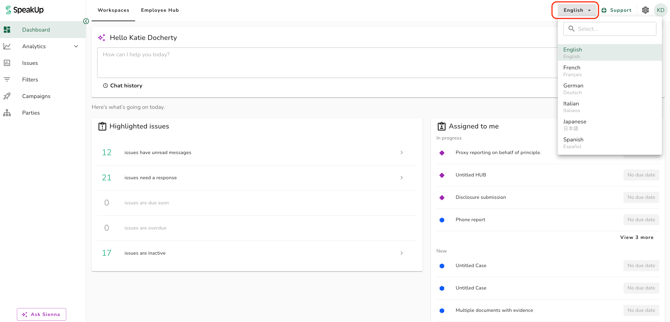
- Search for or select your language. You can search by the English name or by the language's own name, for example "German" or "Deutsch":
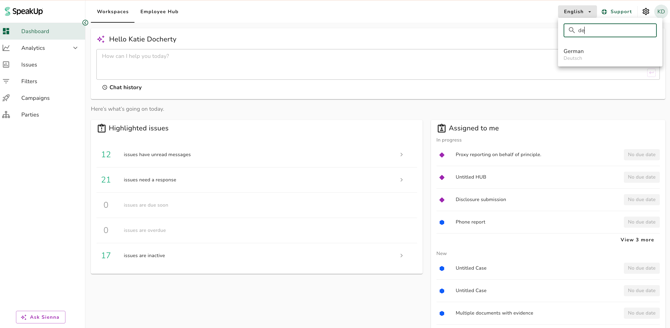
Workspaces switches to the new language straight away. Switching language does not remove any unsaved work, such as a comment draft.
If some elements are not shown in the new language straight away, refresh the page.
Change your language in the Employee hub:
- Open the Employee hub
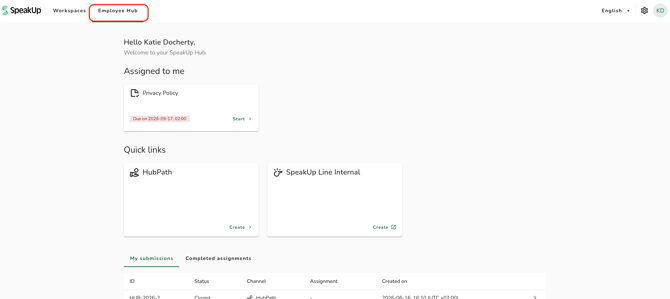
- Click on the language dropdown
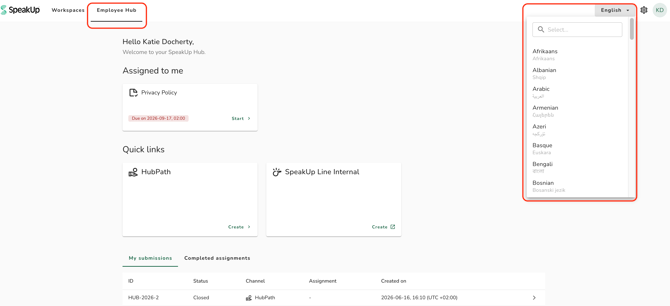
- Select your language
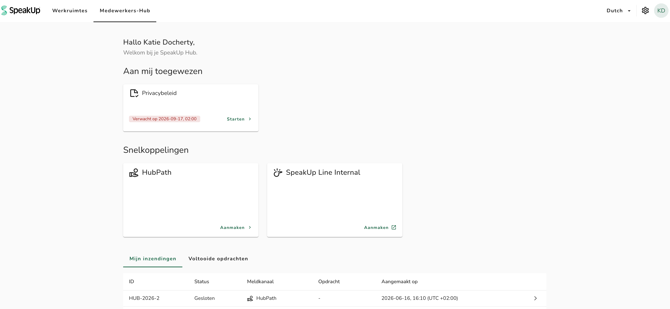
If you choose a language in the Employee hub that is not enabled for Workspaces, Workspaces will open in English.
You can choose one of the enabled languages from the top menu in Workspaces.
Choose a language on the login screen:
- Open the language picker on the login screen
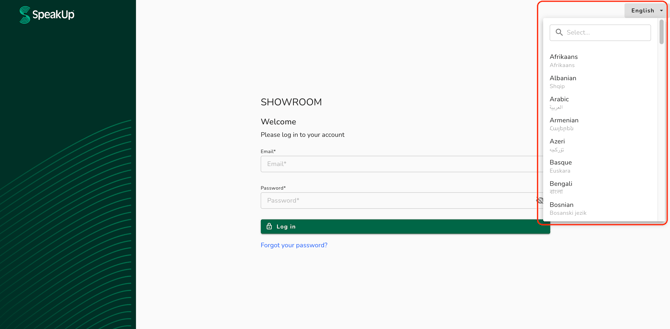
- Select your language.
- Log in as usual.
The language you select here applies to the login screen and the Employee Hub. If your Administrator has enabled this language for Workspaces, Workspaces also opens in it. If not, Workspaces opens in English.
How your language is saved:
- Your language is kept the next time you log in, including when you log in with SSO.
- A language you choose in Workspaces is also used in the Employee hub.
- Settings screens stay in English for Administrators, whatever language is selected.
Case management (Workspace) languages must be enabled for your organisation before you can use it. Contact your Customer Success Manager by clicking "Support" and "Contact support".