
When your system also has the Employee Hub, allowing employees to submit disclosure directly through SpeakUp Paths, these employees will also have an account in SpeakUp.
This article will explain how you can differentiate the users with only a reporting role from the users who will be managing the Issues. In other words, how you can restrict the permission to be given access to Issues. This feature is called "Invite user list".
To add a User to the "Invite user list":
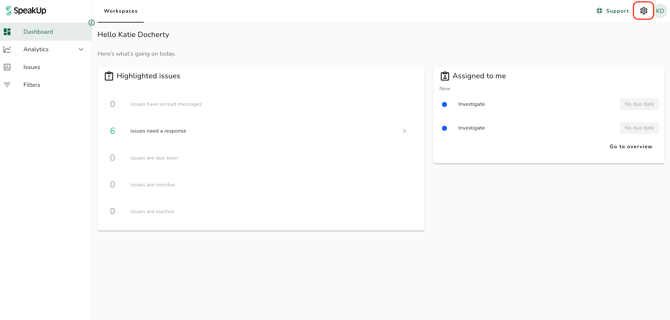
- Click on the "Settings" icon at the top right corner
- Go to “System” in the menu, click on “Configuration” and then on the “System access” tab
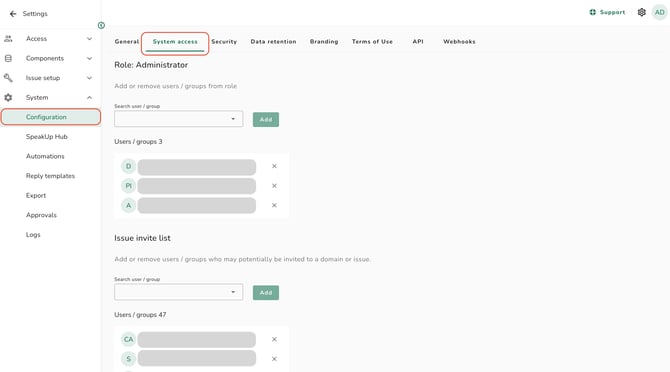
- On this page you can control who should be given access as Administrators (who can manage system configurations) and who should be given access to Issues. Scroll down to "Invite user list", search for the relevant user and click on "Add"
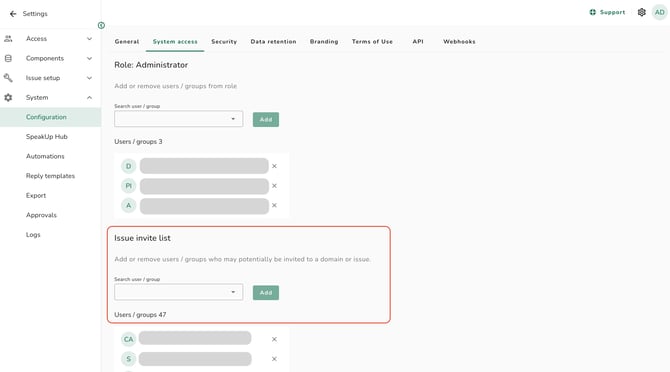
Only users added to the "Invite user list" can be selected when giving access to Issues at Domain or Issue level.
You can find more information how to give access to individual Issues on this article; and here you can see how to give access to Domains.