
Every Document in the Library carries one type, which tells Users what kind of document they are looking at. Policy and Procedure exist from the start, and your organisation can add types of its own.
To create a Document type:
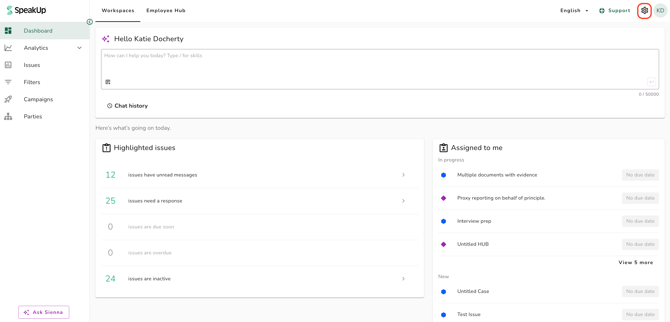
- Click on the "Settings" icon at the top right corner
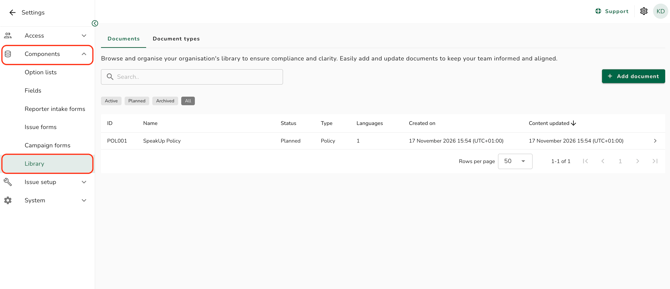
- Go to "Components" on the menu and click on "Library"
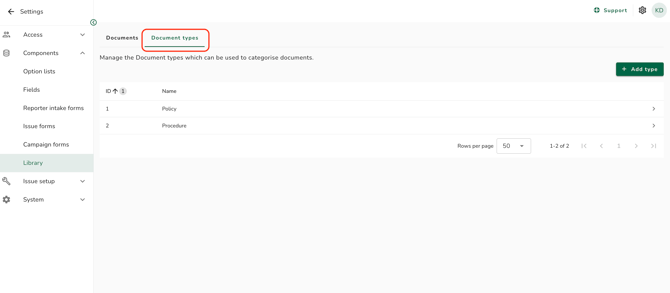
- Click on the "Document types" tab
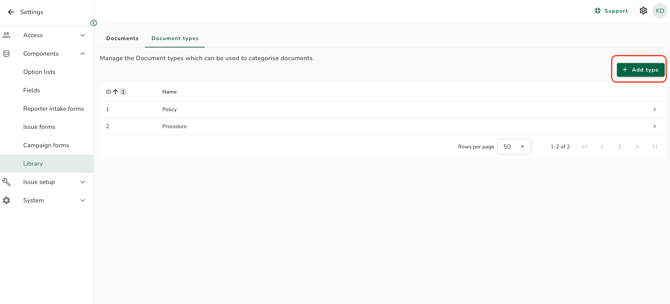
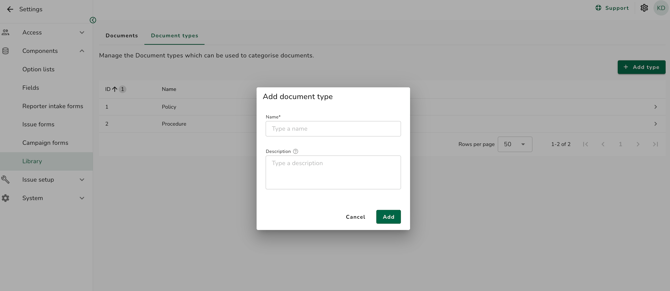
- Click on "Add type"
- Enter a "Name" of up to 100 characters
- Enter a "Description" of up to 5000 characters. This step is optional. It helps AI agents understand what the type means, and is not shown to any users
- Click on "Add" to complete the process
Type names are machine-translated into your system's case management languages. Descriptions are in English only and are never translated.
To edit or delete a Document type:
- Go to the "Document types" tab and click on the type you want to change; a panel will open on the right
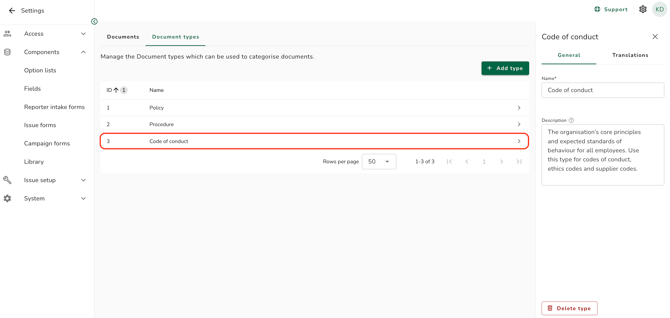
- Update the "Name" or the "Description" on the "General" tab; your change is saved as soon as you leave the field
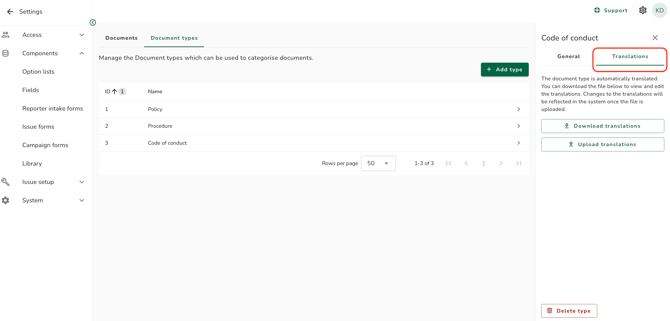
- To correct a translation of the name, go to the "Translations" tab, click on "Download translations", edit the file and click on "Upload translations"
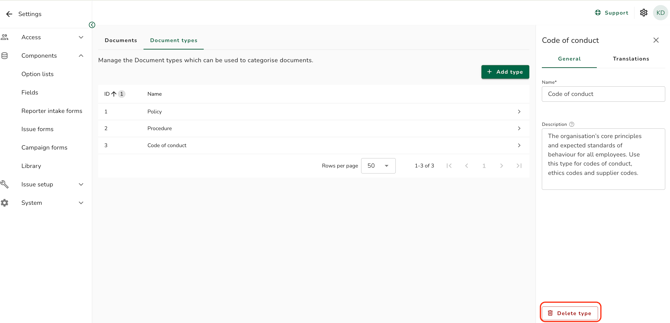
- To remove the type, click on "Delete type" at the bottom of the panel and confirm
- Policy and Procedure cannot be deleted, and their English names cannot be changed. You can edit their descriptions, and the translations of their names.
- A type that at least one Document uses cannot be deleted, including a Document that has been archived. The delete option is disabled, with a tooltip explaining why.
- Refer to What are Case Management languages? to learn more.
This feature is available on certain packages. To find out more, contact your Customer Success Manager by clicking “Support” and “Contact support”.