
By default, password login is the authentication method for SpeakUp. When you configure your first Identity Provider and enable SSO, password login is automatically turned off so that all Users authenticate via SSO.
If you have Users who are not covered by your Identity Provider, you can switch password login back on so it runs in parallel with SSO (existing Users will need to be re-invited).
When password login coexists with SSO, each User is routed based on their email domain:
-
Users whose domain is mapped to an Identity Provider authenticate via SSO
-
Users whose domain is not mapped fall back to password login.
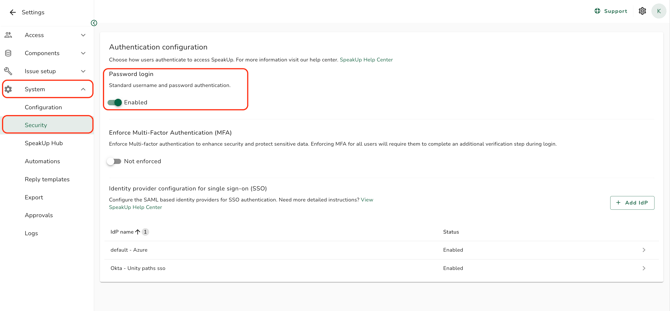
Enable password login alongside SSO:
- Click on the "Settings" icon in the top right corner.
- Go to "System" and click on "Security".
- In the "Password login" section, switch password login on.
Disable password login (only do this when needed):
- Make sure every Identity Provider that should be in use is enabled and has email domains mapped to it. Refer to How do I map email domains to an Identity Provider?.
- In the "Settings" menu, go to "System" and click on "Security"
- In the "Password login" section, switch password login off.
- Confirm the change when prompted.
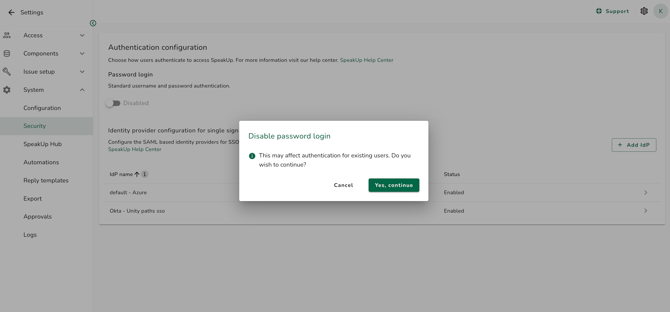
When password login is disabled, Users whose email domain is not mapped to any active Identity Provider become unresolved and cannot log in. Re-enabling password login alone does not resolve them. Affected Users also need to receive a password invitation, as their previous password was invalidated when SSO was enabled. Refer to What is an unresolved user?.
- Password login is automatically turned off when the first Identity Provider is configured. You can re-enable it at any time once the Identity Provider has been set up.
- Multi-factor authentication (MFA) only applies to password-login Users. When SSO is enabled, the option to enforce MFA is hidden for SSO Users.
- Refer to How does login work with SSO and password login? to understand which login path each User takes.