
Email domain mapping tells SpeakUp which Identity Provider (IdP) a User should authenticate against, based on the domain of their email address. Mapping is what makes multi-Identity Provider SSO work, and what lets SSO coexist with password login.
When mapping is required:
- Only one Identity Provider configured: email domain mapping is optional.
- One Identity Provider with password login enabled: at least one email domain must be mapped.
- Two or more Identity Providers: every Identity Provider must have at least one email domain mapped.
Map an email domain:
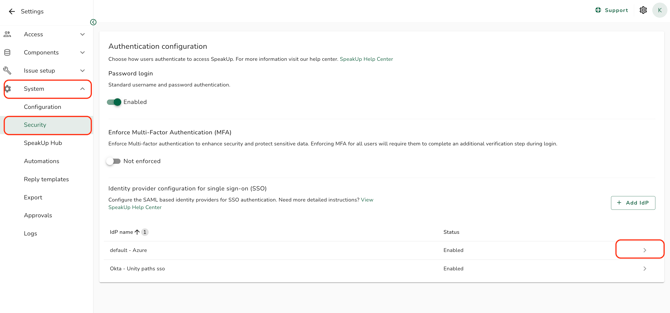
- Click on the "Settings" icon in the top right corner.
- Go to "System" and click on "Security".
- Open the Identity Provider you want to map an email domain to.
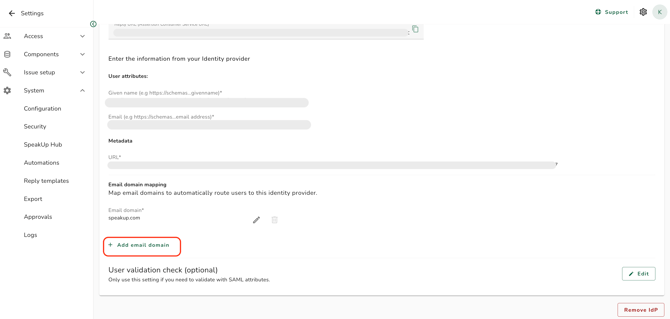
- In the "Email domain mapping" section, enter the email domain (for example,
acme.com). - To add more email domains for the same Identity Provider, click on "+ Add email domain" and repeat. You can map up to 20 domains per Identity Provider.
Edit a mapped email domain:
Editing a mapped email domain has the same impact as removing it: existing Users whose email matches the old domain are no longer routed to this Identity Provider after the change. Treat it as a remove-and-replace, not a quick text edit.
- In the "Email domain mapping" section, click the edit icon next to the domain you want to change, update the value, and save.
- A confirmation dialog appears showing how many Users are affected by this change. Choose what should happen to those Users:
- Disable all affected users: their access is revoked immediately.
- Keep users enabled: Users remain linked to the Identity Provider but their old domain is no longer mapped. They may encounter an error at next login unless they are covered another way.
- If password login is enabled and you choose to keep Users enabled, you can optionally send an invitation email so affected Users can set up a password.
- Click on "Confirm" to apply the change.
Remove a mapped email domain:
- In the "Email domain mapping" section, click the remove icon next to the domain you want to remove.
- A confirmation dialog appears showing how many Users are affected. Choose what should happen to those Users:
- Disable all affected users: their access is revoked immediately.
- Keep users enabled: Users remain linked to the Identity Provider but their domain is no longer mapped. They may encounter an error at next login unless they are covered another way.
- If password login is enabled and you choose to keep Users enabled, you can optionally send an invitation email so affected Users can set up a password.
- Click on "Confirm" to apply the change.
Email domain rules:
- Each domain must be unique across all Identity Providers in your organisation. If the domain is already mapped to another Identity Provider, an inline error is shown.
- Format requirements: at least one dot, no spaces, no
@symbol, no protocol prefix (such ashttps://orwww.), no path, and only letters, numbers, hyphens, and dots. - Email domains are editable at any time, before or after enabling the Identity Provider.
- Email domains are only validated against enabled Identity Providers at login.
- If you remove the last email domain and only one Identity Provider is configured, no confirmation dialog is shown and all Users continue to authenticate via that Identity Provider.
- If you keep Users enabled after a domain edit or removal without sending a password invitation, those Users may have no valid authentication path and will become unresolved. Refer to What is an unresolved user? for the resolution paths.
- The "Add IdP" button on the Identity Providers overview only becomes available once the first Identity Provider has at least one email domain mapped to it. Refer to How do I add an additional Identity Provider?.