
As an Administrator, you choose which languages Users can select in the case management system (Workspaces). English is always available, and you can add Chinese Simplified, Dutch, French, German, Italian, Japanese and Spanish.
Languages cannot be removed once added, so only add the languages your Users need.
Workspace languages must be enabled for your organisation before you can use them. Contact your Customer Success Manager by clicking "Support" and "Contact support".
How to enable Workspace languages:
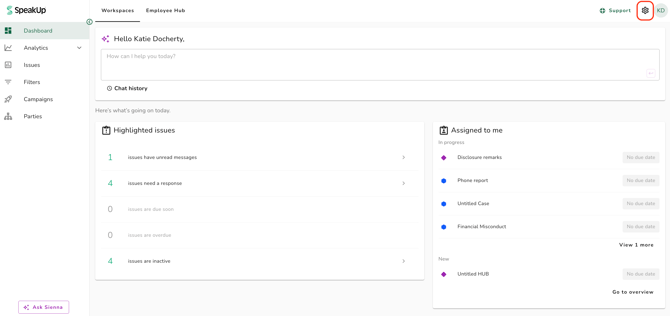
- Click on the "Settings" icon at the top right corner
- Go to "System" on the menu and click on "Configuration"
- Open the "General" tab and go to the "Workspaces" section:

- Select a language(s) in the "Add a language" dropdown and click on "+Add language"

- Review the languages you have selected, once added these cannot be removed. Confirm by clicking "Yes, add language"

- The language is then shown under "Active languages":

After you add a language, the "Workspaces" card shows "Translations in progress" while the terms your organisation has set up, such as Issue types and Workflow statuses, are translated into the new language.
Users can select the new language straight away, but some terms may show in English until the translation is complete.
If you add several languages at once and your organisation has set up a lot of terms, this can take up to 1 hour.
You can add more languages at any time in the same way.
All Administrators receive a "Configuration changed" email when a language is added, and Users who are already logged in see the new language in the language dropdown after they refresh the page.
If a User chooses a language on the login screen or in the Employee Hub that isn't enabled for Workspaces, Workspaces opens in English.
To learn more, read: