
Users with Administrator rights can import Users into SpeakUp using CSV files. This enables bulk creation and updating of User accounts, removing the need to add or edit individuals separately.
Preparing your CSV file:
Before importing, make sure your file meets the following requirements:
- File format: CSV
- Maximum 10,000 Users per file
- "Full name" and "Email address" columns are required
- Date fields must use ISO 8601 format (yyyy-mm-ddThh:MM:ss.000Z)
- Boolean fields use "true" or "false"
Import Users to SpeakUp:
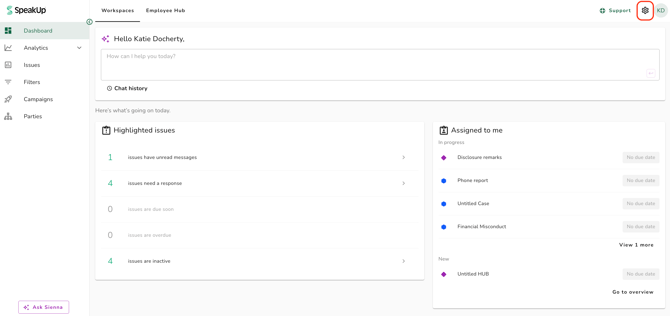
- Click on "Settings" at the top right corner of your system
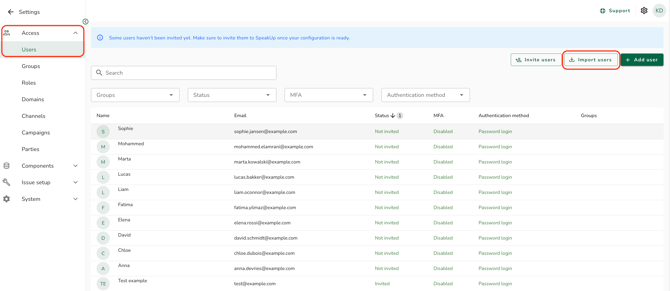
- Select "Access" then "Users", then select "Import Users"
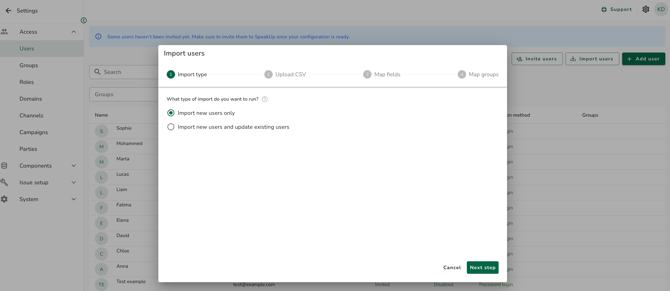
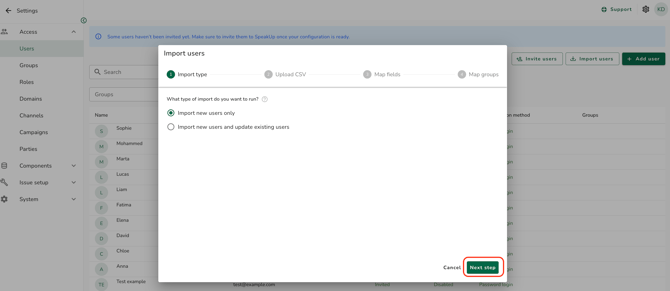
- In the "Import type" step, select how you want to run the import.
- Import new users only: creates new User accounts. Existing Users that match will be skipped and their data will remain unchanged.
- Import new users and update existing users: creates new Users and overwrites data for existing ones.
-
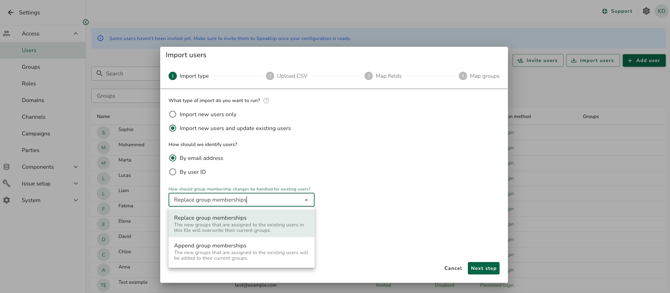
When selecting "Import new users and update existing users", two additional options appear:
- How should we identify users? — choose "By email address" or "By user ID" to specify how SpeakUp matches CSV rows to existing Users.
- How should group membership changes be handled for existing users? — choose "Replace group memberships" to remove all existing Group memberships and replace them with those from the CSV, or choose "Append group memberships" to only add Groups the User does not already belong to.
- Click "Next step" to proceed to "Upload CSV"
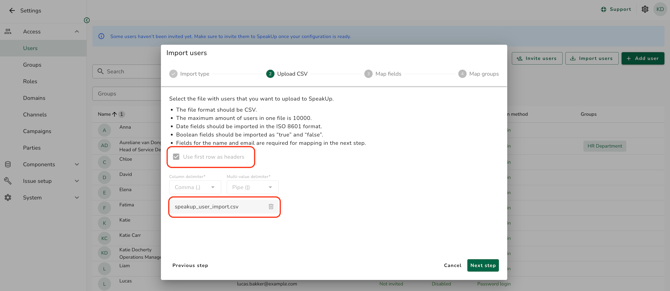
- Configure how your file is structured:
- Column delimiter: select the character that separates columns in your file - Comma (,), Semicolon (;), or Pipe (|). Comma is the default.
- Multi-value delimiter: select the character that separates multiple values within a single cell, for example multiple Groups - Comma (,), Semicolon (;), or Pipe (|). Pipe is the default.
The Column delimiter and Multi-value delimiter must be different. If they are the same, you will not be able to proceed.
- Click "Select file" and upload your prepared CSV file. Once a file is uploaded, the delimiter settings and "Use first row as headers" checkbox are locked. Remove the file first if you need to change them.
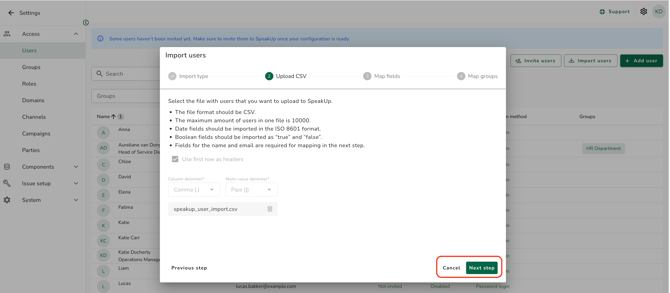
- If the file passes validation, click "Next step" to proceed to "Map fields". If errors are found, correct the file and upload it again.
- In the "Map fields" step, map each column from your CSV to the appropriate SpeakUp field, or select "Skip in import" to ignore a column.
"Full name" and "Email address" must both be mapped and pass validation before you can continue.
The "Next step" button remains disabled until these two fields are valid and no other mapped field has an error.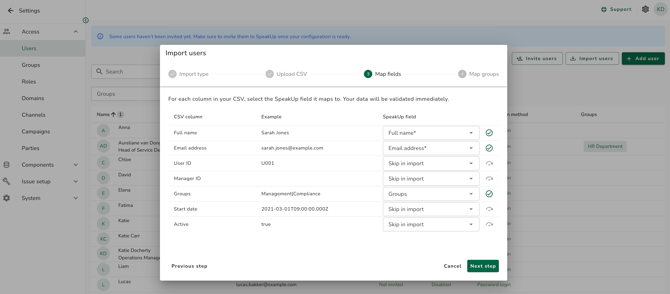
- Click "Next step" to proceed to "Map groups".
- In the "Map groups" step, review and confirm how each CSV group value maps to a SpeakUp Group.
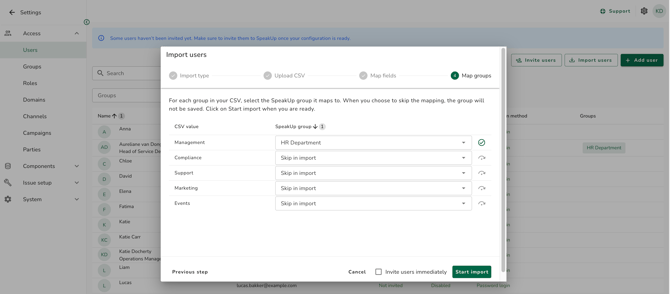
SpeakUp pre-fills each row automatically, first from the mapping saved during your last successful import, then by matching the CSV value exactly to a SpeakUp Group name.
Rows that cannot be matched default to "Skip in import".
To assign one or more Groups to a row, select them from the dropdown. Selecting a Group automatically clears "Skip in import" for that row. Selecting "Skip in import" clears any Groups selected for that row.
Group name matching is case-sensitive. "Marketing" and "marketing" are treated as different values.
The group mapping from each successful import is saved and pre-loaded the next time you run an import for this environment.
- If you want to send invitation emails to all uninvited Users in the environment immediately after the import completes, check the "Invite users immediately" checkbox.
Important to note: This checkbox applies to all uninvited Users in the environment, not only the Users created in the current import run.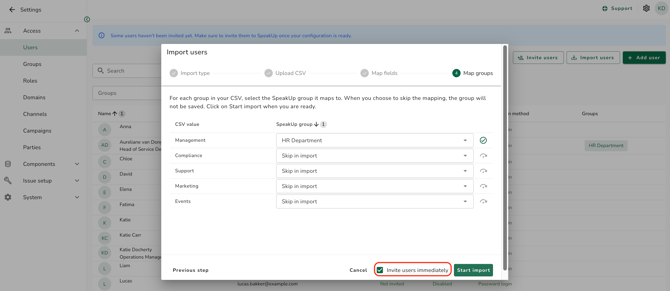
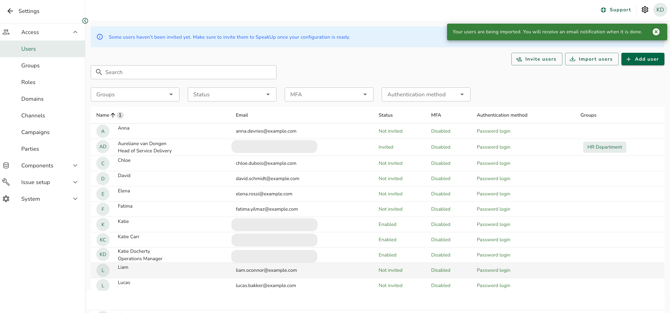
- Click "Start import". The import window closes and a confirmation message is shown:
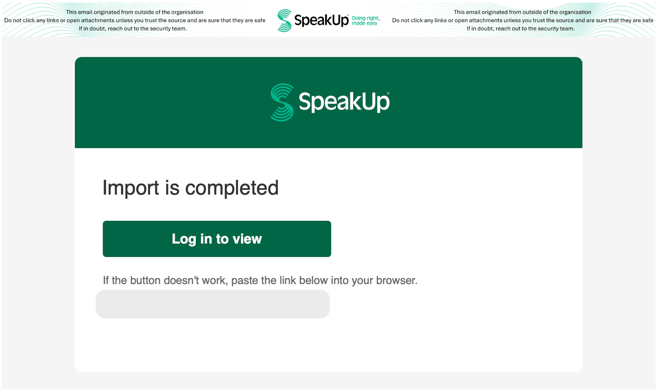
- You will receive an email when the import completes, whether it succeeded or failed:
Importing Users with their managers:
You can import Users and their managers together in a single CSV file. A manager is simply another User, so there is no separate file or step for them. SpeakUp links each User to their manager by matching two fields during the "Map fields" step.
- User ID: the User's own unique identifier from your source system. Map this column so each User has an ID that a manager relationship can point to.
- Manager ID: the identifier of that User's manager. Enter the manager's "User ID" value here to create the link.
-
Every "Manager ID" value must match a "User ID" that is either included in the same file or already exists in SpeakUp. The manager can appear anywhere in the file, before or after their reports, since the relationship is resolved once the whole file has been read.
-
Each "User ID" must be unique within the file. If two rows share the same "User ID", the import will not proceed.
-
If any "Manager ID" cannot be matched to a "User ID" in the file or in SpeakUp, the entire import fails and no Users are added. Correct the unmatched value and import the file again.
Success and failure notifications:
After clicking "Start import", the import window closes immediately and a confirmation message is shown. The import runs in the background and you will receive an email notification when it is done.
- Successful import: you receive an email confirming that the Users have been added or updated successfully.
- Failed import: you receive an email with the reason for the failure. Correct the issue described and import the file again.
Importing Users does not automatically give them access to SpeakUp. To give access to Users, read the following pages:
How do I make a user an Administrator?
How do I create a User and assign them access?