
The "Involved parties" section on an Issue lets you link Parties to an Issue, track their involvement, and view other Issues they are linked to.
You need the "View issue-party link" permission to see this section, and "Add issue-party link" to link Parties. (See How do I manage access for Parties to learn more).
View involved parties
-
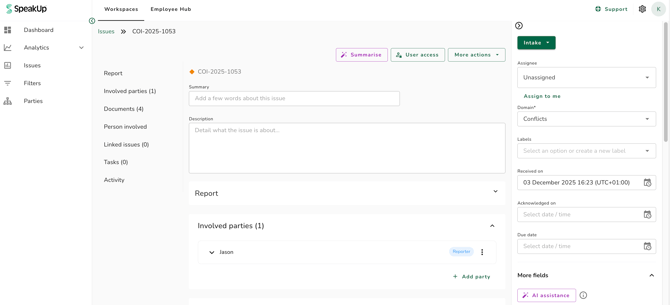
Open any Issue and scroll to the "Involved parties" section. Click on it to expand.
-
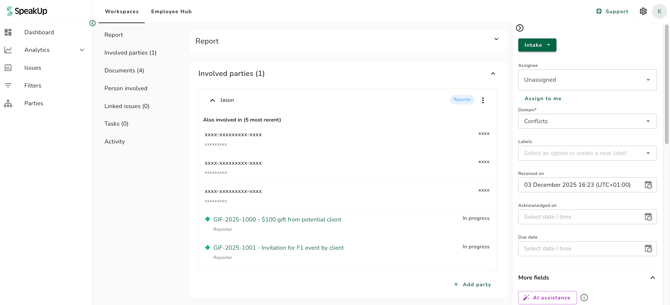
Each linked Party is shown as a collapsed block with their name or description and their Involvement(s). Click on a Party to expand it and see the five most recent Issues they are linked to, along with their Involvement(s) and Issue status.
-
Click on a linked Issue in the list to navigate to it directly.
-
To view the full Party details, click the three-dot menu on a Party block and select "View party". This opens a Party details panel. To open the full Party detail page, click the Party link inside the panel.
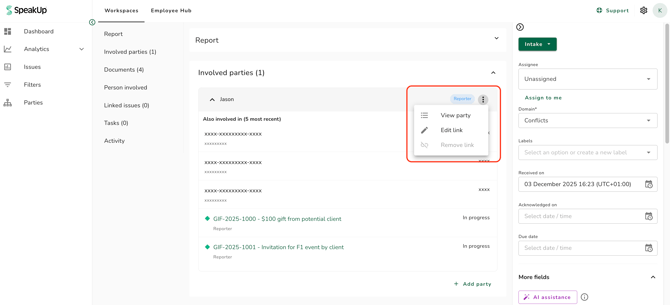
Issues that you do not have access to will appear in a Party's linked Issues list in a hashed format.
Add a party to an issue
-
Open the Issue and expand the "Involved parties" section.
- Click "Add party".
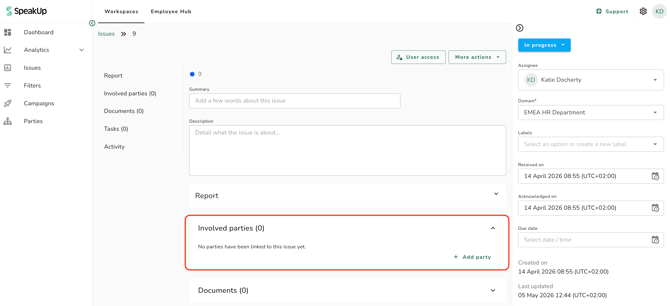
- Select the Party type: "Identified" for a known person, or "Unidentified" for an unknown person.
Adding an identified party
- In the "Full name" field, start typing to search for an existing Party or SpeakUp User. Select a match from the dropdown to use an existing record, or continue typing to create a new one.
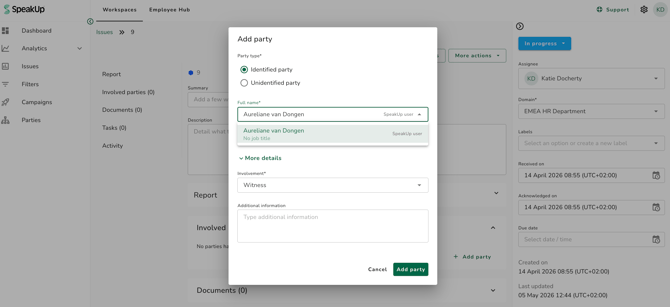
- Select "Reusable" or "Single-use" from the "Party usage" dropdown. If you selected an existing Party or User in the previous step, "Party usage" is set to "Reusable" automatically and cannot be changed.
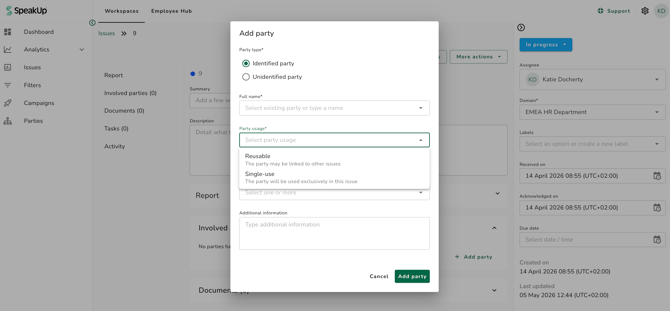
- You have the option to fill in additional Party properties such as job title, organisation, department, and others by clicking "More Details". If you selected an existing Party or User, these fields are read-only.
- Select one or more Involvements.
- You have the option to add any "Additional information" (200 character limit).
- Click "Add party" to save.
Adding an unidentified party
- Click "Add Party" and select "Unidentified party"
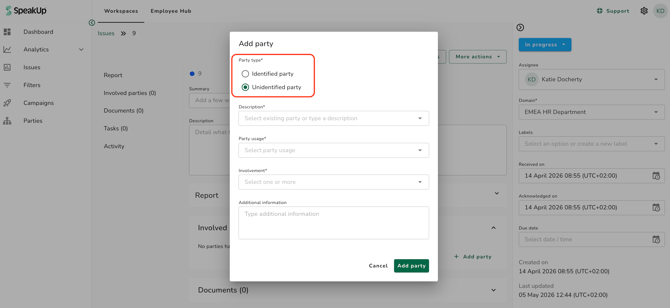
- In the "Description" field, start typing to search for an existing unidentified Party. Select a match to use an existing record, or continue typing to create a new one.
- Select "Reusable" or "Single-use" from the "Party usage" dropdown. If you selected an existing Party, "Party usage" is set automatically and cannot be changed
- Select one or more Involvements.
- Optionally, add any "Additional information" (200 character limit).
- Click "Add party" to save.
Edit a party link
- In the "Involved parties" section, click the three-dot menu on the Party you want to update and select "Edit link".
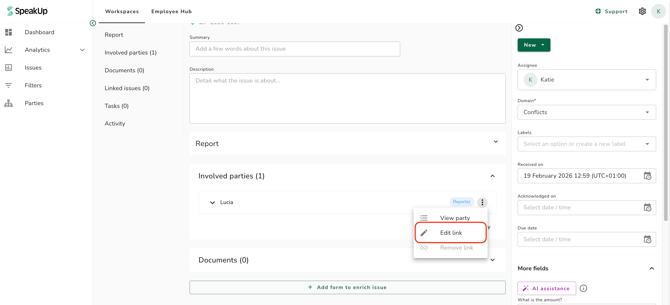
- Update the Involvement(s) and/or "Additional information" as needed.
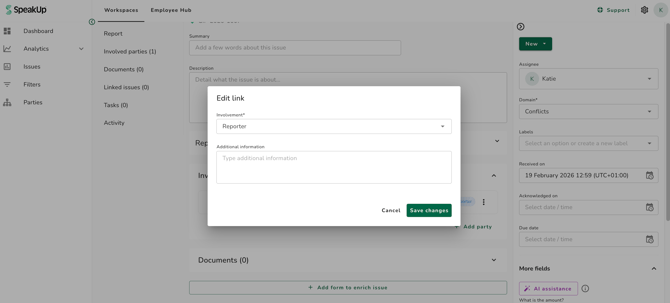
- Click "Save changes".
- In the "Involved parties" section, click the three-dot menu on the Party you want to remove and select "Remove link". The Party link is removed from the Issue immediately.
The Parties feature must be enabled for your organisation before these settings appear.
Click "Support" and "Contact support" to request this with SpeakUp.