
When Workspaces (case management) languages are enabled, the terms your organisation has configured are translated automatically into every enabled language. You can replace these translations with your own wording, or switch translation off for a type of content (What are case management languages?)
You always create, rename and search configured content in English in Settings. Translations are only shown to Users outside of the Settings menus.
What you can override
You can edit translations using the "Manage translations" button on the overview page of each of the following areas in Settings:
- Access: Channels (display name), Domains, Groups and Roles (name and description)
- Issue setup: Issue types, Workflows (status and transition names) and Screens
- Components: Fields, Option lists, Issue forms, Reporter intake forms and Campaign forms
- System: Automations
- Analytics: Analytic views, Charts and Saved filters
Reply templates work differently. To edit a template's translations, open the Reply template and go to the Template translations tab. You can edit both the template name and the reply text: How do I create and manage a Reply template?
What you cannot override:
- Workspaces screens: menus, buttons and messages are translated by SpeakUp.
- Reporter messages: these are translated according to the Channel's translation setting. You can still review and edit the translation of your own reply before sending it ([How do I read and reply to a report in my own language?](#)).
- Text written by Users: comments, the Description and Summary fields and free text answers are not translated.
How to replace a translation with your own wording:
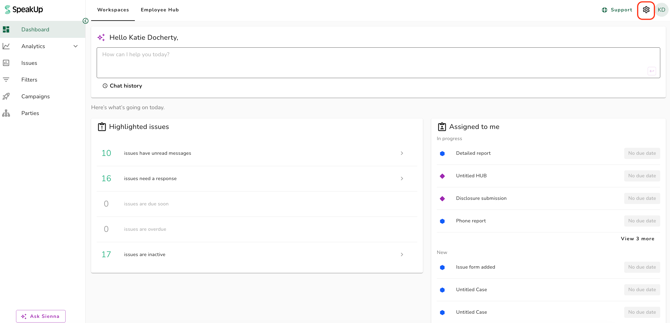
- Click on the "Settings" icon at the top right corner
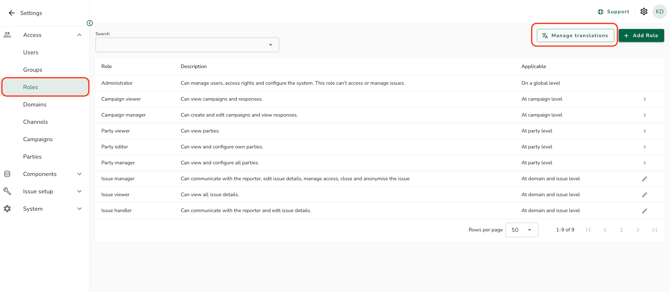
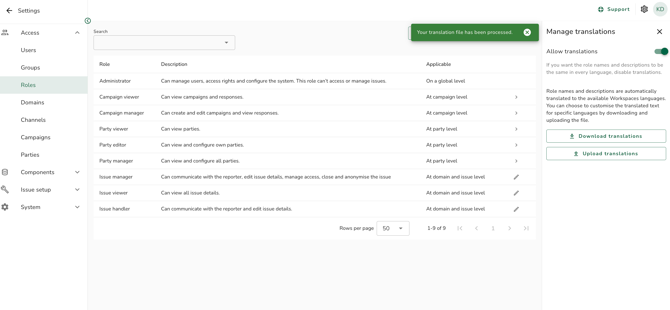
- Go to the page of the content you want to change, for example "Roles" and click on "Manage translations"
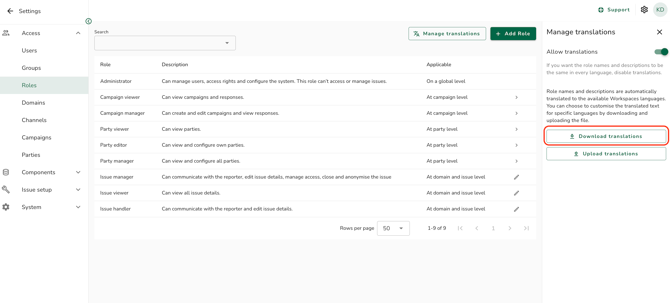
- Click on "Download translations"
- Edit the translations you want to change for specific languages and save the file.
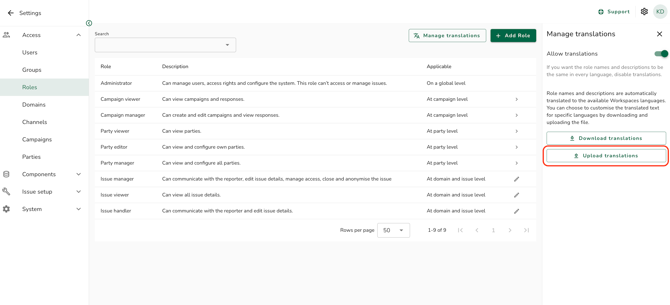
- Click on "Upload translations" and select the edited file
- You will see a confirmation banner that confirms the file has been processed
How to switch off translations:
If you want the terms to be the same in every language, switch off translations.
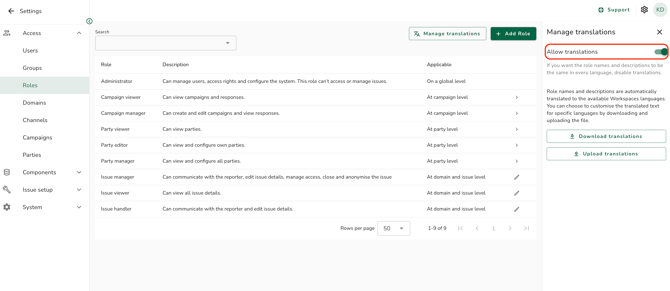
- Click on "Manage translations" on the overview page
- Switch off "Allow translations"
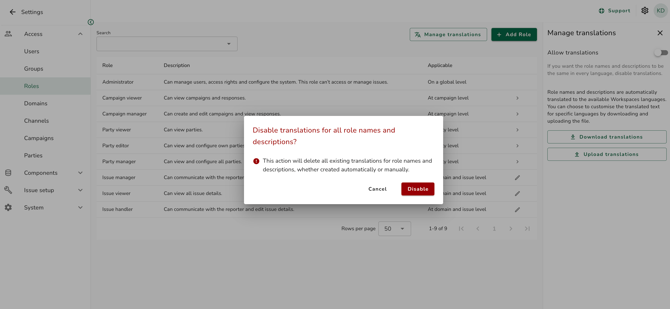
- Click "Disable" to confirm the action
What happens to your translations when you rename a term:
Changing the English name of a term replaces all its translations with new automatic translations, including any wording you added yourself. You won't see a warning when this happens, so check your translations after making a change and add your own wording again if needed.
Renaming a term doesn't change existing records. Issues that already use a form keep the form name from when the form was added, and Issue history keeps the name an Automation had when it ran.
Using the Description field
Terms such as Issue types, statuses, transitions, Domains, Fields, Option lists and forms have a Description field. Use it to explain what the term means, so the automatic translation chooses the right wording. For an Option list, the description applies to every option in the list.
If you change only the description, the automatic translations are updated and any wording you uploaded yourself is kept.
The description is only used to improve translations, so it isn't included in the translations file. Role descriptions are the exception, you can translate these too.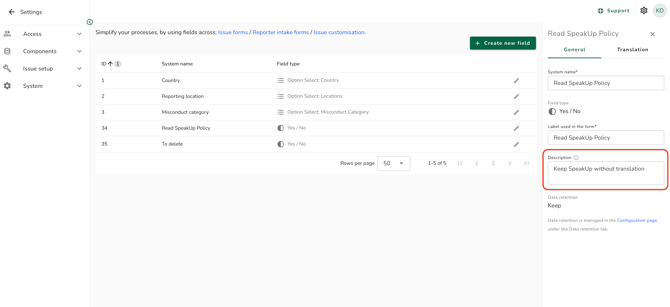
Workspace languages must be enabled for your organisation before you can use it. Contact your Customer Success Manager by clicking "Support" and "Contact support".