
If your organisation uses AI field automations, an automation can fill in empty fields on an Issue with AI. Each value it fills in has an AI icon until a User accepts, rejects or edits it.
This feature is available on certain packages only. To find out more, contact your Customer Success Manager by clicking “Support” and “Contact support”.
How to review an AI value:
- Open the Issue and find a value with the AI icon. The icon can be next to the Summary or next to a field in the Details panel, such as Due date or a field under "More fields". While the AI is still working, the Issue shows "Automations are still running on this issue. Some fields may be filled in when they finish."
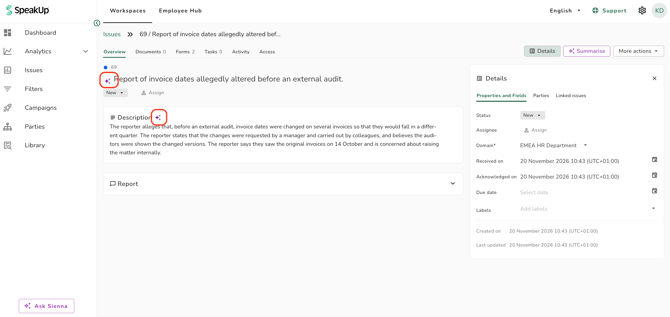
- Hover over the AI icon. A pop-up window shows the value, up to three reasons under "Why the AI filled this", and the automation that filled it in, with the date:
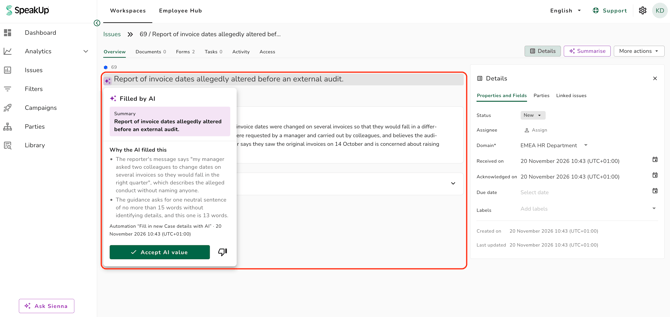
- Choose what to do with the value:
- Accept: click on "Accept AI value". The value stays and the AI icon disappears.
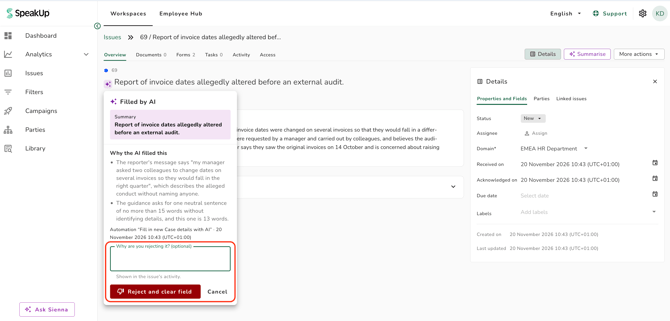
- Reject: click on the thumbs down icon, add a reason in "Why are you rejecting it? (optional)" if you want, and click on "Reject and clear field". The field is cleared and the AI icon disappears:
- Edit: change the value in the field and save it. Your value stays and the AI icon disappears.
When you reject a value, the fields that depend on it are cleared too, and your reason is shown in the Issue's Activity. If an automation runs again, the AI can fill in the field again, but it won't suggest the value you rejected unless the Issue has new information.
You need permission to edit a field to accept or reject its AI value. The reasons are shown to everyone who can see the field, including Users whose Role can't view report messages, and they can quote the Reporter.
Values that nobody has reviewed yet are also marked outside the Issue. You can only accept or reject them on the Issue itself.
- Issues overview: an AI icon next to the value. The legend calls it "Unconfirmed AI value".
- Triage: an AI icon next to the Priority.
- Issues overview download: a column "Unconfirmed AI values" that lists these fields for each Issue.
- Issue export: "(Unconfirmed AI value)" after the value.