
The call centre package must be enabled for your organisation before you can use it. Contact your Customer Success Manager if you are not sure by clicking "Support" and "Contact support".
Call centre forwarding puts every caller to this Channel through to a human operator instead of to the automated phone line. Your call centre provides the number to forward to.
What the caller hears:
- The caller dials the SpeakUp number for their country and enters your organisation code.
- The line tells them they are being connected and that the person taking the call will not see their phone number.
- The call is put through to the number you entered on the Channel.
- If nobody answers within 45 seconds, the caller is asked to call back later and the call ends.
The language menu, the consent notice, phone login, voice messages and Sienna are all skipped while forwarding is on.
A caller who cannot be connected is not offered a voice message instead, because the operator is the only route on this Channel. The operator sees the number of the SpeakUp line, never the caller's own number.
The operator takes the report over the phone and files it through one of your web Channels, so it arrives as a web report rather than a phone report.
SpeakUp recommends giving your call centre the web link of a separate Channel used only by operators, so their reports are easy to recognise and can carry their own consent text and confirmation message. How the caller follows up afterwards depends on what they and the operator agree; your call centre's script decides this, not SpeakUp.
To switch on call centre forwarding:
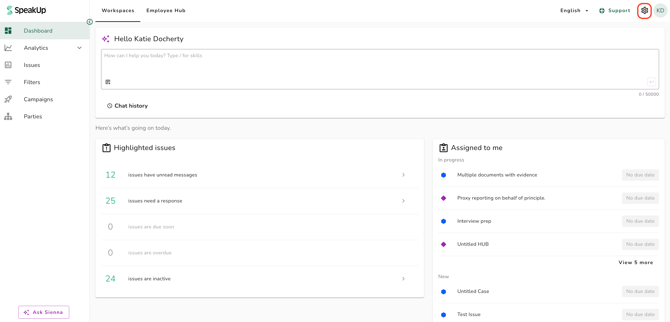
- Click on the "Settings" icon at the top right corner
- Go to "Access" on the menu and click on "Channels"
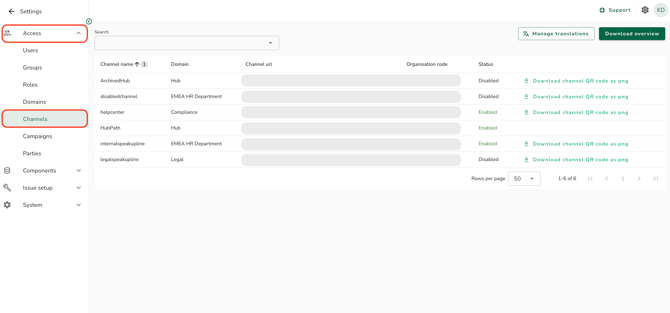
- Click into the relevant Channel for misconduct reporting
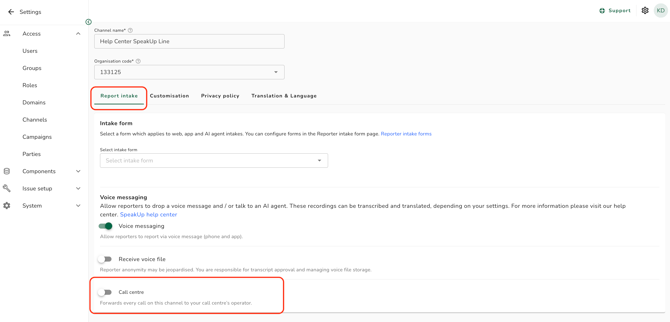
- Under the "Report intake" tab, switch on "Call centre"
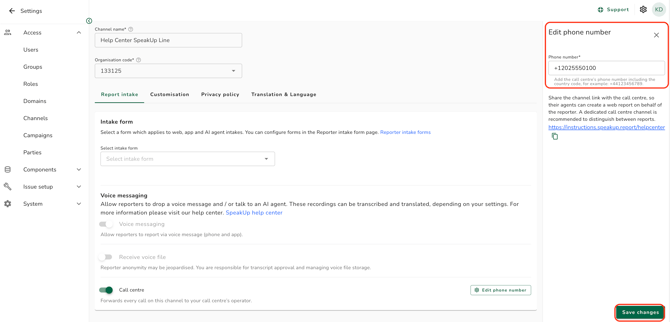
- A pop-up window will appear. Enter the number your call centre gave you in the "Phone number" field. It must be an international number including the country code
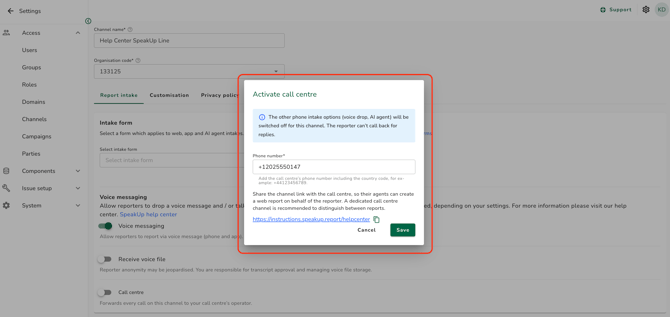
- Click on "Save" to complete the process
To change the forwarding number:
- Click "Access", "Channels" and click into the relevant Channel
- Click on "Edit phone number" next to "Call centre"
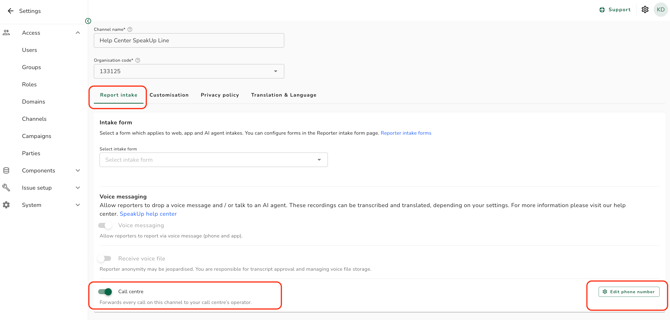
- Enter the new number in the "Phone number" field
- Click on "Save changes" to save your changes
To switch off call centre forwarding:
- Click "Access", "Channels" and click into the relevant Channel
- Switch off "Call centre". Your other phone settings return to the values they had before.
- While call centre forwarding is on, voice messages, Sienna and receiving voice files are switched off on this Channel. Their saved values are kept and come back when you switch forwarding off.
- You cannot switch forwarding on while the Channel still has live phone reports, because those Reporters would lose the ability to call in and continue. The message tells you how many are in the way.
- Switching forwarding on or off and changing the number are all recorded in the Channel log.
Refer to What is a Channel for misconduct reporting? and Where can I find the phone numbers for a Reporter to call? to learn more.