
The "Parties" overview gives you a central place to find everyone who is, or could be, involved in Issues.
From there you can open a Party's detail page to review their properties, see which Issues and Campaigns they are linked to, and edit or delete their record.
See Refer to How do I manage access for Parties? for the permissions required to view, edit, and delete Parties.
Find a Party
Click on "Parties" in the navigation menu. The overview shows all Parties and SpeakUp Users in a table with the following columns:
- Date created: The date the Party or User was created.
- Full name / Description: The full name of an identified Party or User, or the description of an unidentified Party.
- Job title: The Party's job title, if available.
- Origin: Shows "SpeakUp user" for user-based Parties and Users, or "Created by [name]" for custom Parties.
The table is sorted by date created (newest to oldest) by default. You can sort on any column by clicking its header. Use the search bar to find a specific Party by name, description, job title, or origin.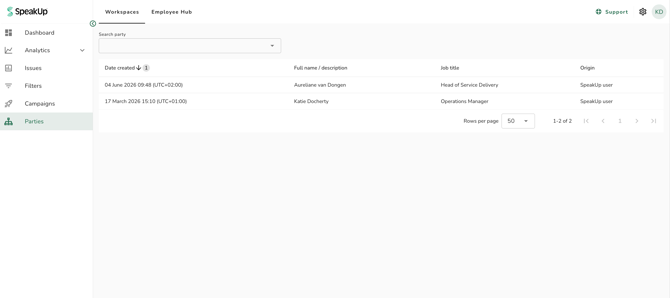
View Party details
Click on any row to open the Party detail page. The Party detail page has three tabs: "Details", "Involved in", and "History".
Details tab
The "Details" tab shows the Party's properties, including their name or description, party usage, job title, and other available attributes.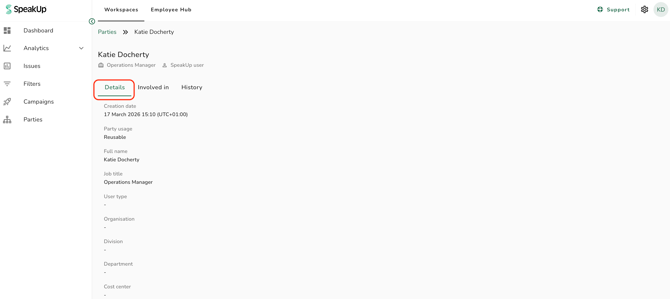
Involved in tab
The "Involved in" tab shows all Issues and Campaigns the Party is linked to.
The "Issues" section is expanded by default and lists each linked Issue with its type, ID, summary, Involvement(s), and status.
Click on an Issue to open a side panel with its summary, description, Involvement, and additional information. Click the Issue ID link in the panel to open the full Issue detail page in a new tab.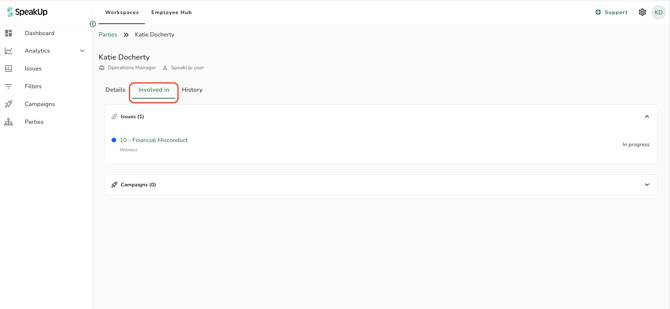
The "Campaigns" section is collapsed by default and lists each Campaign assignment with the Campaign name, assignment date, and Campaign status.
Click on a Campaign to open a side panel with the Campaign name, completion date, linked Issue, and for completed assignments, the Campaign form responses. Click the Campaign name or Issue link in the panel to open the respective detail page in a new tab. Issues and Campaigns you do not have access to appear in a hashed format and cannot be clicked.
History tab
The "History" tab shows a log of all changes made to the Party, ordered from newest to oldest. Each entry shows who made the change and when. Automated changes are attributed to the system.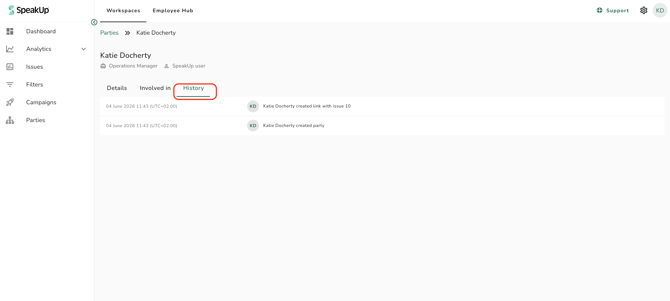
Edit a Party
You can edit the properties of custom Parties directly on the "Details" tab. Click on any editable field and make your changes. The update saves automatically when you click outside the field.
Party properties that can be edited include full name or description, job title, user type, organisation, division, department, cost centre, employee number, manager, team members, and manages. Party usage is not editable.
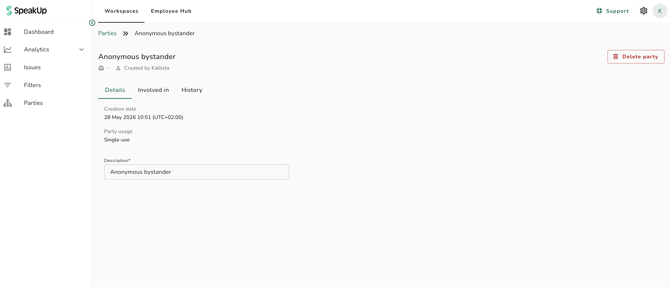
SpeakUp user-based Parties are read-only and cannot be edited.
Delete a Party
The delete option is available on the Party detail page when:
- The Party is a custom Party (not linked to a SpeakUp User), or
- The Party is linked to a deleted SpeakUp User.
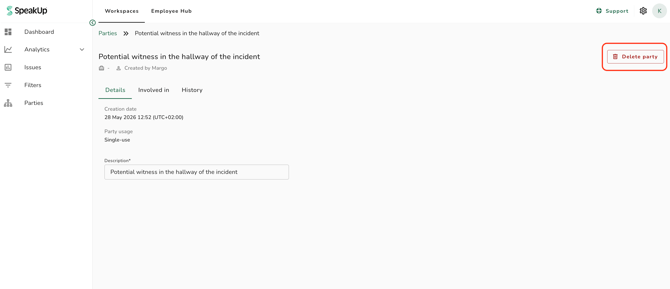
- Open the Party detail page.
- Click "Delete party".
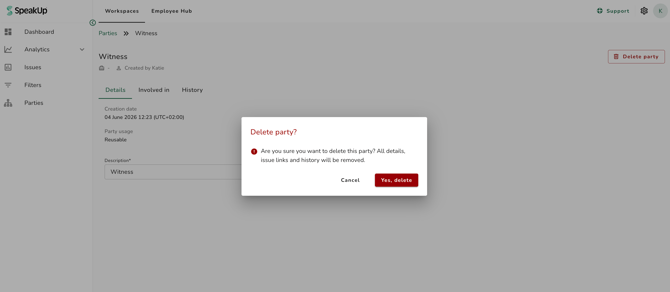
- Click "Yes, delete".
A user-based Party is deleted automatically when it has no more linked Issues. For example, after data retention clears its Issue links.
The Parties feature must be enabled for your organisation before these settings appear.
Click "Support" and "Contact support" to request this with SpeakUp.