
You can add users to SpeakUp individually from the user overview. This is useful when you want to create a single user account and assign the appropriate group and role during setup.
Only a User with the Administrator role can add new Users.
To add a User
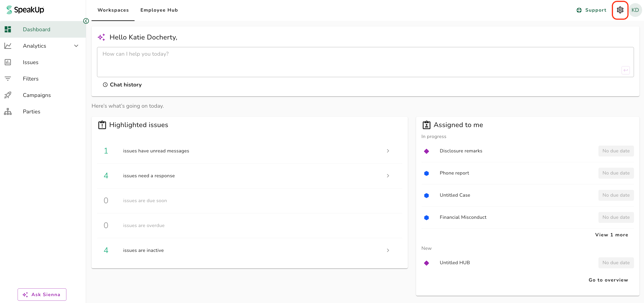
- Click on the "Settings" icon in the top right corner.
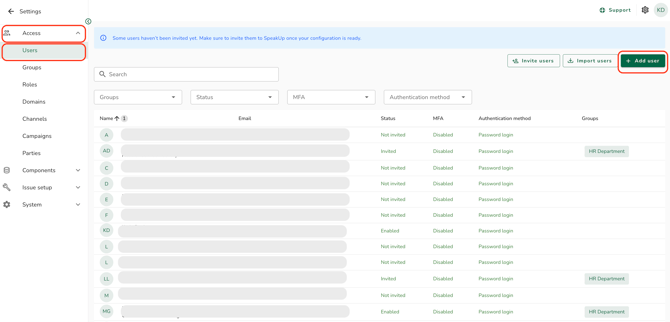
- Go to "Access" on the menu and click on "Users" and select "Add user"
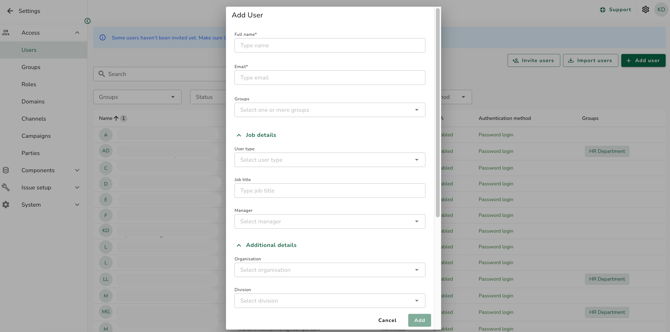
- Fill in the User's details (name, email, group, role). The email address determines which authentication method the User is assigned to:
- If the email domain is mapped to an Identity Provider, the User becomes an SSO User for that Identity Provider.
- If the email domain is not mapped and password login is enabled, the User becomes a password-login User.
- If the email domain is not mapped and password login is disabled, you will see an inline error because the User has no valid authentication method.
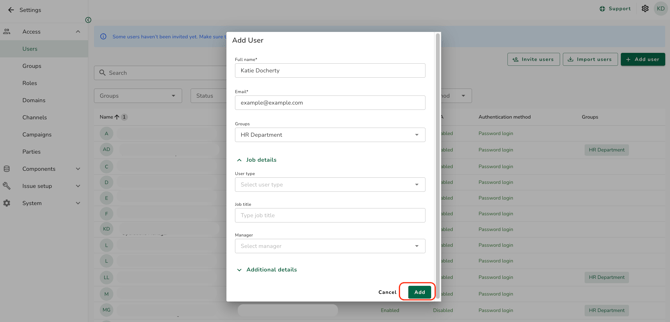
- Click on "Add". An invitation email is sent automatically:
- SSO User: receives an SSO welcome email letting them know they can access SpeakUp.
- Password User: receives an invitation email with a temporary password.
If you use the Employee Hub, you must also add your Case Managers to the Invite user list before they can be given access to Issues. Full details: How do I control which Users should be given access to Issues?
- The way a new User signs in, and which invitation email they receive, is determined by your organisation’s authentication configuration.
- To resend the "password users" invitation, refer to How do I resend an invitation email to a (new) User?
- To add multiple users, refer to How do I import multiple users?. To send or re-send invitations to several Users at the same time, refer to How do I bulk invite users?
- For more on how authentication methods are assigned, refer to How does login work with SSO and password login?. For Users without a valid authentication method, refer to What is an unresolved user?.