
To add a Document:
- Click on the "Settings" icon at the top right corner
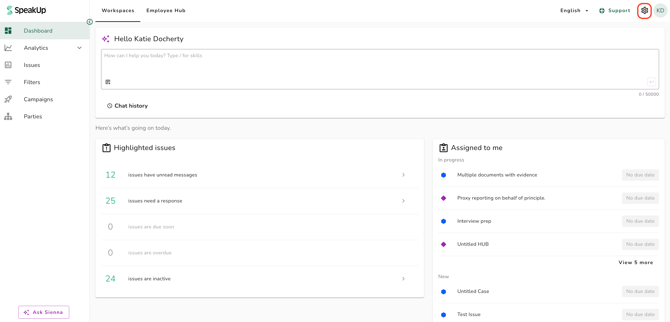
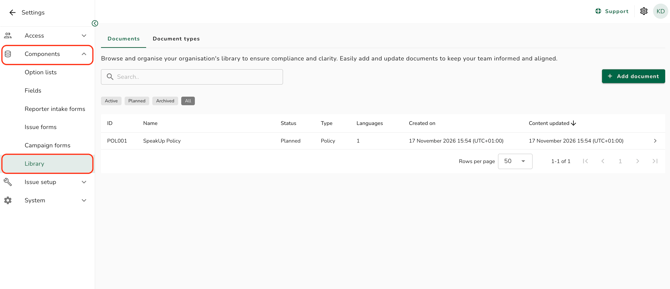
- Go to "Components" on the menu and click on "Library"
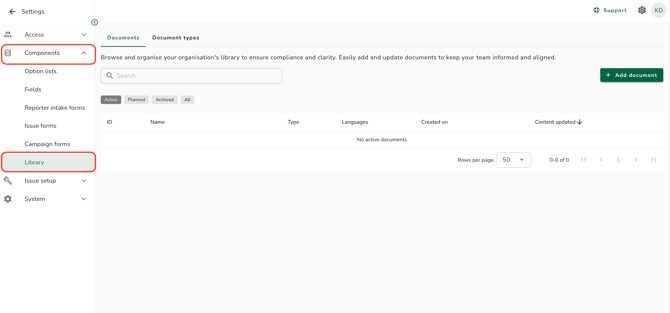
- Click on "Add document"
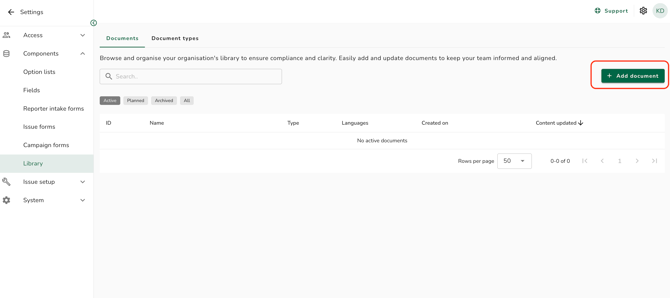
- Select a type. Policy and Procedure are available by default.
- Enter a "Name" of up to 100 characters
- Enter an "ID" of up to 50 characters, or leave it empty to receive the next one in sequence, starting at DOC-1. An ID is converted to capitals as you type
- Enter a "Description" of up to 500 characters. This step is optional
- Upload the master file and select the language it is written in. PDF, DOCX, PPTX and XLSX files up to 25 MB are accepted [image]
- Set the "Effective from" date. This defaults to today and cannot be in the past
- Click on "Add" to complete the process; the Document's page will open
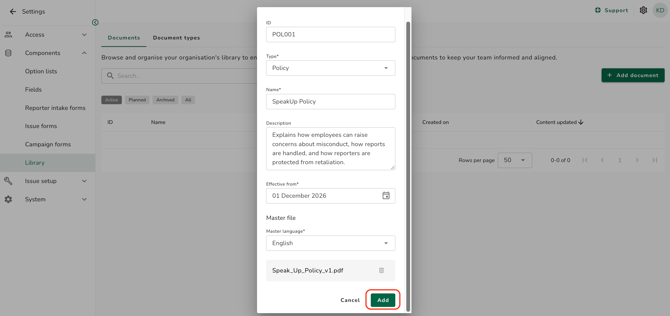
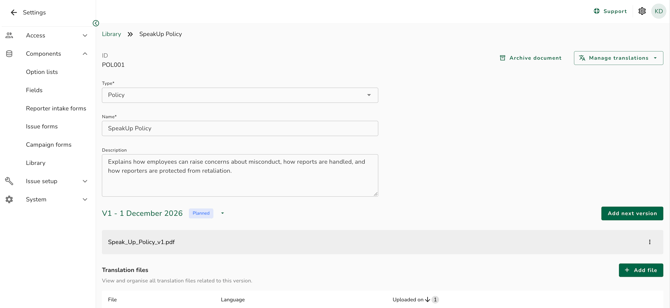
- A new Document is not shown to anyone in the Employee Hub until you publish it (How do I show a Library document in the Employee Hub?). Users see it in Workspaces as soon as a version is live.
- Two Documents can carry the same name. The ID is what identifies a Document.
- An ID is never reused, including one held by a Document that has been archived or deleted.
To edit a Document's details:
- Click on the "Settings" icon at the top right corner
- Go to "Components" on the menu and click on "Library"
- Click on the Document you want to edit
- Change the "Type", the "Name" or the "Description"
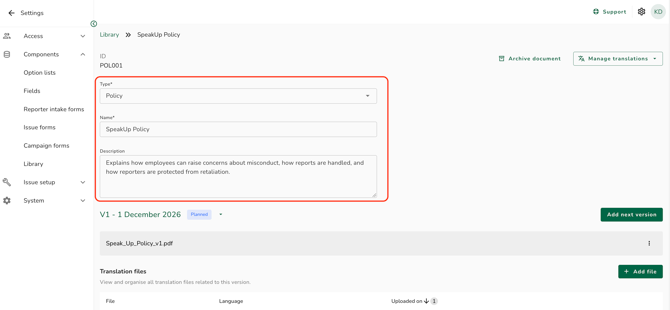
- Click outside the field to save your change automatically.
The ID cannot be changed once the Document exists, and is shown as a read-only field. It is the handle people cite, so it always means the same Document.
To turn off translations for a Document's name or description:
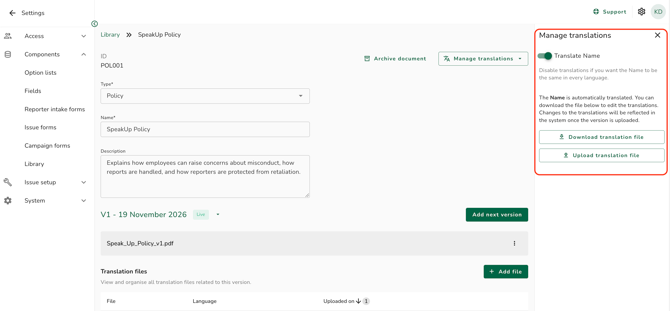
- Open the Document and click on "Manage translations"
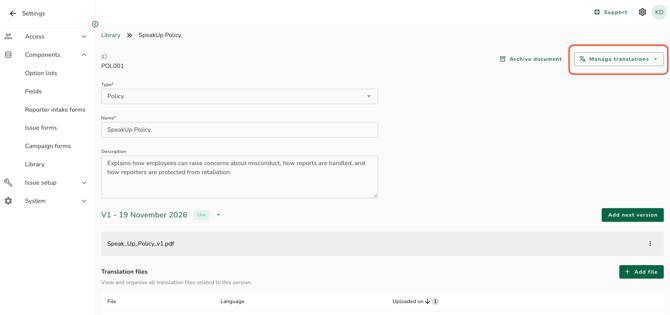
- Click the green toggle in the section for the name or the description
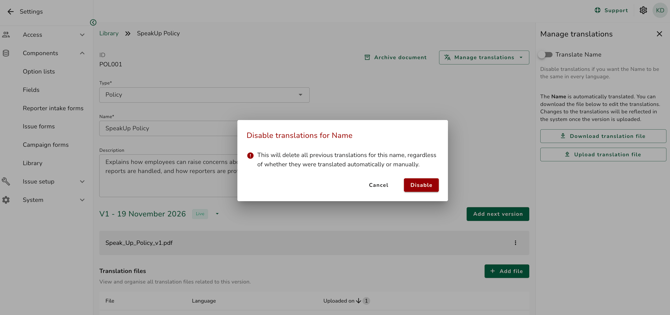
- Click on "Disable" to confirm
- The toggle will turn grey as confirmation.
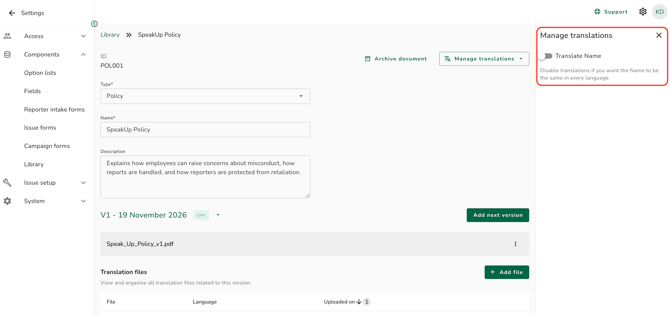
- Disabling deletes every translation of that field, whether it was machine-translated or uploaded by someone in your organisation. Turning translation back on starts from scratch.
- While translation is off for a field, everyone reads the text exactly as you typed it, whatever their language.
- Each section also lets you download the translations of that field and upload your own, so that you can correct a machine translation without turning translation off.
To archive a Document:
- Open the Document and click on "Archive document"
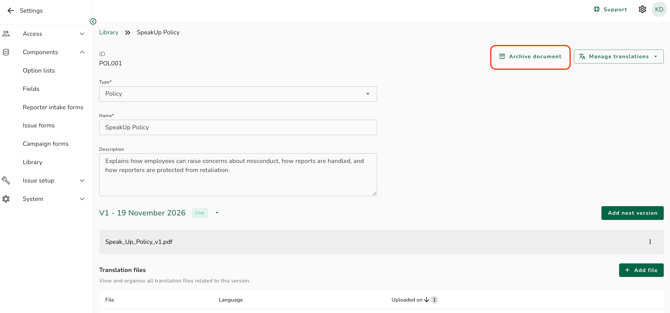
- Click on "Archive" to confirm
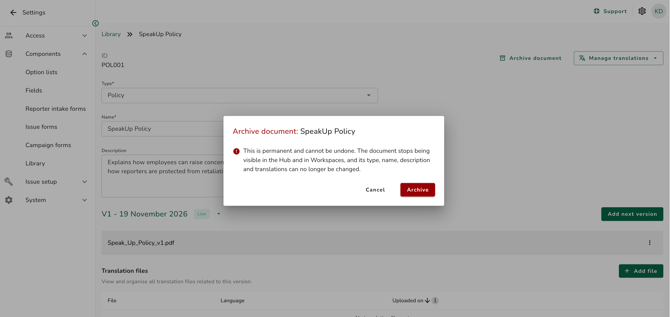
Archiving cannot be undone. The Document stops being visible in the Employee Hub and in Workspaces, its type, name, description and translations can no longer be changed, and no new versions or translation files can be added.
A version scheduled for a future date will never publish.
To delete an archived Document:
- Set the status filter to "Archived" and click on the Document
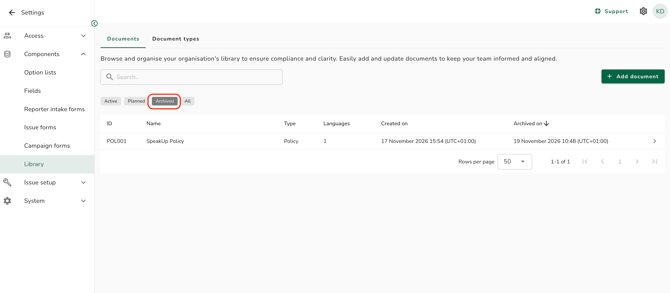
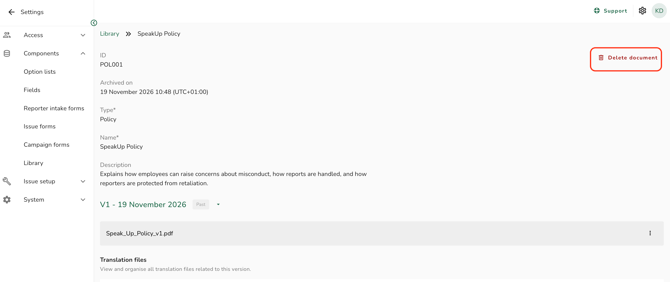
- Click on "Delete document"
- Click on "Delete" to confirm
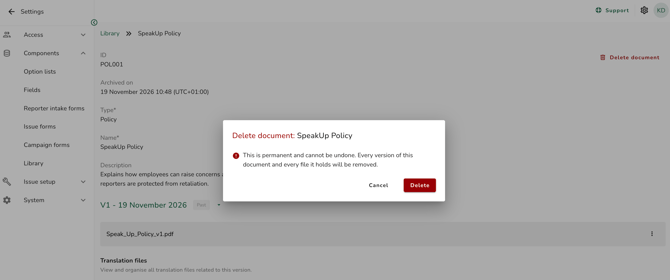
Every version of the Document and every file it holds is removed, and this cannot be undone.
The Document's ID stays reserved.
A Document that is Active or Planned cannot be deleted; archive it first.
Refer to How do I manage the versions and files of a Document? to learn more.
How do I create and manage library Document types?