
To add a new version:
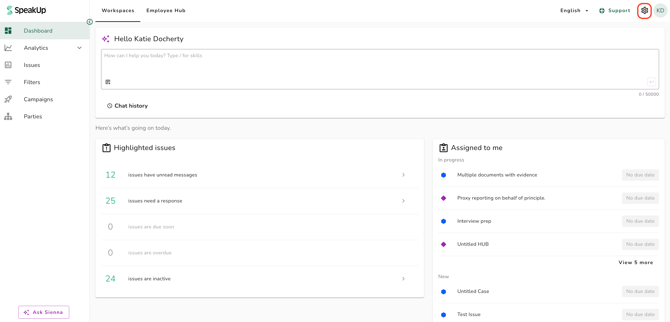
- Click on the "Settings" icon at the top right corner
- Go to "Components" on the menu and click on "Library"
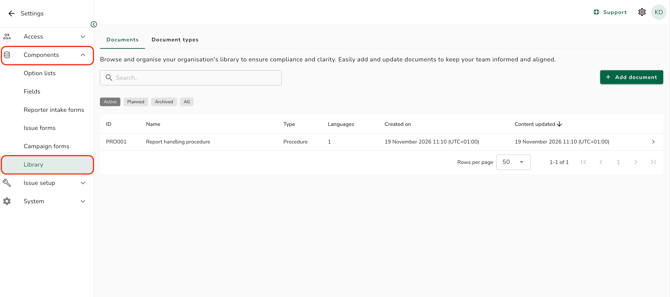
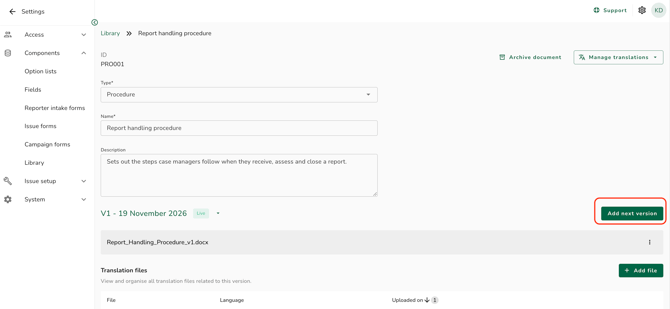
- Click on the Document you want to revise
- Click on "Add next version"
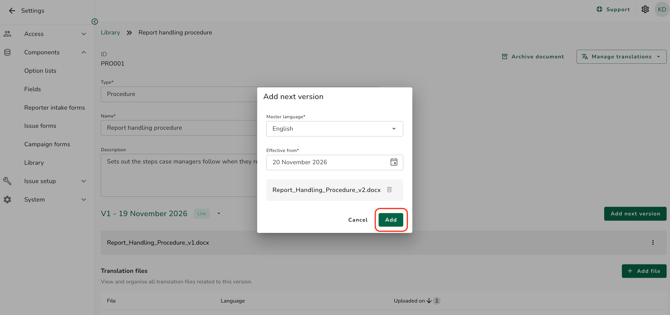
- Upload the master file and select the language it is written in. PDF, DOCX, PPTX and XLSX files up to 25 MB are accepted
- Set the "Effective from" date. This cannot be in the past, and cannot be on or before the date of an existing version, so no two versions take effect on the same day
- Click on "Add" to complete the process
A version dated today becomes live for every reader straight away, and you are asked to confirm this first. A version dated in the future publishes at the start of that day without asking.
To change or cancel a planned version:
- Open the Document and use the version selector to choose the planned version. Each version is listed with its version number and effective date.
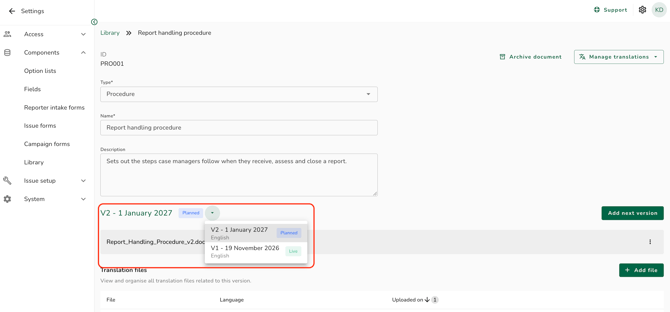
- Click on the three dots menu on the master file
- Click on "Edit effective date" to move the publication, or "Delete version" to cancel it
- Confirm your choice
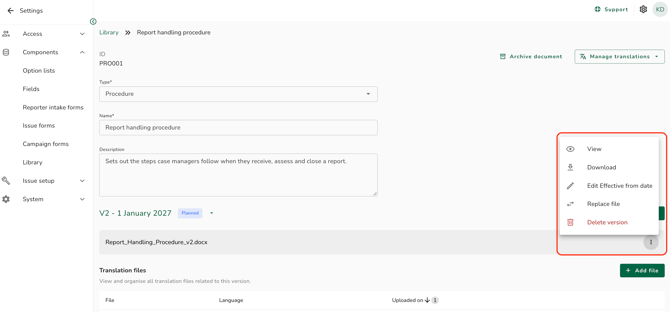
Only a planned version can be changed or cancelled. A live or past version stays in the record permanently, which is what lets your organisation show which policy was in force on a given date.
To replace the master file:
- Select the live or planned version and click on the three dots menu on the master file
- Click on "Replace file" and upload the new file
- Click on "Replace" to confirm
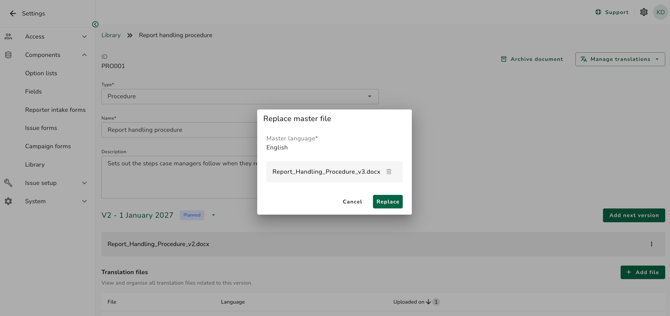
The file you replace stays in the record beneath the new one, so you can still see what was published before. A file's language cannot be changed while you replace it. On a past version you can view and download the master file only.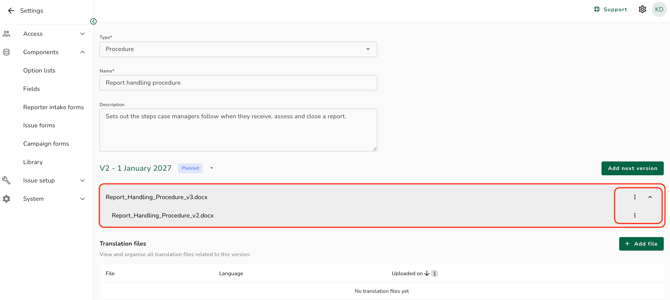
To add a translation file:
- Open the Document and select the version you want in the version selector
- Click on "Add file" in the "Translation files" section
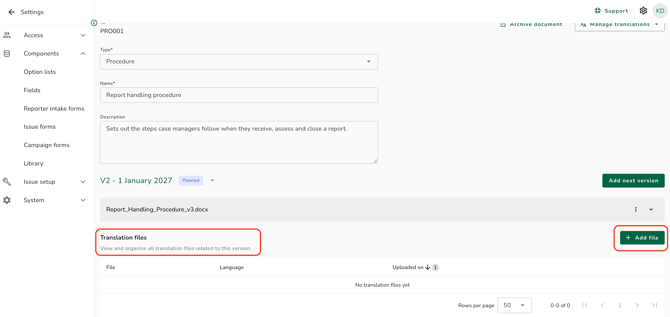
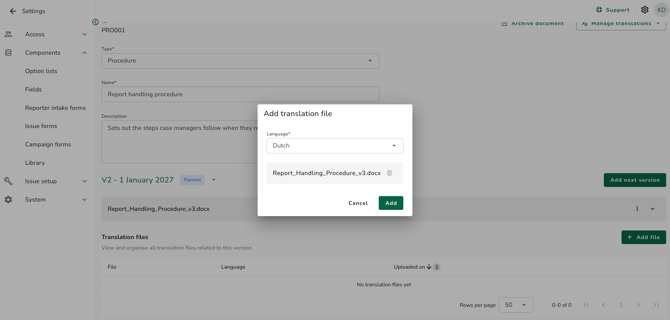
- Select the language. If that language already holds a file in this version, an error appears as soon as you select it, and you should use "Replace file" on that file's row instead
- Upload the file and click on "Add" to complete the process
Translation files are not scheduled. A translation file is live as soon as the version it belongs to is live.
To replace or remove a translation file:
- Click on the three dots menu
- Click on "Replace file" to upload a corrected file, or "Remove file" to take the language away
- Confirm your choice
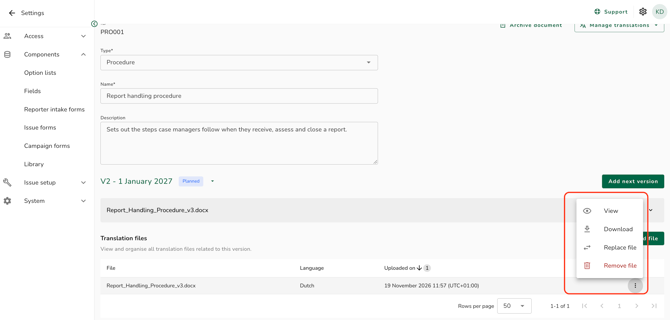
- Removing takes away that language's current file and every earlier file beneath it, and people reading in that language see the master file instead. This cannot be undone.
- To correct a file's language, remove the file and add it again.
- Translation files can only be changed on a live or planned version. On a past version you can view and download them only.
- Refer to How do I create and manage a Document? to learn more.
This feature is available on certain packages. To find out more, contact your Customer Success Manager by clicking “Support” and “Contact support”.