
Sienna is an AI chat assistant built into SpeakUp that lets you ask questions about your compliance data in plain language and get back charts, tables, or summaries.
Sienna only ever shows you data you already have access to, so insights stay within your permission scope.
What can Sienna do?
You can ask Sienna questions like:
- "Has there been an increase in fraud cases this year?"
- "Show me a breakdown of issues by allegation type."
- "Which issues have been open for more than 90 days?"
Sienna picks the most useful format for your answer. Depending on your query, it will respond with a chart, a table of individual cases or reports, a short text summary, or a combination of these.
How do I access Sienna insights?
Sienna needs to be activated for your organisation before you can use it. To request activation, click “Support” and then “Contact support”.
There are two ways to access Sienna Insights:
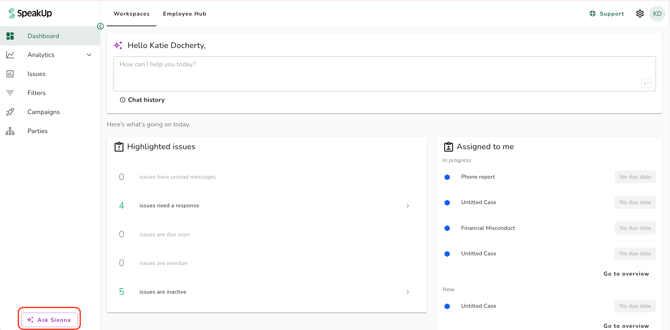
- Click "Ask Sienna" at the bottom of the main sidebar navigation. This is accessible from anywhere in your workspace and opens Sienna as a fullscreen chat.
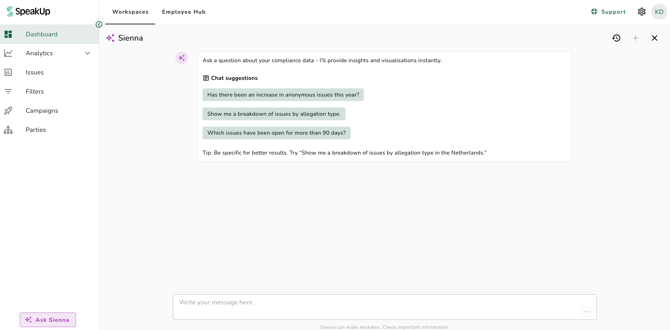
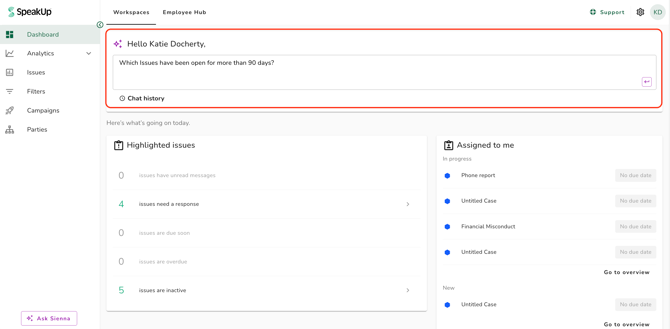
- Type a question directly into the Sienna widget at the top of the dashboard. Submitting it opens the fullscreen chat with your question already submitted.
How does Sienna handle ambiguous questions?
When your question could be interpreted in more than one way, for example, a vague timeframe or a metric that could mean different things. Sienna picks the most likely interpretation and continues. It tells you what it assumed and surfaces the alternatives in a callout inside the response, so you can correct it if needed without being blocked.
If your organisation has multiple fields with similar or overlapping content, Sienna will base its answer on the most populated field and tell you which field it used. If you would prefer a different field, you can reference it directly in your next question.
How do I access past conversations?
Sienna saves all your conversations automatically. You can browse and reopen any previous conversation from the conversation history panel within Sienna: 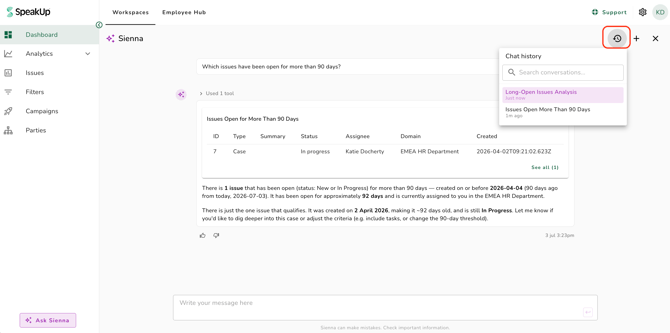
Or by clicking "Chat history" in the Sienna widget at the top of the dashboard: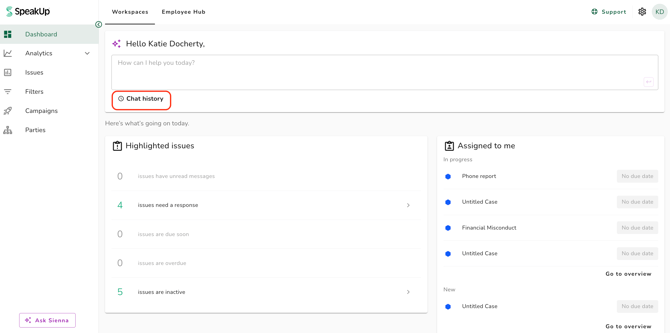
Can I save a Sienna chart to Analytics?
When a Sienna response includes a chart, you can:
-
Export this as a PNG
-
Download CSV
-
Save to view
Saving it adds the chart to your Analytics views so you can reuse it in dashboards and reports: 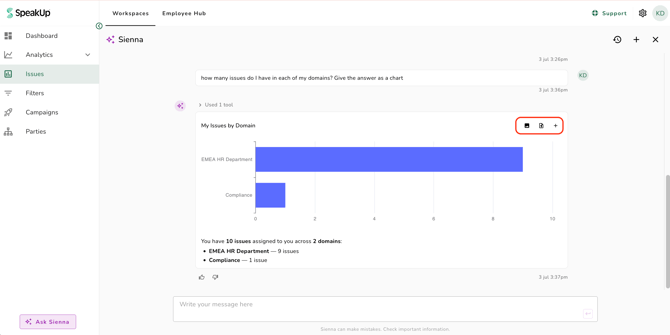
What are the current limitations?
Sienna is designed to answer questions about your compliance data, but there are some things it cannot do yet:
- Filters are not carried over when saving to Analytics. When you save a Sienna chart to an Analytics view, the chart configuration is saved but any filters applied in Sienna's underlying query are not transferred to the resulting Analytics view. You may need to apply filters manually in Analytics after saving.
- Sienna does not take actions. It provides insights only. It cannot open, close, assign, or modify Issues.
- Some data is not yet available to Sienna, including issue comments, messages, history, currency and number fields, and campaign data.
- Refer to How do I configure Company context for Sienna? if you are an organisation Administrator looking to tailor Sienna's responses to your organisation's structure and terminology.
- Sienna only shows data within your existing permission scope. It cannot expose data from other organisations, roles, or regions you do not have access to.
- You can give feedback on any Sienna response using the thumbs-up ("Like answer") and thumbs-down ("Dislike answer") controls beneath each response. On both thumbs-up and thumbs-down, you will be asked to provide a reason.
Sienna can make mistakes. It is always important to verify information.