
Before you configure SSO, it must first be activated for your organisation by SpeakUp. Please contact SpeakUp Support by click "Support" and "Contact support" in your SpeakUp system to request the activation.
Single Sign-On (SSO) lets your users access SpeakUp with their existing work credentials instead of a separate password.
To configure SSO, you need an Identity Provider that supports SAML (such as Microsoft Entra ID, Google, or Okta) and the Administrator role in SpeakUp.
The successful implementation of SSO is a shared responsibility. SpeakUp provides guidance, but the actual setup on the Identity Provider side is carried out by your IT team.
Only a User with the Administrator role can configure SSO. Give this role to your IT expert.
Configure your first Identity Provider:
- Click on the "Settings" icon in the top right corner.
- Go to "System" on the menu and click on "Security".
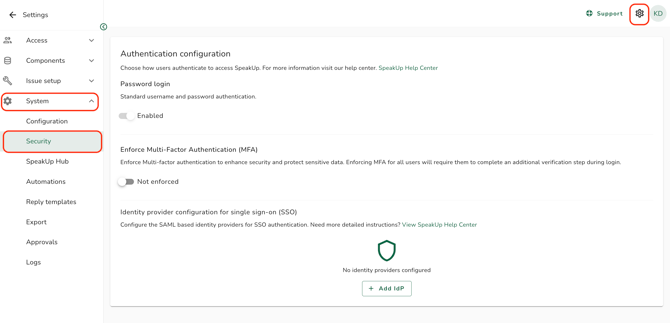
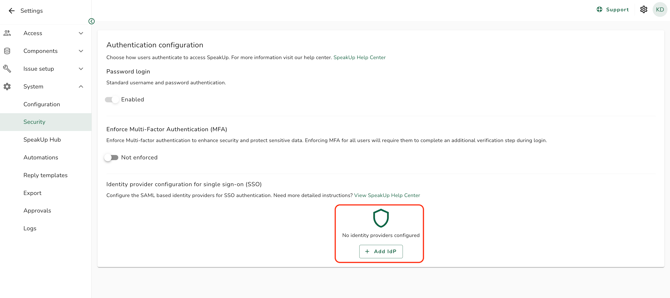
- Click on "+ Add IdP".
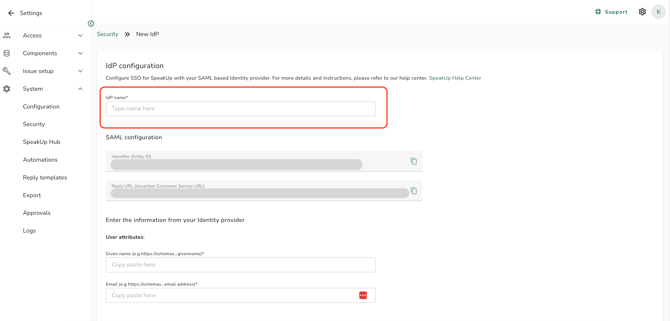
- Enter a name for the Identity Provider in the "IdP name" field. The name must be unique within your organisation and is limited to 50 characters.
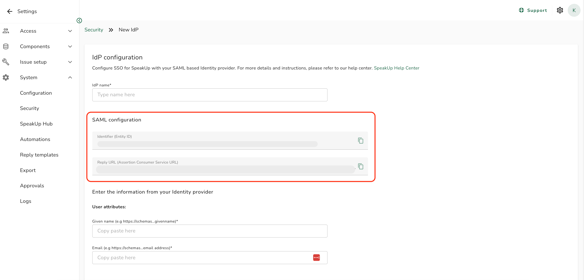
- Copy the SAML configuration details and use them to set up SpeakUp as an application in your Identity Provider:
- Identifier (Entity ID)
- Reply URL (Assertion Consumer Service URL)
- When the Identity Provider is configured on your side, fill in the "User attributes" fields. These values come from your Identity Provider and can be text or URLs:
- Given name (examples:
givenname, or a SAML claim URL - avoid using only firstname) - Email (examples:
email,primaryemail, or a SAML claim URL)
- Given name (examples:
- Paste the federation metadata URL from your Identity Provider into the "URL" field. If your Identity Provider provides a metadata document instead of a URL, make the file publicly accessible and paste its URL here.
- Optionally, map one or more email domains to this Identity Provider. Mapping a domain is required only if you plan to add additional Identity Providers later, or combine SSO with password login. Refer to How do I map email domains to an Identity Provider? for details.
- Click on "Configure IdP". This will add the IdP to SpeakUp, but the SSO will not be enabled yet.
- Test the configuration before enabling it. Refer to How do I test if the SSO configuration is working properly? for instructions.
- Click on "Enable IdP".
Good to know:
- SSO is SAML-based. Your Identity Provider must support SAML.
- SpeakUp is hosted on AWS.
- Once enabled, the Identity Provider can be edited or removed later. Refer to How do I edit or remove an Identity Provider?.
- You can add up to 10 Identity Providers per organisation. Refer to How do I add an additional Identity Provider?.
- By default, enabling SSO turns off password login. You can re-enable password login afterwards if you have users who are not in your Identity Provider. Refer to How do I enable password login alongside SSO?.
- User attributes (Given name and email) are read from the Identity Provider at a User's first login and stored in SpeakUp. If the attribute mapping or the User's name in the Identity Provider changes later, the name stored in SpeakUp is not automatically updated. Only the email identifier is used for matching the account on subsequent logins.
- SpeakUp only supports SP-initiated flows (logging in directly from our login page). Therefore, not IdP-initiated login (directly from the Identity Provider's central dashboard or portal).
- The SSO certificate has an expiration date. Renew it before expiry to avoid service interruption; reach out to SpeakUp if it has already expired.